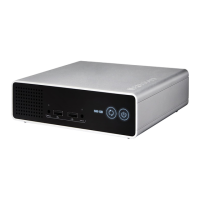
Freecom Network Drive Pro
Chapter 5: Network Drive Pro in everyday use
5.1. Using the Network Drive Pro behind a router
5.1.1 Connecting the hardware
1. Connect a RJ45 cable to a LAN port on your router.
2. Plug the other end of the cable into the LAN port on the Freecom Network Drive Pro.
3. Once the Network Drive Pro is configured, you can connect the network PC to the
Network Drive Pro or your router.
5.
1.2 Using a fixed IP address
Preparation
1.
Check the 'DHCP' box under TCI/IP Settings in your computer's network settings. For
more details, refer to Appendix B in this manual.
2.
Connect your PC to the Network Drive Pro.
3. Open the Internet browser and start the Configuration menu for the Network Drive
Pro (factory defaults: http://NetDrive or. http://192.168.1.1).
4.
Open 'Connection' -> 'Basic Setup' and select 'Use fixed IP address'.
5. Open 'Connections' -> 'Basic Setup' and select an IP address for the Network Drive Pro.
To prevent conflicting IP addresses in your network, make sure the LAN
IPs for your Network Drive Pro and router are different.
Use the following settings:
IP address Enter an IP address that lies within the your router's ad-
dress range; if the router's IP address is 192.168.2.1, enter
192.168.2.100 for your Network Drive Pro.
This IP address allows you to access to the Network Drive
Pro from anywhere in your local network.


 To Next Page