Freecom Network Drive Pro
5.1.3 Using DHCP
An alternative to using a fixed IP address is assigning your Network Drive Pro a dynamic IP address
through your router. You will need to enable your router's DHCP server before using the Network Drive
Pro as a DHCP client behind the router! For further details, please refer to your router's manual.
Before getting start
1.
Check the 'DHCP' box under TCP/IP Settings in the network settings of your PC. For
more details, refer to Appendix B in this manual.
2.
Connect your PC to the Network Drive Pro.
3. Open the Internet browser and start the Configuration menu for the Network Drive
Pro (default: http://NetDrive or http://192.168.1.1).
4.
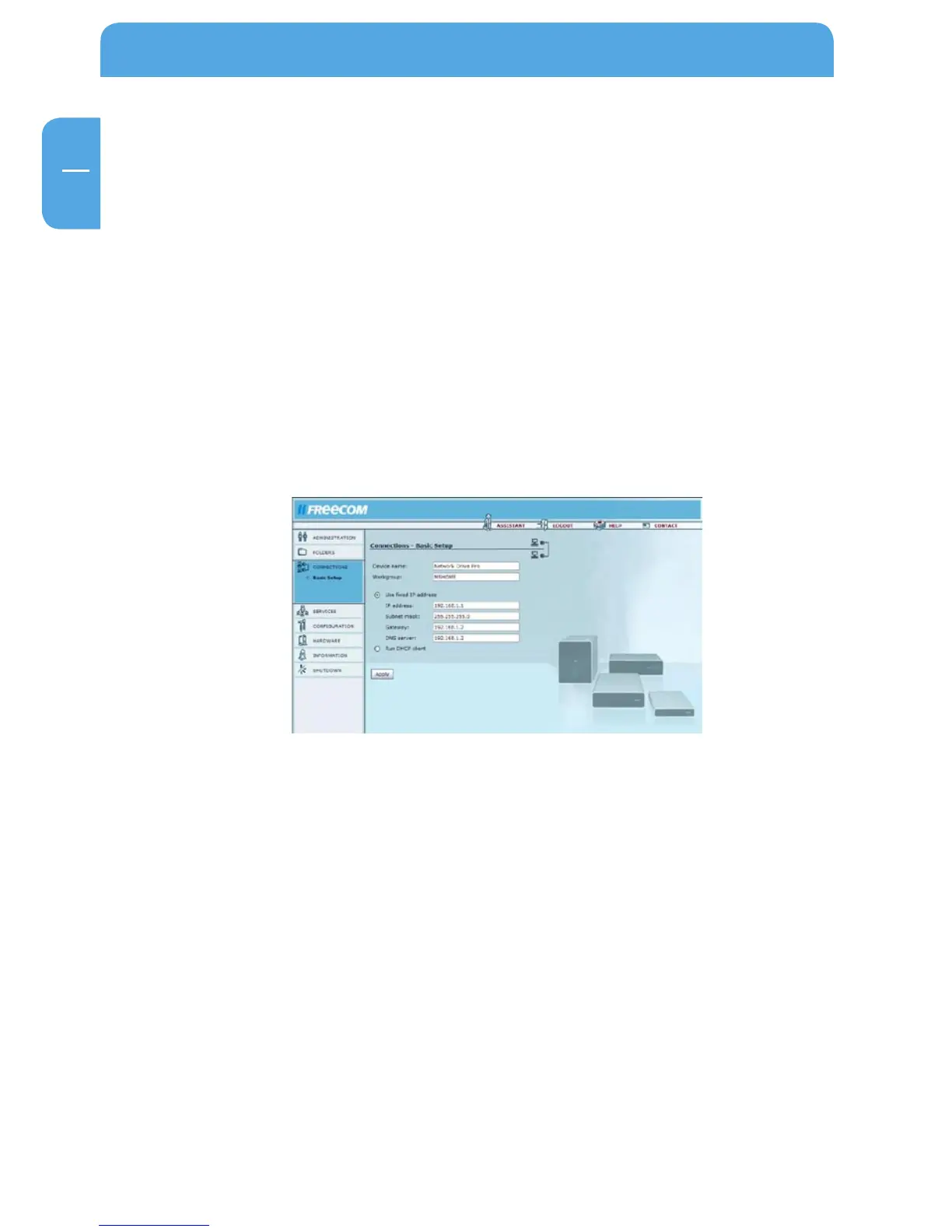
Go to 'Connections' -> 'Basic Setup' and choose 'Run DHCP Client'. Click 'Apply'. Your
Network Drive Pro is now assigned an IP address by your router.
5.
Enable the DHCP server on your router's Configuration window. For more information
on this topic, please refer to your router's manual.
6.
Connect your Network Drive Pro to a LAN port on your router.


 To Next Page