Appendix
Check the TCP/IP properties
To check the computer's TCP/IP configuration:
1.
Click 'Start' in the Windows taskbar and then press 'Run'. The 'Run' screen opens.
2. Enter 'cmd' and then click 'OK'. A command window appears on the screen.
3. Type in ipconfig /all. Your configuration details are displayed and should be as follows
if you are using the default settings for TCP/IP recommended by Freecom:
4.
The IP is between 192.168.1.2 and 192.168.1.254.
5. The subnet mask is 255.255.255.0.
6. The standard Gateway is 192.168.1.1.
7. Type in exit.
MacOS 8.6 or 9.x
With Macintosh OS 7 and higher, TCP/IP comes preinstalled on the Macintosh. To use
DHCP, you need to configure TCP/IP on each Macintosh in the network.
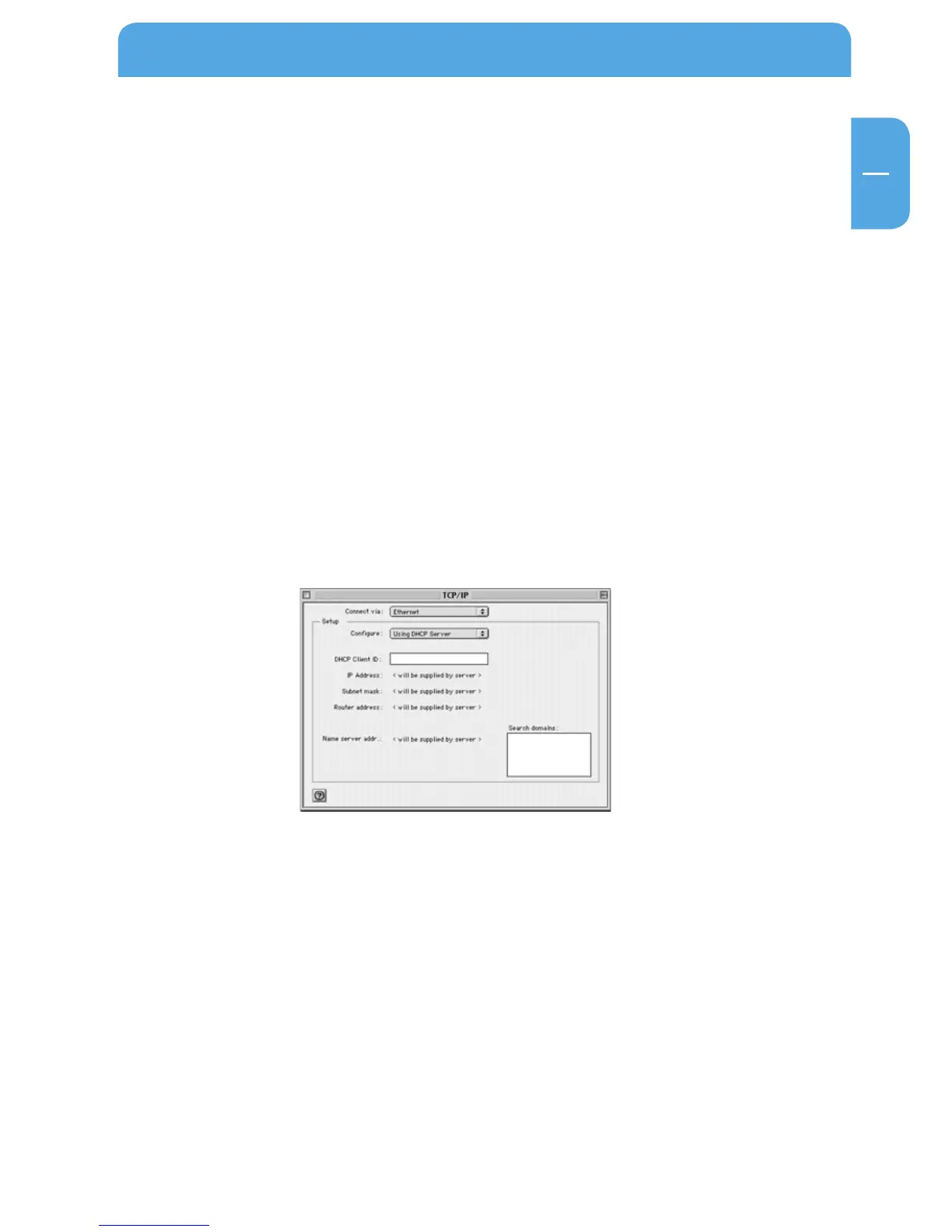
1. Open Apple's 'System Preferences' and hit 'TCP/IP'. System Preferences TCP/IP opens:
2.
In the 'Connect via' field, select the Macintosh Ethernet interface.
3. Select 'Use a DHCP server' in the 'Configure' field. You may leave the DHCPClient ID
field blank.
4.
Close System Preferences-TCP/IP.
5. Repeat these steps on each Macintosh in your network.


 To Next Page