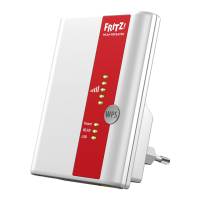
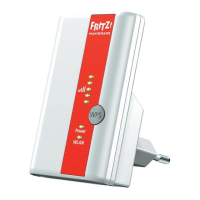
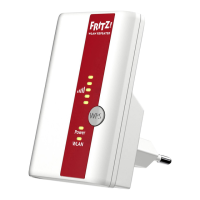
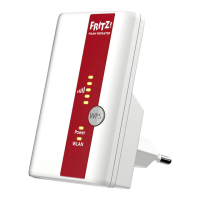
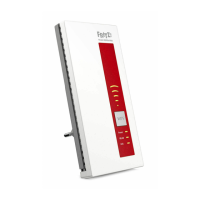
1. Plug the FRITZ!WLANRepeater310 into
an outlet near your wireless router (for
instance, FRITZ!Box).
2. Start Wi-Fi on your computer, select the
Wi-Fi network of your FRITZ!WLANRe-
peater310 and establish a connection.
3. Enter the network key. In the FRITZ!W-
LANRepeater310 the network key is
preset to 00000000 (eight zeros).
The computer establishes a connection
to the FRITZ!WLANRepeater310. As
soon as the connection is active, the
“Power”, “WLAN” and “
” LEDs
light up.
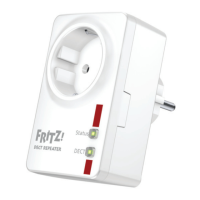
4. Insert the FRITZ!Repeater into an
outlet located about halfway between
the wireless router and the wireless
devices to be added to the Wi-Fi
network.
Starting the Conguration Wizard
1. Open the web browser on your comput-
er and enter http://fritz.repeater in the
address bar.
2. The conguration wizard appears and
guides you through setup of the Wi-Fi
connection between the FRITZ!W-
LANRepeater310 and your wireless
router.
The FRITZ!WLANRepeater310 is ready for
operation.
Connecting the FRITZ!WLANRepeater310 with Wi-Fi Using
the Wizard
In the Home Network of a FRITZ!Box
z In the home network of a FRITZ!box with current FRITZ!OS version 6.90 or higher, the
FRITZ!WLANRepeater310 benets from expanded Mesh functionality.
z The FRITZ!Box and the FRITZ!WLANRepeater310 connect to form a uniform Wi-Fi net-
work with a single name (SSID) and password, called the Mesh
.
z In the Mesh, the FRITZ!Repeater automatically adopts the settings and changes to set-
tings on the FRITZ!Box and Wi-Fi performance is improved.
z Updates for the FRITZ!WLANRepeater310 can be performed directly in the FRITZ!Box
user interface under “Home Network / Mesh”.
z More about the Mesh is presented at en.avm.de/mesh-networking.
FRITZ!WLANRepeater310 in the Home Network
76





 To Next Page