4.2 Loading Paper 79
8. Press the <Menu> button to return to the
print screen.
Setting the Paper Size of the Tray 1
Use the following procedure when setting the paper size for the tray 1.
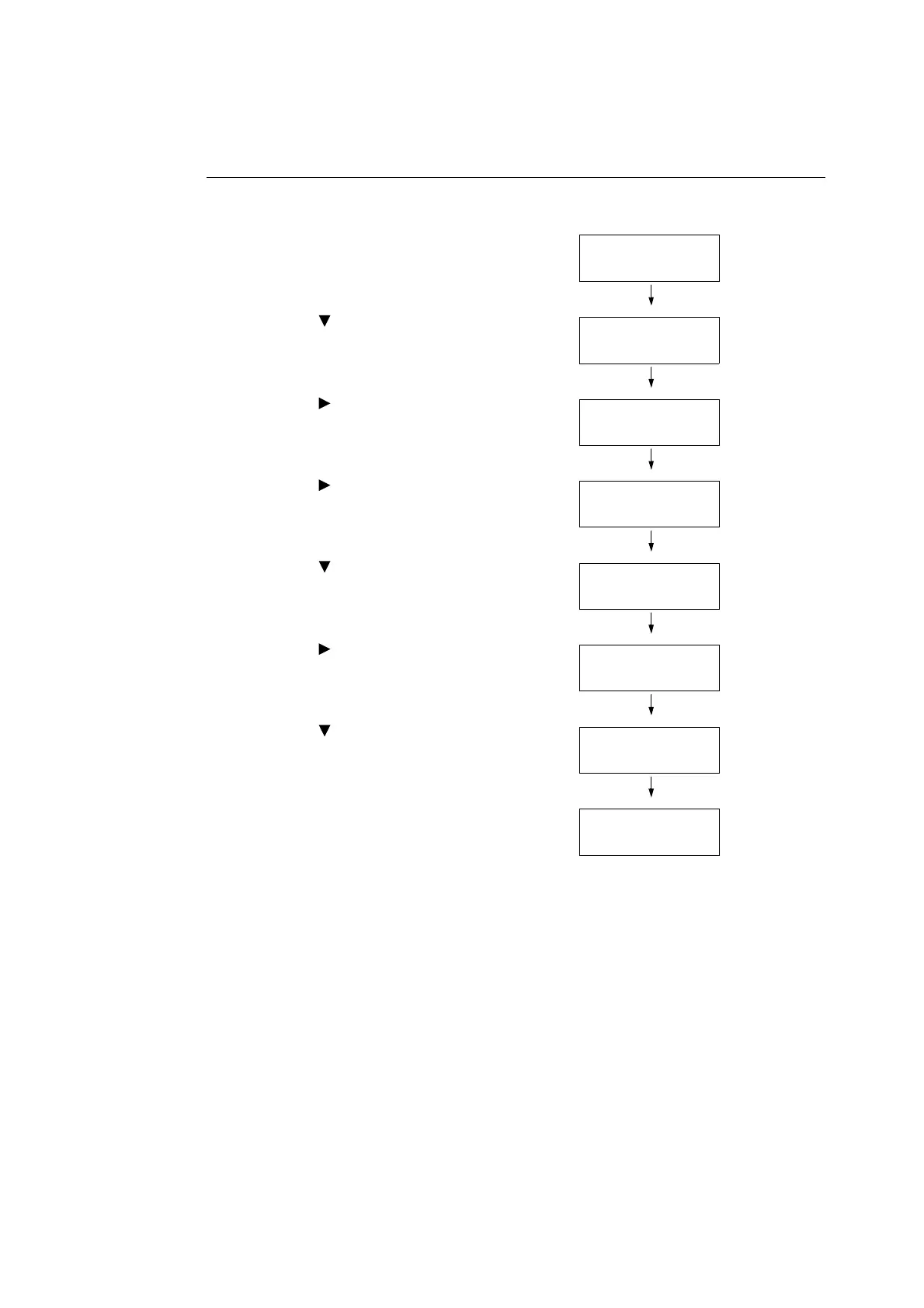
1. Press the <Menu> button on the control
panel to display the menu screen.
2. Press the < > button until [Tray Settings]
is displayed.
3. Press the < > or <Eject/Set> button to
accept the selection.
[Tray 1] is displayed.
4. Press the < > or <Eject/Set> button to
accept the selection.
[Paper Type] is displayed.
5. Press the < > button until [Paper Size] is
displayed.
6. Press the < > or <Eject/Set> button to
accept the selection.
The current settings is displayed.
7. Press the < > button until the correct
paper size and orientation are displayed for
the loaded paper.
(Example: 8.5 x 11" P)
8. Press the <Eject/Set> button to confirm
your selection.
Note
• When using custom size paper, select [Custom Size]
and specify the length (Y) and width (X).
9. Press the <Menu> button to return to the
print screen.
Menu
Report / List
Menu
Tray Settings
Tray Settings
Tray 1
Tray 1
Paper Type
Tray 1
Paper Size
Paper Size
A4 Portrait *
Paper Size
8.5 x 11" P
Paper Size
8.5 x 11" P *



 To Next Page
 Loading...