EasyManua.ls Logo

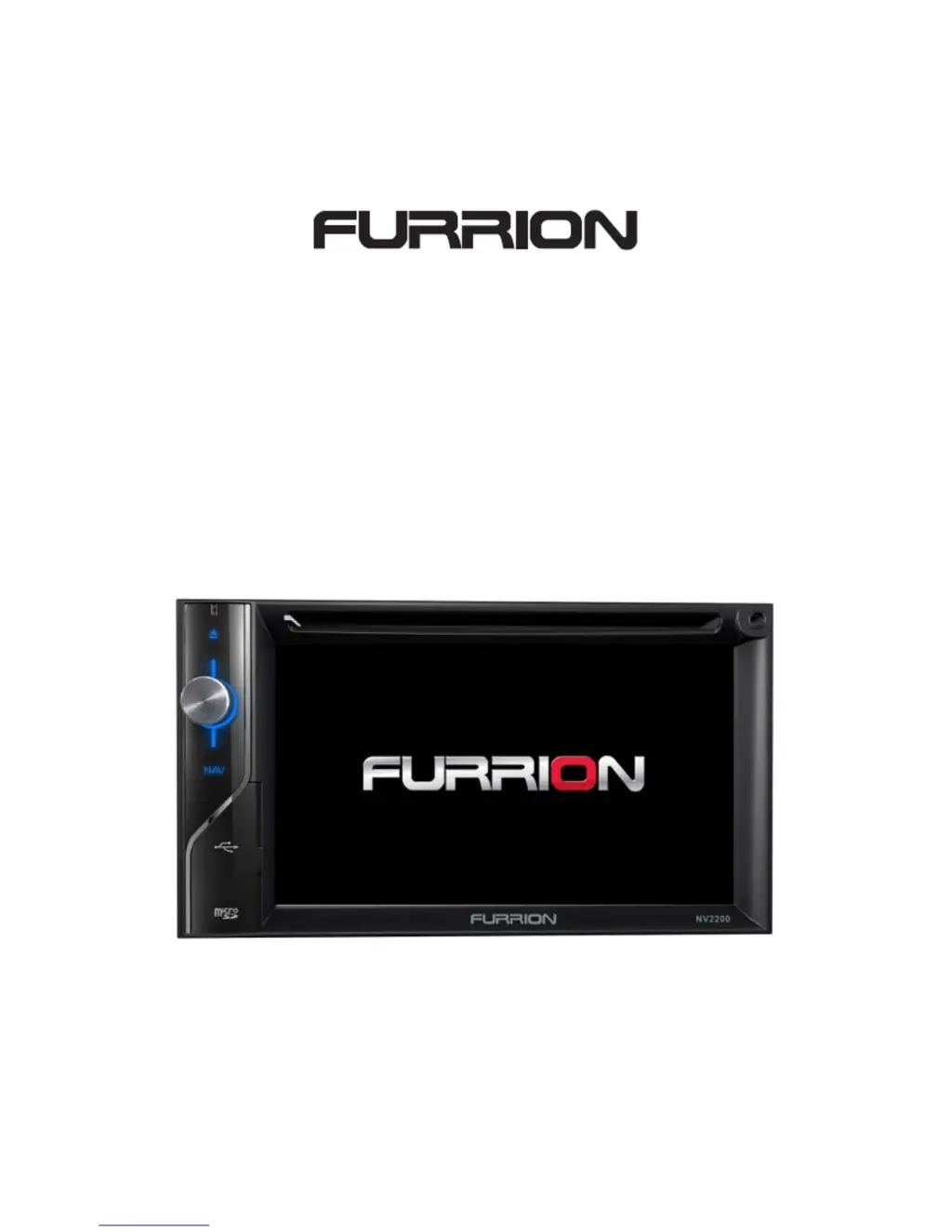
Furrion NV2200 - User Manual

Furrion NV2200
75 pages
Print Icon
To Next Page IconTo Next Page
Loading...
N
N
V
V
2
2
2
2
0
0
0
0
N
N
A
A
V
V
I
I
G
G
A
A
T
T
I
I
O
O
N
N
S
S
Y
Y
S
S
T
T
E
E
M
M
O
O
W
W
N
N
E
E
R
R
S
S
M
M
A
A
N
N
U
U
A
A
L
L

Questions and Answers

  • M
    michelemorrisSep 23, 2025
    Why does the remote control for my Furrion NV2200 Car Navigation system not function?
    • M
      mark08Sep 23, 2025
      If the remote control for your Furrion Car Navigation system isn't functioning, check if the battery is covered with insulation and pull it out. If that's not the issue, replace the battery with a new one. If the problem persists, remove the battery and install it correctly.
  • D
    David CastroAug 23, 2025
    What to do if my Furrion NV2200 Car Navigation system has no or low audio output?
    • H
      heather08Aug 25, 2025
      If you are experiencing no or low audio output from your Furrion Car Navigation system, consider the following: * Check the wiring and connections to ensure they are properly connected. * Increase the volume level, as it may be set too low. * If only one channel is playing, check the balance and fader adjustments. * Inspect the speakers for damage and replace if necessary. * Ensure that the speaker wiring is not in contact with any metal parts of the car; insulate the connections or replace the speaker cable if needed.
  • E
    Elizabeth DavisAug 25, 2025
    Why is the sound quality poor or distorted on my Furrion NV2200 Car Navigation system?
    • H
      Heidi CarterAug 26, 2025
      If you're experiencing poor sound quality or distortion with your Furrion Car Navigation system, it could be due to several reasons. First, check if you are using an original disc, as unauthorized discs can cause this issue. Second, ensure that the speaker power rating is compatible with the unit; if not, connect proper speakers. Lastly, check the speaker connections to make sure the speaker is not shorted.
  • M
    Mary WeaverAug 27, 2025
    How to improve weak station searching on Furrion NV2200?
    • C
      Cheryl LittleAug 27, 2025
      If your Furrion Car Navigation system is showing weak station searching, there are a few things you can check. Ensure that the auto antenna is properly connected. Also, verify that the adapter with the antenna power supply is correctly connected. Finally, make sure that the AF (Automatic Frequency) function is activated.
  • L
    lgrossAug 27, 2025
    What to do if Furrion Car Navigation system disc does not play back?
    • P
      Patrick WhiteAug 27, 2025
      If your Furrion Car Navigation system is not playing a disc, it could be due to several reasons. Check if the disc is warped, scratched, dirty, or wet; use a disc in good condition and clean it with a soft cloth if necessary. Also, ensure you are using a compatible disc. Clean the laser pickup with a cleaning disc. Finally, verify that the disc region code is compatible with the unit.
  • N
    nmarshallSep 15, 2025
    How to fix weak station searching on my Furrion NV2200?
    • D
      djonesSep 15, 2025
      If your Furrion Car Navigation system is exhibiting weak station searching, ensure the auto antenna is properly connected. Also, check if the REG function is activated and turn it off.
  • C
    Christopher HorneSep 12, 2025
    What to do if my Furrion Car Navigation system has no image?
    • T
      Todd SanchezSep 13, 2025
      If your Furrion Car Navigation system displays no image, ensure that the parking brake is engaged. Stop the vehicle in a safe place and apply the parking brake. Also, verify that the parking wire is correctly connected. If the issue persists, check if the “Monitor off” function is activated and touch the monitor to activate the display.
  • K
    Kimberly YoungSep 14, 2025
    Why does my Furrion Car Navigation system have poor sound quality or distortion?
    • A
      anamartinSep 14, 2025
      Poor sound quality or distortion in your Furrion Car Navigation system can be due to several reasons. Ensure you are using an original disc, not an unauthorized copy. Check that the speaker power rating is compatible with the unit and connect proper speakers if needed. Also, inspect the speaker connections to ensure the speaker is not shorted.
  • K
    Kimberly ButlerSep 5, 2025
    How to fix no audio output on Furrion GPS?
    • E
      Evan SwansonSep 5, 2025
      If you're experiencing no or low audio output from your Furrion GPS, here are a few things to check: * Ensure the audio output connection is properly wired and connected. * Increase the volume level, as it may be set too low. * Verify that the Mute function is not activated. * Check the balance and fader adjustments to ensure only one channel is not playing. Also, inspect the speakers for damage and replace them if necessary. Finally, ensure the speaker wiring is not in contact with any metal parts of the car; if it is, insulate the connections or replace the speaker cable.
  • C
    Cynthia HernandezSep 2, 2025
    What to do if I cannot insert a disc into my Furrion NV2200?
    • D
      Darren RiveraSep 3, 2025
      If you cannot insert a disc into your Furrion Car Navigation system, it is likely because there is already a disc inside. Eject the current disc and then insert the new one.

Summary

PRECAUTIONS

SYSTEM SPECIFICATIONS AND FEATURES

INSTALLATION AND USAGE REQUIREMENTS

OPERATIONAL PANEL AND CONTROLS

REMOTE CONTROL OPERATIONS

DVD Menu and Playback Controls

MAIN MENU OVERVIEW

DISC VIDEO PLAYER OPERATIONS

Disc Handling and Setup

Instructions for inserting, watching, ejecting discs, and system setup.

DVD Player Menu Controls

Playback Control (Play;Pause)

How to pause and resume video playback.

Chapter Navigation and Fast Playback

Content Search Functionality

How to search for specific chapters or titles within a DVD.

VIDEO FILES PLAYBACK

Video Files Player Menu Controls

Play;Pause Control for Video Files

How to pause and resume playback of video files.

File Navigation and Fast Playback

DISC AUDIO PLAYER OPERATION

Disc Handling and CD Player Screen

References disc operations and details the CD player interface.

CD Player Menu Controls

CD Audio Playback Control

Methods for pausing, resuming, and switching tracks for CD audio.

Track Number Search

MP3 DISC PLAYBACK CONSIDERATIONS

AUDIO SETUP

EQ Setup Menu Overview

Introduces the Equalizer settings for audio adjustment.

EQ Mode, Reverb, and Loudness Settings

Treble, Bass, and Subwoofer Controls

Fine-tuning audio frequencies and subwoofer output.

USB AUDIO OPERATIONS

Selecting USB Audio Mode

Steps to select and enable the USB Audio playback mode.

USB Audio Playback Interface

USB Audio Play;Pause Control

How to pause and resume playback of USB audio files.

USB Audio File Navigation and Fast Playback

USB Audio Track Number Search

USB VIDEO OPERATIONS

Selecting USB Video Mode

Steps to select and enable the USB Video playback mode.

Playing Video Files from USB

How to play video files stored on USB memory.

USB Video Playback Interface

USB Video Play;Pause Control

How to pause and resume playback of USB video files.

USB Video File Navigation and Seek Bar

USB Video Playback Control

USB Video Current File Information

USB Video File Number Search

How to search for USB video files using their numbers.

Playing USB Picture Files

BLUETOOTH AUDIO PLAYER OPERATIONS

Selecting Bluetooth Audio Mode

Steps to select and enable the Bluetooth Audio playback mode.

Bluetooth Audio Player Settings

Registering Bluetooth Audio Player (Pairing)

Bluetooth Device Pairing Process

Controlling Bluetooth Audio Playback

BLUETOOTH TELEPHONE OPERATIONS

Selecting Bluetooth Telephone Mode

Steps to select and enable the Bluetooth Telephone mode.

Bluetooth Telephone Settings

Automatic Phone Connection and Answer Settings

Registering Cellular Phone (Pairing)

Process for pairing cellular phones with the system.

Cellular Phone Pairing Process

Making Calls via Keypad

Making Calls Using Phone Book

Making Calls via Call History

How to call numbers from the dialed, received, or missed call logs.

RADIO OPERATIONS

Answering Incoming Calls

How to answer or reject an incoming phone call.

Listening to the Radio

Steps to access and operate the radio tuning functions.

Seek Tuning for Radio Stations

AUX INPUT OPERATIONS

CAMERA INPUT OPERATIONS

SETUP OPERATIONS

TROUBLESHOOTING GUIDE

General Troubleshooting (Power, Audio)

Solutions for power issues, low audio, and poor sound quality.

TFT Screen Display Issues

Solutions for screen problems like no image or incorrect aspect ratio.

MP3;CD Player Playback Issues

PRODUCT SPECIFICATIONS

Furrion NV2200 Specifications

General IconGeneral
Display Size7 inches
Resolution800 x 480 pixels
GPS NavigationYes
BluetoothYes
Wi-FiNo
Operating SystemWindows CE 6.0
BatteryRechargeable Lithium-Ion
USB PortYes
SD Card SlotYes