51834295_V_1_7.DOC
55/60
WAIT
This mode can be activated not only by setting the SPEED pot to its minimum value, but it can be assigned
to a function button as well. Which group it should affect can also be set by parameters.
After pressing it the SPEED time of the assigned groups will be the same as the WAIT time, so the light
beams will move in a program frame for exactly the same period of time as the framing.
PAGE
The pages of event groups can be switched not only by the PAGE button, but each page can be assigned to
one-one function button as well. If one wants to access the events fast, it is worth putting them to a function
button for him..
SMOKE
If one wants to control a smoke machine (or any dmx equipment) separately from the units, he can assign it
to a function button here. According to its parameter max. four smoke machine buttons can be provided, all
of them can be with max. 8 channels.
From here you can enter the setup menu pressing the ENTER button.
Automatic Mode
The events written in the menu can be launched in automatic mode according to the data set in the setup
menu, and the parameters of the launched events can be changed.
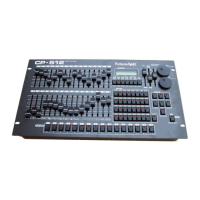
Function of some operating devices:
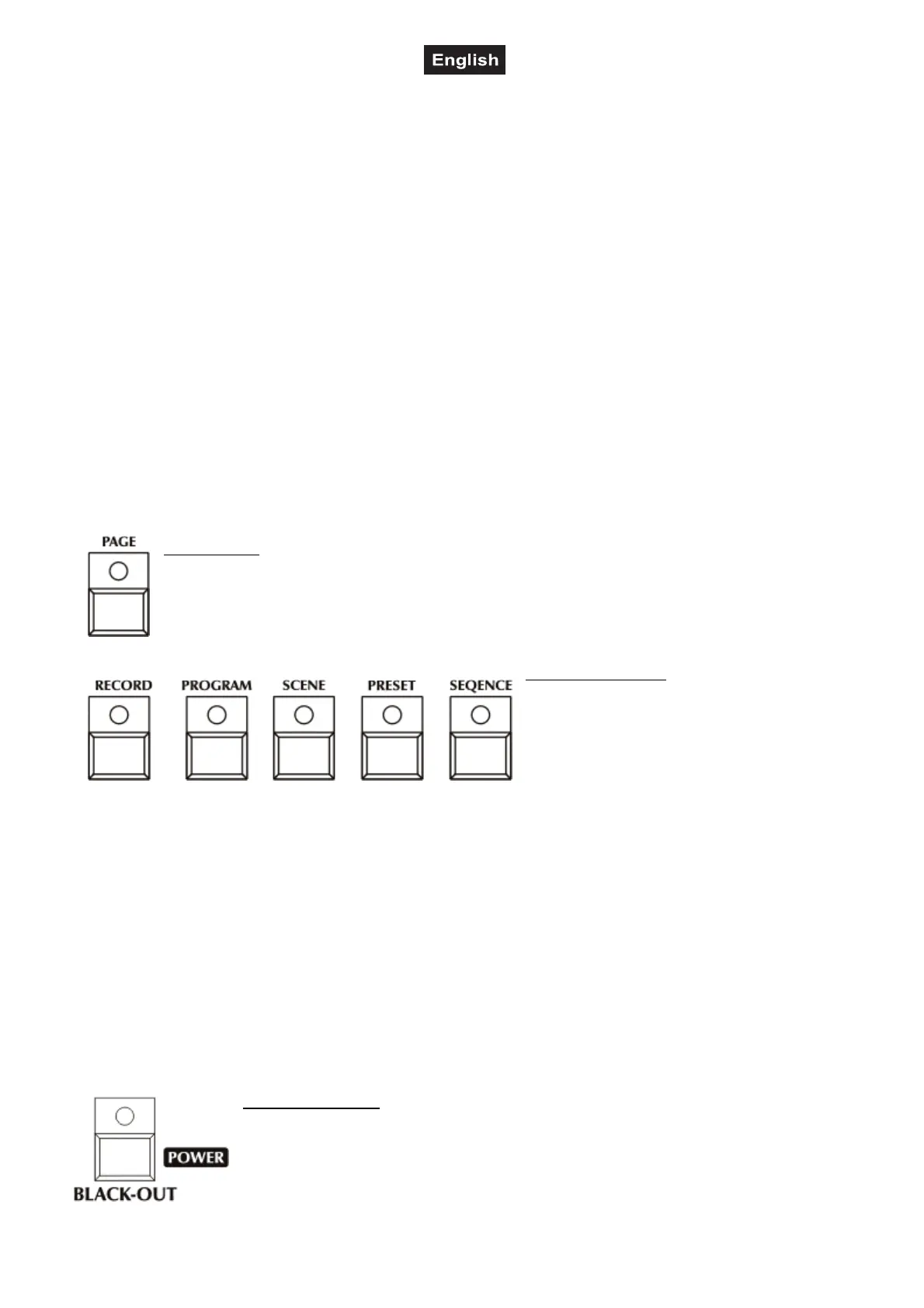
PAGE button: its LED glows at half intensity, then the events 1-64 can be launched with buttons
1-32. After pressing their LED start flashing, in the lower line of the display the ‘PAGE 33-64’
caption will appear for a short time, according to it the events 33-64 can be launched with buttons
1-32. After pressing again the ‘PAGE 01-32’ will appear, the events 1-32 can be launched again.
Event bank buttons: only one of the buttons
can be active, its LED glows with total
intensity, the other LED’s do it at half
intensity. By pressing them, they are able to
redeem each other. With buttons 1-16 the
event with an active event bank can be
started. After pressing the PROGRAM button
programs and after pressing the PRESET button preset scenes can be launched. The page has to be shifted
to launch an event with a serial number of 17 or a higher one. If you start an event, the event bank button will
blink. If you press the SEQUENCE button you can start sequences with buttons 1-16. If you press button one
its LED will blink and the SEQUENCE buttons´ LED will also blink. If you press PROGRAM the LED glows at
full intensity and the SEQUENCE LED will blink at half intensity. Now select programs. If a blinking event
bank button lights with full power and you press it, its event will stop. Except for the SCENE button, read
more in the part ‘Select program scene by one’.
Buttons 1-32: Events can be launched on them, always those that correspond to the current event bank. If a
LED does not glow, no event was written on it in the current event bank. If its LED glows at half intensity, an
event was written on it and it can be started by pressing the button, then its LED starts flashing. It can flash
at half intensity as well, which may occur if the corresponding program is running while you are selecting
another bank with the bank-selecting buttons. With this half-intensive flashing you indicate that the program
with this serial number is running, but not in the current bank.
BLACK-OUT button: its LED glows at half intensity, after pressing it, it starts flashing -
indicating that the black-out effect is switched on. In the lower line of the display the
‘BLACK OUT ON’ caption appears for a short time. Then on the set black-out
channels the set active values will get on the dmx line (these are usually the
SHUTTER channels and they have such values, at which the units do not let out any
light), which overload the value of the automatic channel and the manual one as well,
as well as the contingent switched-on strobe effect or sequence running. After


 To Next Page
 Loading...