23 04/15
CARD Suite Programming Software
General Description
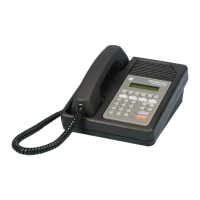
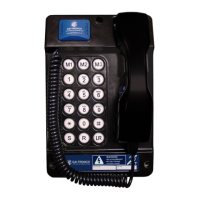
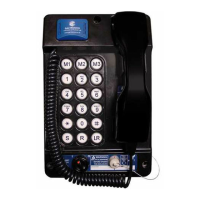
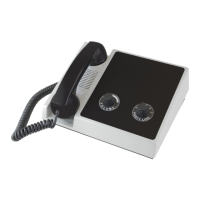
GAI-Tronics’ CARD Suite Programming Software, included in the No. XAC4000B Programming
Bundle Flash Drive, is needed to program some of the functions and parameter settings of the dispatch
equipment. It allows entry of operational programming data into your personal computer for transfer to
the equipment. The programmed data can be retrieved, edited, archived, and printed in hard copy for
record keeping. Detailed programming information can be found in CARD Suite’s Help file. The
following information is provides as guidance to initiate the programming application.
Connection
The GAI-Tronics equipment must be connected to your personal computer with the programming cable,
Part No. XAC0004A, before the programming software can be used. To make this connection, attach the
cable to the COM1 or COM2 connector on the computer. Connect the other end to the programming jack
on the GAI-Tronics equipment.
Installation
The minimum system requirement necessary to support the CARD Suite Software Application is
Windows 95 or newer. However, CARD Suite is not compatible with Windows NT. It is compatible
with Windows XP (Home or Professional), Vista, and Windows 7 when used in Virtual Mode.
The CARD Suite Programming Application components are contained on the No. XAC4000B
Programming Bundle Flash Drive. Please exit all other programs that are running until the installation is
complete.
1. Place the flash drive in the computer’s USB port.
Select the
START button and then select Run from the Start menu. At the prompt, type x:\software
select menu.exe where x represents the drive letter that is associated with your flash drive. A
CARD Suite icon should appear on the desktop display after successful installation.
2. After opening the program, select the appropriate product icon, click on File in the toolbar and select
New Archive to begin creating an archive.
3. Enter an archive description (name) and customer/site (name), select the method of creating the
archive (default values or reading a connected unit), and click Ok button to create the archive.
4. View the Help file for programming guidance.


 To Next Page