SYSTEM REQUIREMENTS
Android 8.0 or above
iOS 13 or above
Windows 7/8/10
Mac OS
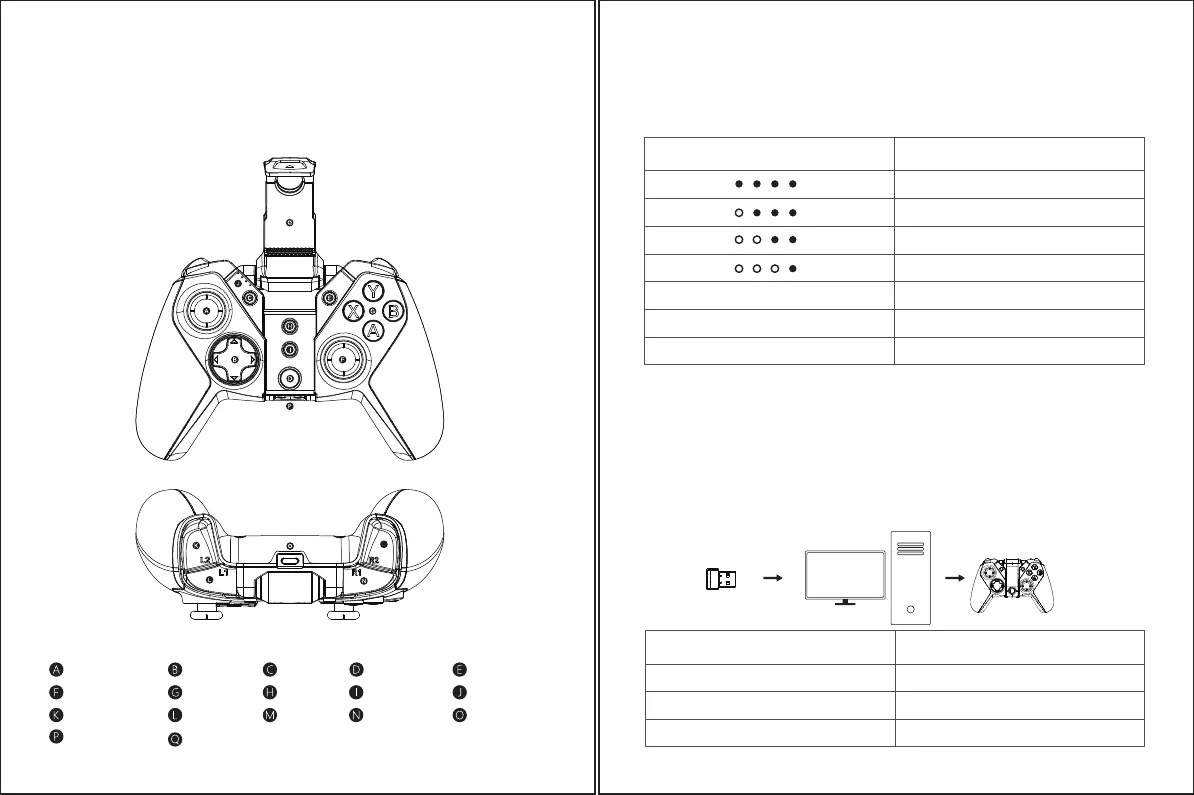
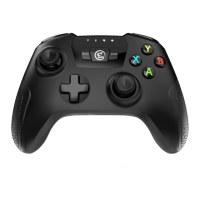
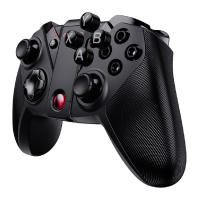
DEVICE LAYOUT
Receiver storage
Phone holder
Turbo buttonRight joystick
Screenshot button
ABXY button Charging indicator
Home buttonLeft joystick D-Pad Select button
Start button
L1 button
R2 button
R1 button
L2 button Type-C Connector
M
BATTERY STATUS
Charging indicator Description
CONNECT TO PC VIA USB RECEIVER OR USB CABLE
1.Long press the X + HOME until the controller is turned on
2. Plug the USB receiver into the USB port of your computer or use the USB cable to connect the controller to the
computer USB port
3.The next time you connect to the computer, as long as you press and hold the HOME for 2 seconds to turn it on,
the controller will auto connect to computer
Note: If the controller has switched to other modes, you need to use the key combination again to reboot.
If you still cannot connect after inserting the USB receiver, press and hold the G+S button for 5 seconds,
and the controller will re-pair with the receiver after it restarts automatically.
HOME button indicator
Flashes in green
Flashes quickly in green
Stays in green Connected
Pairing
Description
Connecting
HOW TO USE THE PHONE HOLDER
Push the phone holder up from the bottom of the controller to expand it.
HOW TO CHARGE THE CONTROLLER
Use the charging cable to connect the Type-C interface on the top of the controller to the USB charging port
TURN OFF
Long press the HOME button for 5 seconds to turn off the G4 pro.
In use, 100% remaining
In use, 75% remaining
In use, 50% remaining
In use, 25% remaining
Red light flashes quickly
Red light flashes slowly
Red light stays on Fully charged
Less than 15%
Charging
X+HOME


 To Next Page