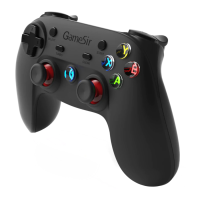
CONNECT GAMESIR T6 TO THE iPHONE
Step 1
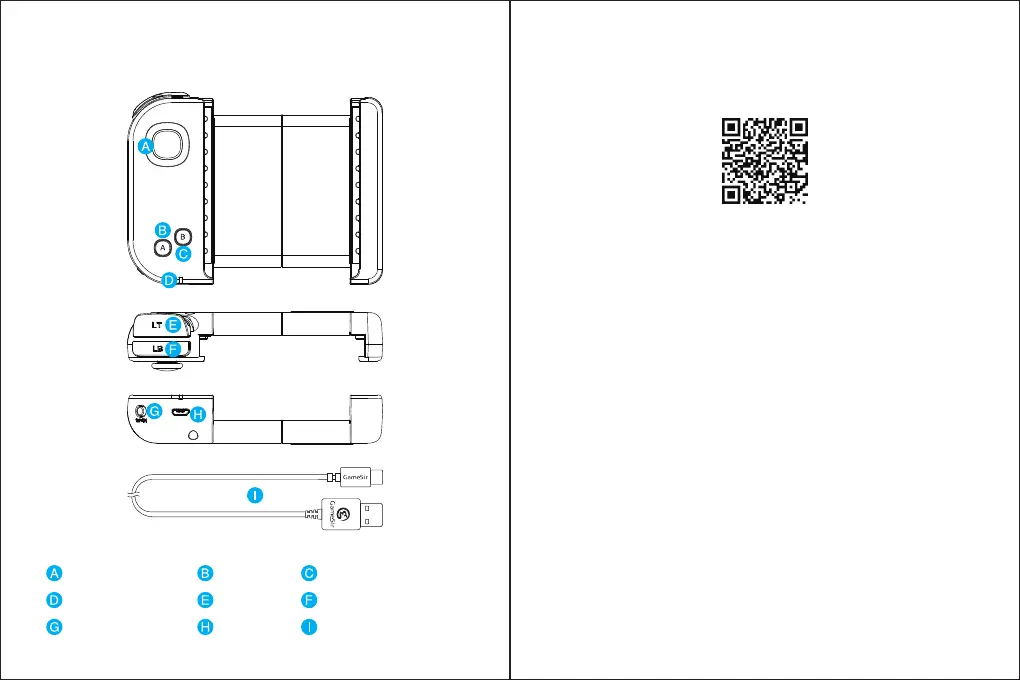
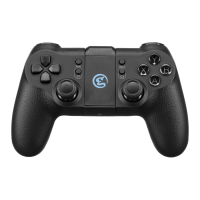
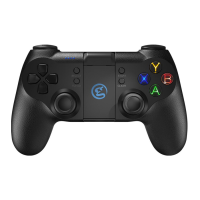
DEVICE LAYOUT
Joystick A Button B Button
LED Indicator Light
LT Button
LB Button
Power Button
Micro-USB
Micro-USB charging cable
Step 2
Connect GameSir T6 to the iPhone via Bluetooth
Scan the QRB below , then download and install Geekgamer from App Store.
Press and hold the button B of the controller and switch it on at the same time,
the indicator light will flash in blue;turn on Bluetooth in the iPhone, then search
and pair with GameSir-T6. If the connection indicator light stays blue, the pairing
is completed.
Step 3
Add and edit game settings
a. Open Geekgamer, select <Add Game>, then select the corresponding game
configuration, add and enter<Editor config> .
b. Add the background image of button mapping, then adjust the button mapping
in the background.
c. Press and hold the blank area to add a virtual button. After the addition is
successful, a circular icon with <?> pops up, then you can drag it and adjust
its position . Press the button of the controller that needs to trigger the virtual
button, then the <?> will become the corresponding button. After the setting
is completed, save and close. You can start the game now.
d. Double click the virtual button to enter the <Key property setting>, you can
adjust the Basic mode, MOBA custom and Macro define.


 To Next Page