3
Select a profile.
The profile you selected is now the active profile. Any changes
you make are saved to the active profile.
Creating a Custom Profile
You can customize your settings and data fields for a particular
activity or trip.
1
Select the Orange key.
2
Select Setup > Profiles.
3
Select an option:
• Select a profile.
• Select Create New, and select the new profile.
The profile you selected is now the active profile. The
previous profile was saved.
4
If necessary, select Edit, and edit the name of the profile.
5
Customize your settings (page 8) and data fields for the
active profile.
Any changes you make are saved to the active profile.
Deleting a Profile
1
Select the Orange key.
2
Select Setup > Profiles.
3
Select a profile.
4
Select Delete > Yes.
Waypoints, Routes, and Tracks
Waypoints
Waypoints are locations you record and store in the device.
Creating a Waypoint
You can save your current location as a waypoint.
1
Hold the Orange key.
2
Select an option:
• To save the waypoint without changes, select Save.
• To make changes to the waypoint, select Edit, make
changes to the waypoint, and select Save.
Finding a Waypoint by Name
1
Select the Orange key.
2
Select Waypoints > Spell Search.
3
Use the Orange key, , and to enter characters.
4
When finished, select _ > Done.
Navigating to a Waypoint
1
Select the Orange key.
2
Select Start GPS.
3
Wait while the device locates satellites.
4
Select the Orange key.
5
Select Waypoints, and select a waypoint from the list.
6
Select Go.
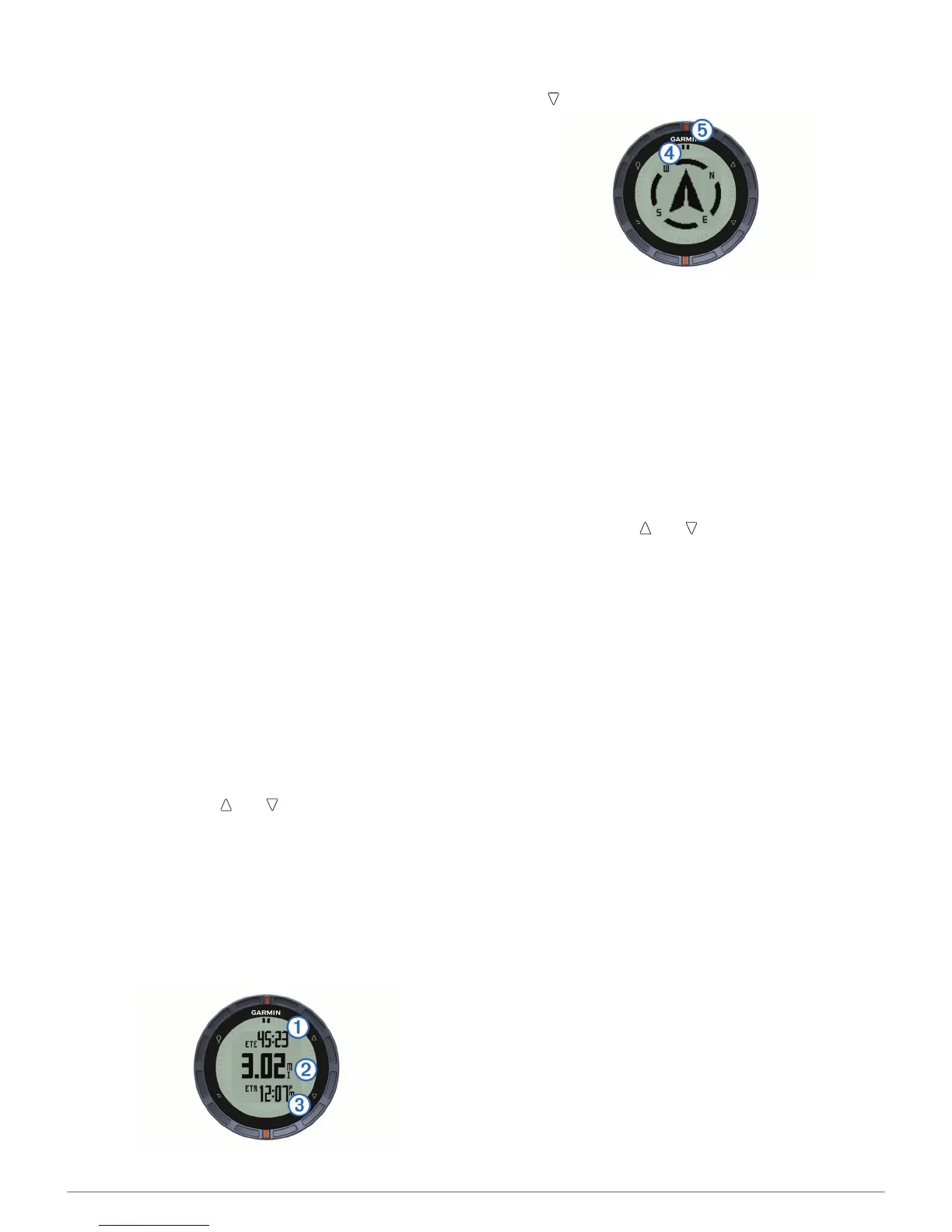
The device displays time to destination
À
, distance to
destination
Á
, and estimated time of arrival
Â
.
7
Select to view the compass page.
The two pointer marks
Ã
serve as a bearing pointer. The top
orange mark
Ä
points in the direction you are facing.
8
Align the pointer marks with the top orange mark.
9
Continue to walk in that direction until you reach the
destination.
Editing a Waypoint
Before you can edit a waypoint, you must create a waypoint.
1
Select the Orange key.
2
Select Waypoints.
3
Select a waypoint.
4
Select Edit.
5
Select an item to edit, such as the name.
6
Use the Orange key, , and to enter characters.
7
When finished, select _ > Done.
Increasing the Accuracy of a Waypoint Location
You can refine a waypoint location for more accuracy. When
averaging, the device takes several readings at the same
location and uses the average value to provide more accuracy.
1
Select the Orange key.
2
Select Waypoints.
3
Select a waypoint.
4
Select Average.
5
Move to the waypoint location.
6
Select Start.
7
Follow the on-screen instructions.
8
When the confidence reaches 100%, select Save.
For best results, collect four to eight samples for the waypoint,
waiting at least 90 minutes between samples.
Projecting a Waypoint
You can create a new location by projecting the distance and
bearing from a marked location to a new location.
1
Select the Orange key.
2
Select Waypoints.
3
Select a waypoint.
4
Select Project.
5
Follow the on-screen instructions.
The projected waypoint is saved with a default name.
Deleting a Waypoint
1
Select the Orange key.
2
Select Waypoints.
3
Select a waypoint.
4
Select Delete > Yes.
Deleting All Waypoints
1
Select the Orange key.
Waypoints, Routes, and Tracks 3






 To Next Page