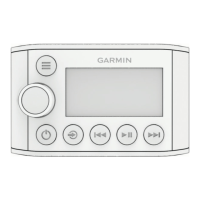
The Fusion Apollo MS-ERX400 is a wired remote control designed to enhance the audio experience on compatible Fusion stereos, particularly within a Fusion PartyBus™ network. This device serves as an optional accessory, providing comprehensive control over your marine audio system from a convenient location.
Function Description
The primary function of the MS-ERX400 is to act as a remote interface for your Fusion stereo. It allows users to manage various aspects of their audio playback, including source selection, volume adjustments, and track control. When integrated into a Fusion PartyBus network, the remote extends its capabilities, enabling control over multiple stereos and zones, facilitating a synchronized audio experience across your vessel. The device displays essential information such as the source name, active zone, status icons, track details, album art (if available), and elapsed time/track duration.
Usage Features
The MS-ERX400 is designed for intuitive operation, primarily through its dial and a set of dedicated buttons.
- Dial Control: The central dial is a versatile control. It allows for volume adjustment, with the ability to switch between different speaker zones by pressing the dial. When navigating menus or adjusting settings, turning the dial highlights options, and pressing it selects the highlighted choice. Holding the dial can activate specific functions, such as opening radio presets or muting all connected stereos.
- Power/Mute Button: This button serves multiple purposes. A single press turns the remote control on or mutes/un-mutes the audio. Pressing and holding it turns off the stereo or all stereos on the network. Holding it for more than 10 seconds initiates a remote control reset.
- Menu Button: Pressing this button opens the main menu. A subsequent press returns to the previous screen within the menu, and pressing and holding exits the menu entirely.
- Source Selection Button: This button allows you to select an audio source. The dial can also be used to browse sources, with a press of the dial confirming the selection. Holding this button opens the GROUPS menu when connected to a Fusion PartyBus network.
- Track/Station Control Buttons: Dedicated buttons are provided for skipping to the previous or next track, and for fast-forwarding or rewinding. For AM/FM sources, these buttons tune to the previous/next station or preset, with a hold enabling faster manual tuning. In AUX mode, they adjust gain. For SiriusXM, they control station tuning, track skipping, and fast-forward/rewind in Live and Replay modes. For DAB sources, they advance or return to previous stations or ensembles.
- Play/Pause Button: This button pauses or resumes the current track for BT or USB sources. For AM/FM, it cycles through tuning modes (auto, manual, presets), and holding it saves the current station as a preset. For SiriusXM, it switches between Replay and Live modes, cycles through tuning modes in Live mode, and pauses/plays in Replay mode. For DAB, it scans for stations and saves the current station as a preset when held.
- Text Entry: For fields requiring text input, the remote offers a character selection interface using the dial, with options to erase existing text and switch between numerals, symbols, or lower-case letters.
- Backlight Brightness Adjustment: Users can adjust the backlight brightness of the remote control directly through the settings menu.
- Individual Zone Volume Control: The remote allows for precise volume control of any zone on any connected Fusion PartyBus stereo. It also supports maintaining individual zone volume ratios, preventing them from being reset when adjusting the overall system volume.
- System Mute: A quick press of the power/mute button mutes the local stereo, while pressing and holding the dial allows for muting the entire system across all connected stereos.
- Subwoofer Level Adjustment: The subwoofer level can be adjusted for each zone with a connected subwoofer.
- Device Naming: Users can assign a unique name to the remote control for easy identification within the Fusion PartyBus network.
- Home Zone Assignment: A specific speaker zone on a connected stereo can be designated as the "home zone," which will be the default zone for volume adjustments using the remote.
- Turning Off Devices: The remote can turn off itself and its assigned home zone stereo, or it can initiate a shutdown of all devices connected to the network.
- Fusion PartyBus Networking: The remote facilitates the creation, editing, and leaving of groups of compatible stereos on the network. This enables synchronized audio playback and shared source control across grouped devices. It also supports group synchronization to preserve group membership after power cycles.
- General Settings: Access to various settings including device name, language, power save options (for LCD backlight), network settings (DHCP client, static IP, Garmin Marine Network), and software update options.
- Software Updates: The remote control's software can be updated via a USB flash drive connected to a compatible stereo on the network, or wirelessly using the Fusion-Link app through a wireless router or access point.
- Troubleshooting: Provides guidance for common issues such as unresponsiveness (resetting the stereo) and network connectivity problems (verifying DHCP settings, network connections, checking for interference, and resetting network settings).
Maintenance Features
- Cleaning: The device can be cleaned by gently wiping it with a soft, clean, lint-free cloth dampened with fresh water.
- Software Updates: Regular software updates are recommended for optimal performance and access to new features. These updates can be performed via USB or the Fusion-Link app.
- Factory Reset: The remote control offers a factory reset option to restore all settings to their default values, which can be useful for troubleshooting or reconfiguring the device.
- Network Reset: Network configuration settings can be reset to factory defaults, aiding in resolving network connectivity issues.

 Need help?
 General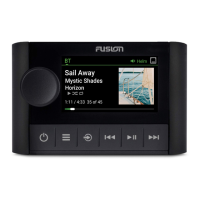

 To Next Page