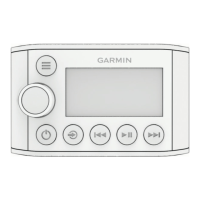
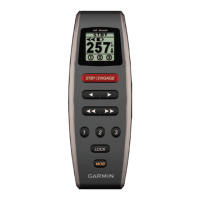
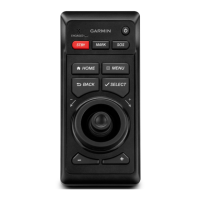
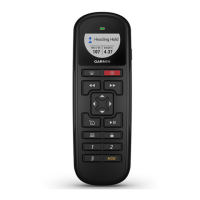
The Garmin MS-NRX300 is a marine wired remote control designed to provide convenient control over compatible FUSION stereos. This remote serves as an optional accessory, enhancing the user experience by offering a dedicated interface for managing audio playback and system settings from a remote location on a vessel. While the manual primarily details its use with the FUSION MS-BB100 stereo, it notes that available features and functions may vary depending on the specific stereo being controlled, advising users to consult their stereo's owner's manual for detailed information.
Function Description
The primary function of the MS-NRX300 is to act as a remote control for a connected FUSION stereo, allowing users to manage various audio sources and settings. It also features an NMEA 2000 repeater mode, which enables the display of supported data sentences from connected NMEA 2000 devices. This dual functionality makes it a versatile tool for marine environments, combining entertainment control with essential vessel data monitoring.
Usage Features
The remote control is equipped with a dial and several buttons, each assigned specific functions for intuitive operation.
Device Controls:
- Power Button: Selects to turn on the device, mutes/un-mutes audio, and when held, turns off both the remote and the stereo.
- Source Button: Cycles through available audio sources and, when held, switches between remote control mode and NMEA 2000 repeater mode.
- Menu Button: Opens the menu, returns to the previous screen, and when held, exits the menu. This button also allows switching from NMEA 2000 mode back to remote control mode.
- Play/Pause Button: For Bluetooth or USB sources, it pauses or resumes the current track. For AM/FM, it cycles through tuning modes (auto, manual, presets). For DAB, it scans for DAB stations.
- Previous Track/Station Button: For Bluetooth or USB, it skips to the beginning of the current track or the previous track. For AM/FM, it tunes to the previous station (auto/manual tuning) or changes to the previous preset (presets). Holding it enables faster station skipping in manual mode. For AUX, it decreases the gain. For DAB, it returns to the previous DAB station within the ensemble, automatically switching to the last available station in the previous ensemble when the beginning is reached.
- Next Track/Station Button: For Bluetooth or USB, it skips to the next track. For AM/FM, it tunes to the next station (auto/manual tuning) or changes to the next preset (presets). Holding it enables faster station skipping in manual mode. For AUX, it increases the gain. For DAB, it advances to the next DAB station within the ensemble, automatically switching to the first available station in the next ensemble when the end is reached.
- Dial: Used to adjust volume, navigate through menus, or adjust settings. Pressing the dial selects an option or setting.
General Operation:
- Using the Dial to Select Items: Users turn the dial to highlight items on the screen and press it to select.
- Entering Text: For settings fields requiring text input, users select the erase icon, use the dial to choose letters, and then select the save icon.
Audio Adjustments:
- Adjusting Volume: The dial controls the volume. Pressing the dial switches between zones, and holding it until all zones are highlighted allows simultaneous control of all zones.
- Adjusting Tones: Users can access
SETTINGS > TONE to adjust bass, middle, and treble levels, and press the dial to switch between different tones.
- Speaker Zones: The remote supports grouping speakers into zones, allowing individual control over audio levels. Zones 1 and 2 are powered by the on-board amplifier, while line and subwoofer outputs require external amplifiers. Users can set balance, volume limits, and names for each zone, and subwoofer levels for zone 1.
- Setting up Speaker Zones: This involves navigating to
SETTINGS > ZONE and selecting a zone. Options include linking zones (e.g., LINK TO ZONE 1 for zone 2), adjusting balance, setting volume limits, and configuring subwoofer filters and levels (for zone 1). Zones 1 and 2, when linked, show a + symbol on the volume screen.
- Assigning the Remote to a Zone: The remote can be assigned to a specific zone or all zones via
SETTINGS > ZONE > ASSIGN.
- Adjusting the Subwoofer Filter: This setting, found under
SETTINGS > ZONE > ZONE 1 > SUB FILTER, controls the subwoofer cutoff frequency to optimize sound blend.
Source Control:
- Assigning the Remote to a FUSION Stereo: After installation, the remote must be assigned to a specific stereo, especially in networks with multiple Garmin stereos. This is done via
SETTINGS > STEREO.
- Switching Between Remote Control Mode and NMEA 2000 Repeater Mode: Holding the source button switches to NMEA 2000 repeater mode, where supported data sentences are displayed. In this mode, volume and current source playback can still be controlled. Pressing the menu button switches back to remote control mode.
NMEA 2000 Repeater Mode Features:
- Selecting NMEA 2000 Information to View: After entering NMEA 2000 repeater mode, users can select
SETTINGS > NMEA MONITOR to choose which NMEA 2000 data sentences to view.
- Cycling NMEA 2000 Information Automatically: The remote can be configured to cycle through available NMEA 2000 information automatically by pressing the source button repeatedly or by setting a cycle time under
SETTINGS > NMEA MONITOR > CYCLE SCREENS.
- Selecting Units of Measure: Units for distance, speed, and depth can be set via
SETTINGS > NMEA MONITOR > SET UNITS.
Bluetooth® Device Playback:
- Pairing and Controlling Music: The stereo can pair with up to eight Bluetooth devices. Users select the Bluetooth source, then
DISCOVERABLE to make the stereo visible for two minutes. After enabling Bluetooth on their device, searching for the stereo, and connecting, music playback can be controlled using the remote's buttons. Song information display depends on the media player's capabilities, and shuffle/repeat icons are not supported over Bluetooth.
- Selecting a Different Bluetooth Source: When multiple Bluetooth devices are paired, users can select a different source via the menu.
- Bluetooth Source Settings: Options include
DISCOVERABLE (to make the stereo visible) and REMOVE DEVICE (to unpair a device).
USB Device Playback:
- Controlling Music Playback on a USB Flash Drive: After connecting a USB flash drive or media player to the stereo, users select the USB source, then navigate to view the file structure and select a song.
- Shuffling Songs: The shuffle feature is available for USB sources.
- Setting a Song to Repeat: The repeat feature is available for USB sources.
- Controlling Music Playback on an Apple or Android Device: Users connect their device via USB or Bluetooth, select the appropriate source, launch a music application, and then use the remote to play, pause, and skip tracks.
Radio Features:
- Setting the Tuner Region: Users must select their region via
SETTINGS > TUNER REGION for proper AM/FM/DAB reception.
- Changing the Radio Station: After selecting an AM/FM source, users press the play/pause button repeatedly to cycle through tuning modes:
AUTO (scans and stops on next station), MANUAL (selects station manually), or PRESETS (selects a saved preset). The next/previous track buttons tune to stations.
- Presets: Up to 15 AM or FM stations can be saved as presets for each radio band.
- Saving a Station as a Preset: Tune to a station, then select
PRESETS > SAVE CURRENT or ADD PRESET. Holding the play/pause button quickly saves the selected station.
- Removing Presets: Users can remove individual presets or all presets via
PRESETS > REMOVE PRESET.
General Settings:
- LCD: Adjusts brightness and contrast.
- POWER SAVE: Enables/disables the backlight power-save feature.
- KEY SOUND: Enables/disables button sounds.
- WAKE WITH STEREO: Turns on the remote when the stereo is powered on.
- LANGUAGE: Sets the language used on the remote.
- SEARCHING: Enables FUSION Alpha Search Technology (FAST) for quick track searches.
- TEL/MUTE: Configures the behavior of the mute wire (mute audio or switch to AUX input).
- SET DEVICE NAME: Assigns a name to a connected stereo.
- UPDATE: Manages updates for the stereo, remote, or accessories.
- UPDATE > FACTORY RESET: Resets stereo settings to default values.
- ABOUT: Displays the installed software version.
Maintenance Features
- Disabling the Power Save Feature: The backlight automatically turns off after a period to save power. This feature can be disabled via
SETTINGS > POWER SAVE.
- Software Updates: For optimal performance and compatibility, it is recommended to update the software in all FUSION devices during installation. Updates can be performed using a USB flash drive, with instructions available on the Garmin support website.
- Registration: Users are encouraged to register their Fusion device online at garmin.com/account/register to receive better support. Keeping the original sales receipt is also advised.

 Need help?
 General

 To Next Page