TM Operating Instructions
Just follow these quick and easy steps to set up and use your
new iTwinkleLIGHT
TM
product.
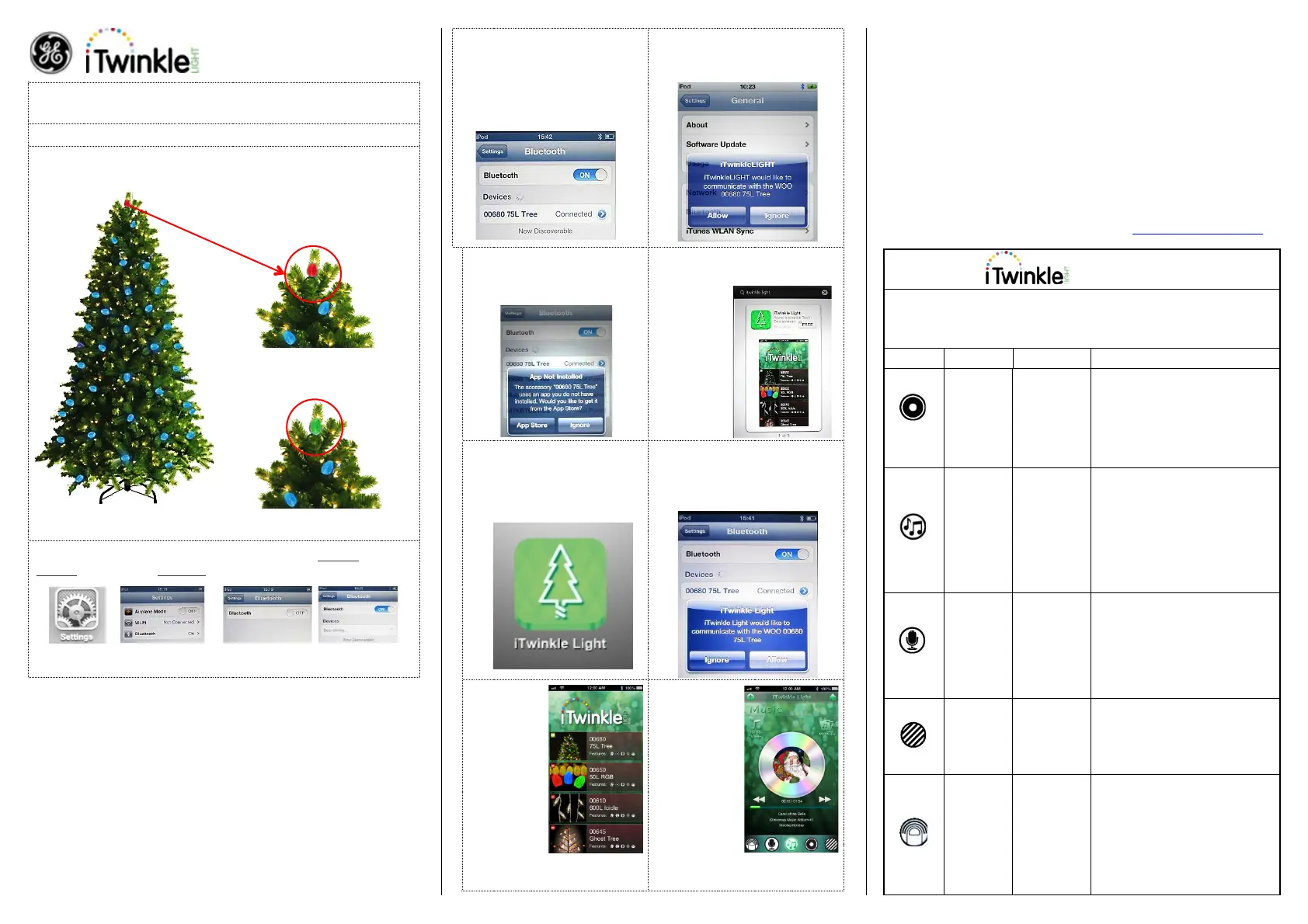
Fully assemble the tree according to the provided assembly instructions.
Step 1. Plug in your tree to automatically enable Bluetooth. The top G35
lamp indicates the connection status:
a. Red Color – Standby. Not
connected to an Apple device.
Remains red for 3mins then
changes to displayed color or
pattern.
b. Green Color – Connected to an
Apple device. Remains green
until color or pattern changes.
Note: Blue color shows the product is searching for a Bluetooth device.
Step 2. With your iPad® iPhone® iPod touch®: Touch Settings,
General (for iOS 5.x.x), Bluetooth, turn ON to search for active devices.
Note: The effective operating range between your device and the string
set is up to 33’ (10m).
Step 3. Search your device to find
"00680 75L Tree". Touch it.
Note: To install the application
your device must have Internet
capability (If you haven’t installed
the App Software).
Step 4. Once connected a window
will appear prompting you to install
the free App software.
Step 5. Touch ‘Yes’ to install.
Once installed this window will not
appear again.
Step 6. The free iTwinkleLight
App appears. Touch Free and
then touch
Install App
Step 7. Once installed the
iTwinkleLight icon will appear
on your screen. Find it. Touch
it to launch program.
Step 8. If this screen appears, your
Bluetooth device is available.
Touch Allow to connect or Ignore
to search for other devices.
Step 9. The
iTwinkleLight
Main Menu
appears.
Scroll to select
your item.
Note:
A green circle
shows your
Apple device
is connected
to your product. A red dash shows
your product is not connected.
Step 10. Product
features screen
will now appear.
Touch any icon
at the bottom of
the screen to
activate that
feature.
“Made for iPod,” “Made for iPhone,” and “Made for iPad” mean that an
electronic accessory has been designed to connect specifically to iPod, iPhone,
or iPad, respectively, and has been certified by the developer to meet Apple
performance standards. Apple is not responsible for the operation of this device
or its compliance with safety and regulatory standards. Please note that the use
of this accessory with iPod, iPhone, or iPad may affect wireless performance.
This is not a toy, for decorative use only
For Indoor Use Only 120 V 60 Hz
Product retains the last light pattern when powered off
Designed for one device to control one product at a time
To view these instructions online please visit us at www.geholidaylighting.com
or call customer support toll free at 1-877-398-7337
Note: Touch the house icon in the upper right corner
to return to the iTwinkleLight Main Menu
Touch the circle to change
colors.
Slide to adjust brightness.
Choose from over 2000
colors.
Touch iTwinkle Music to
enjoy 1 of 8 pre-loaded
songs and light shows.
Touch My Music to select
songs from your iTunes
music library and play songs
from any country.
Speak… the LED lights flash
to your voice.
Select an icon to hear your
message replayed in a child-
like or Santa voice.
Scroll icons to select 1 of 8
programmed light shows.
Note: This pattern is used for
the myColor feature.
Tap to change color of lights.
Hold the device securely;
SHAKE wrist to change
colors.


 To Next Page
 Loading...