28
Menus And Features
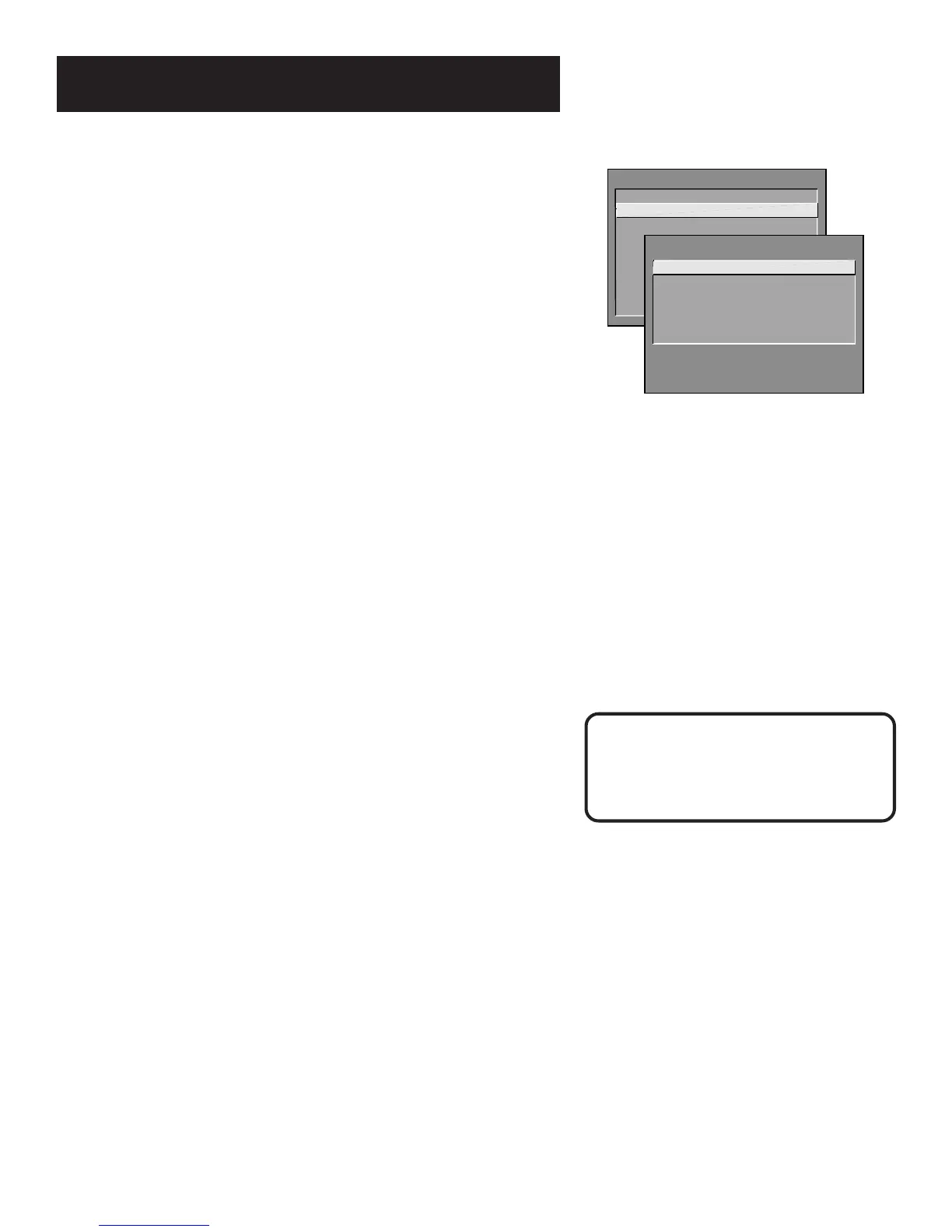
Picture Quality Menu
Basic Picture Controls Displays the five slider controls for
adjusting the way the picture looks.
Contrast Adjusts the difference between the light and
dark areas of the picture.
Color Adjusts the richness of the color.
Tint Adjusts the balance between the red and green
levels.
Black Level Adjusts the brightness of the picture.
Sharpness Adjusts the crispness of edges in the picture.
When exiting this menu, the
Save Personal Picture Preset
choice list will appear. You can choose either Yes or No. If you
save the settings as a Personal Picture Preset, the TV will store
the settings so you can reselect them easily if someone changes
the settings.
Picture Presets Displays a choice list that lets you select one
of three preset picture settings:
Bright Lighting
,
Normal
Lighting
,
Soft Lighting
or
Personal Picture Preset
. Choose the
setting that is best for your viewing environment.
Auto Color Displays a choice list that lets you turn on the
feature that automatically corrects the color of the picture. (This
is especially useful for tracking realistic flesh tone colors as you
switch from channel to channel.) Choose
On
or
Off
, depending
on your preference.
Color Warmth Displays a choice list that lets you set one of
three automatic color adjustments:
Cool
for a more blue palette
of picture colors;
Normal
; and
Warm
for a more red palette of
picture colors. The warm setting corresponds to the NTSC
standard of 6500ºK.
TV MAIN MENU
1 Audio
2 Picture Quality
3 Screen
4 Channel
5 Time
6 Parental Control
7 Setup
0 Exit
PICTURE QUALITY
1 Basic Picture Controls
2 Picture Presets
3 Auto Color
4 Color Warmth
0 Exit
Press the RESET button on the remote
to bring up the Picture Control Presets
choice list. Point to the desired setting;
press MENU•PROG to select it.



 To Next Page