V-Chip Movie Rating Limit
With the Movie Rating Limityou can set movie-viewing limits.
Blocking Movie Ratings
You can automatically block all movie ratings above a specified rating using
Movie Ratings Limitin the Parental Controls menu.
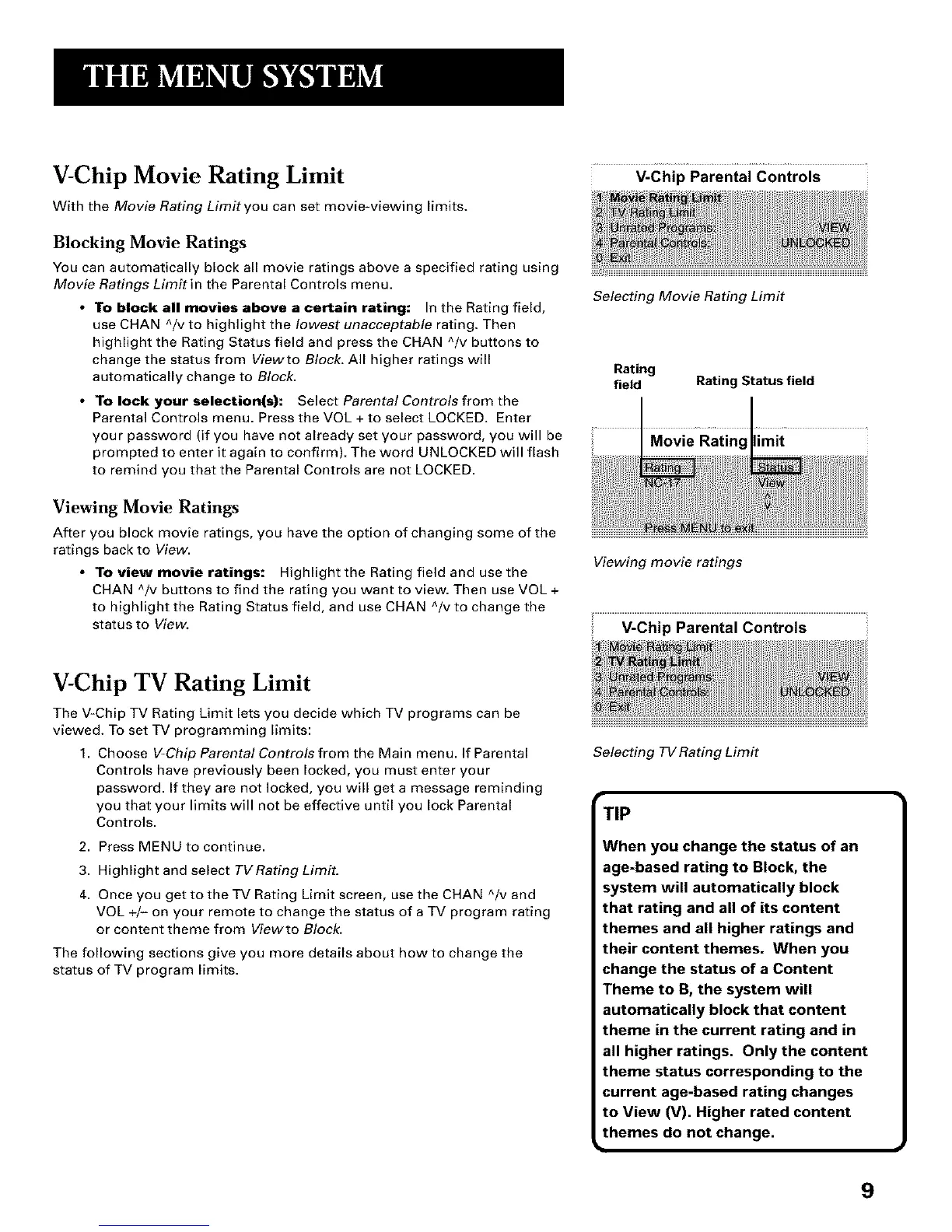
• To block all movies above a certain rating: In the Rating field,
use CHAN ^/v to highlight the lowest unacceptable rating. Then
highlight the Rating Status field and press the CHAN ^/v buttons to
change the status from Viewto Block. All higher ratings will
automatically change to Block.
• To lock your selection(s): Select Parental Controls from the
Parental Controls menu. Press the VOL + to select LOCKED. Enter
your password (if you have not already set your password, you will be
prompted to enter it again to confirm). The word UNLOCKED will flash
to remind you that the Parental Controls are not LOCKED.
Viewing Movie Ratings
After you block movie ratings, you have the option of changing some of the
ratings back to View.
• To view movie ratings: Highlight the Rating field and use the
CHAN ^/v buttons to find the rating you want to view. Then use VOL +
to highlight the Rating Status field, and use CHAN ^/v to change the
status to View.
V-Chip Parental Controls
Selecting Movie Rating Limit
Rating
field Rating Status field
Movie Rating limit
Viewing movie ratings
V-Chip TV Rating Limit
The V-Chip TV Rating Limit lets you decide which TV programs can be
viewed. To set TV programming limits:
1. Choose VChip Parental Controls from the Main menu. If Parental
Controls have previously been locked, you must enter your
password. If they are not locked, you will get a message reminding
you that your limits will not be effective until you lock Parental
Controls.
2. Press MENU to continue.
3. Highlight and select TVRating Limit.
4. Once you get to the TV Rating Limit screen, use the CHAN ^/v and
VOL +/- on your remote to change the status of a TV program rating
or content theme from Viewto Block.
The following sections give you more details about how to change the
status of TV program limits.
Selecting TV Rating Limit
TIP
When you change the status of an
age-based rating to Block, the
system will automatically block
that rating and all of its content
themes and all higher ratings and
their content themes. When you
change the status of a Content
Theme to B, the system will
automatically block that content
theme in the current rating and in
all higher ratings. Only the content
theme status corresponding to the
current age-based rating changes
to View (V). Higher rated content
themes do not change.
9



 To Next Page