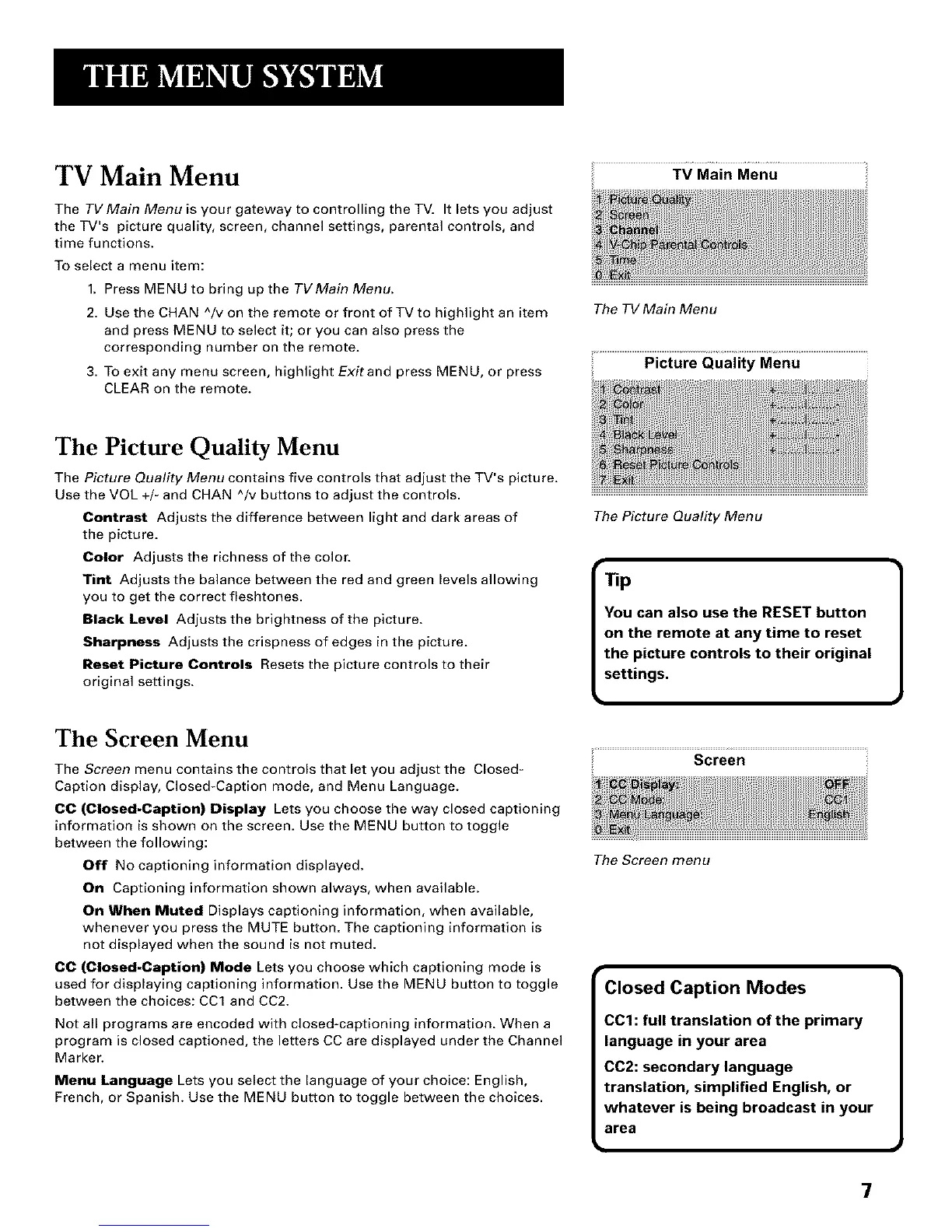
TV Main Menu
The TVMain Menu is your gateway to controlling the TV. It lets you adjust
the TV's picture quality, screen, channel settings, parental controls, and
time functions.
To select a menu item:
1. Press MENU to bring up the TVMain Menu.
2. Use the CHAN ^/v on the remote or front of TV to highlight an item
and press MENU to select it; or you can also press the
corresponding number on the remote.
3. To exit any menu screen, highlight Exitand press MENU, or press
CLEAR on the remote.
The TV Main Menu
Picture Quality Menu
The Picture Quality Menu
The Picture Quality Menu contains five controls that adjust the TV's picture.
Use the VOL +/- and CHAN ^/v buttons to adjust the controls.
Contrast Adjusts the difference between light and dark areas of
the picture.
Color Adjusts the richness of the color.
Tint Adjusts the balance between the red and green levels allowing
you to get the correct fleshtones.
Black Level Adjusts the brightness of the picture.
Sharpness Adjusts the crispness of edges in the picture.
Reset Picture Controls Resets the picture controls to their
original settings.
The Screen Menu
The Screen menu contains the controls that let you adjust the Closed-
Caption display, Closed-Caption mode, and Menu Language.
00 (Closed-Caption) Display Lets you choose the way closed captioning
information is shown on the screen. Use the MENU button to toggle
between the following:
Off No captioning information displayed.
On Captioning information shown always, when available.
On When Muted Displays captioning information, when available,
whenever you press the MUTE button. The captioning information is
not displayed when the sound is not muted.
00 (Closed-Caption) Mode Lets you choose which captioning mode is
used for displaying captioning information. Use the MENU button to toggle
between the choices: CCl and CC2.
Not all programs are encoded with closed-captioning information. When a
program is closed captioned, the letters CC are displayed under the Channel
Marker.
Menu Language Lets you select the language of your choice: English,
French, or Spanish. Use the MENU button to toggle between the choices.
The Picture Quality Menu
r
TIp
You can also use the RESET button
on the remote at any time to reset
the picture controls to their original
settings.
Screen
The Screen menu
Closed Caption Modes
CCI: full translation of the primary
language in your area
CC2: secondary language
translation, simplified English, or
whatever is being broadcast in your
area
]
7



 To Next Page