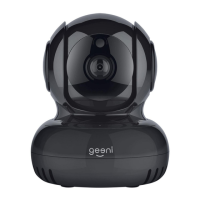
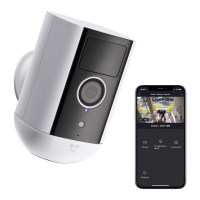
This document is a start guide for a Geeni Smart Wi-Fi Camera, providing instructions for setup, usage, and troubleshooting.
Function Description:
The Geeni Smart Wi-Fi Camera is a smart home device designed for remote monitoring. It connects to your home Wi-Fi network, allowing you to view live video, receive motion alerts, and record footage directly from your smartphone or tablet using the Geeni app. The camera offers both easy mode and QR code mode for connection, ensuring flexibility during setup. It supports sharing access with family and friends, enabling multiple users to monitor the camera feed and receive notifications. The camera can be easily mounted and features an indicator light to show its status.
Important Technical Specifications:
- Camera: 25 frames per second, H.264 encoding.
- Field of View: 90° fixed, with 270° horizontal rotation and 120° vertical rotation, allowing for a wide coverage area.
- Audio: Internal speaker and microphone for two-way communication.
- Storage: Supports microSD cards up to 64GB (not included) for video recording and playback. Without a microSD card, it can save screenshots or videos to your phone and record still snapshots of motion alerts.
- Wi-Fi: IEEE 802.11n, 2.4GHz. Important Note: It is not compatible with 5GHz Wi-Fi networks.
- System Requirements: Mobile device running iOS® 9 or higher or Android™ 5.0 or higher, and an existing 2.4GHz Wi-Fi network.
- Power: Uses a power adapter and power cable (included).
- Mounting: Includes a mounting kit with screws and wall anchors.
Usage Features:
- Download & Register: Users begin by downloading the Geeni app and registering an account.
- Plug In: The camera is powered on by plugging it in.
- Reset Function: A reset button is located on the side of the camera. Holding it for several seconds until the camera beeps and the indicator light blinks confirms a successful reset.
- Connection Modes:
- Easy Mode: Simplifies the connection process by automatically searching for the device.
- QR Code Mode: Provides a backup connection method where the user scans a QR code generated by the app with the camera lens.
- Live View: Provides real-time video feed, full-screen viewing, and the ability to hear what's happening around the camera.
- Motion Alerts: Activates push notifications to alert users of any detected movement.
- Two-Way Audio: Press and hold to speak through the camera's microphone and hear through its speaker.
- Camera Control: Users can hold arrows or swipe the screen to rotate the camera view (horizontal and vertical rotation).
- Recording & Screenshots: Save live camera footage or screenshots directly to phone memory.
- Playback: Play back recorded footage (requires a microSD card). Users can also change the date of video playback.
- Device Naming: Customize the camera's name (e.g., "Bedroom," "Kids' Room").
- Device Sharing: Share camera access with friends, family, or roommates, controlling their access and notification settings.
- Indicator Light Control: The indicator light, which shows the camera's status (solid red for starting up, blinking red for ready to connect, solid green for connected), can be turned off for discretion.
- Flip Function: If the camera is mounted upside down, the "Flip" function rotates the image 180 degrees.
- Time Watermark: Turn on a time stamp to appear on the video feed.
- Motion Detection Sensitivity: Adjust the sensitivity of motion detection (Low, Medium, High).
Maintenance Features:
- Remove Device: Delete the camera from your Geeni account. Once deleted, it is no longer linked to the account.
- Format SD Card: Erase the microSD card directly from the app.
- Firmware Updates: Check for firmware updates within the device settings to ensure the latest Geeni functionality.
- Troubleshooting: The guide provides solutions for common issues like Wi-Fi connection problems, suggesting checking Wi-Fi password, internet connection, Wi-Fi signal strength, and resetting the router.
- Support: Toll-free phone support and online support (support.mygeeni.com) are available seven days a week for assistance with any issues.

 Need help?
 General

 To Next Page