c d j - 7 0 0 m a n u a l • g e m i n i d j . c o m
10
Once you have connected all your cables, you can turn the
CDJ-700’s POWER on by pressing the POWER (1) button,
pressing the button a second time will turn off the unit.
The SOURCE SELECT (20) allows you to choose the me-
dia from which you will play music:
CD Pressing the CD source button allows you to play
music from the CD drives.
USB Pressing the USB source button allows you to play
music from a USB device.
SD Pressing the SD source button allows you to play
music from a SD/SDHC card.
MIDI Pressing the MIDI source button switches the unit
to MIDI mode with bi-directorial support. In this mode,
all controls (button pressings, pitch potentiometers
moving and wheel rotations) are registered on the unit
and transferred to PC via USB MIDI. This can be used in
conjunction with DJ software to contrhol the software’s
parameters. (For more information, see page 9).
The SLOT-IN CD-ROM (pictured below) is where the CD
is held during loading, unloading and playback, and holds
both 12 cm and 8cm CD’s.
Pressing the EJECT (19) button will eject the disc from the
SLOT-IN CDROM. The disc will not eject in PLAY mode.
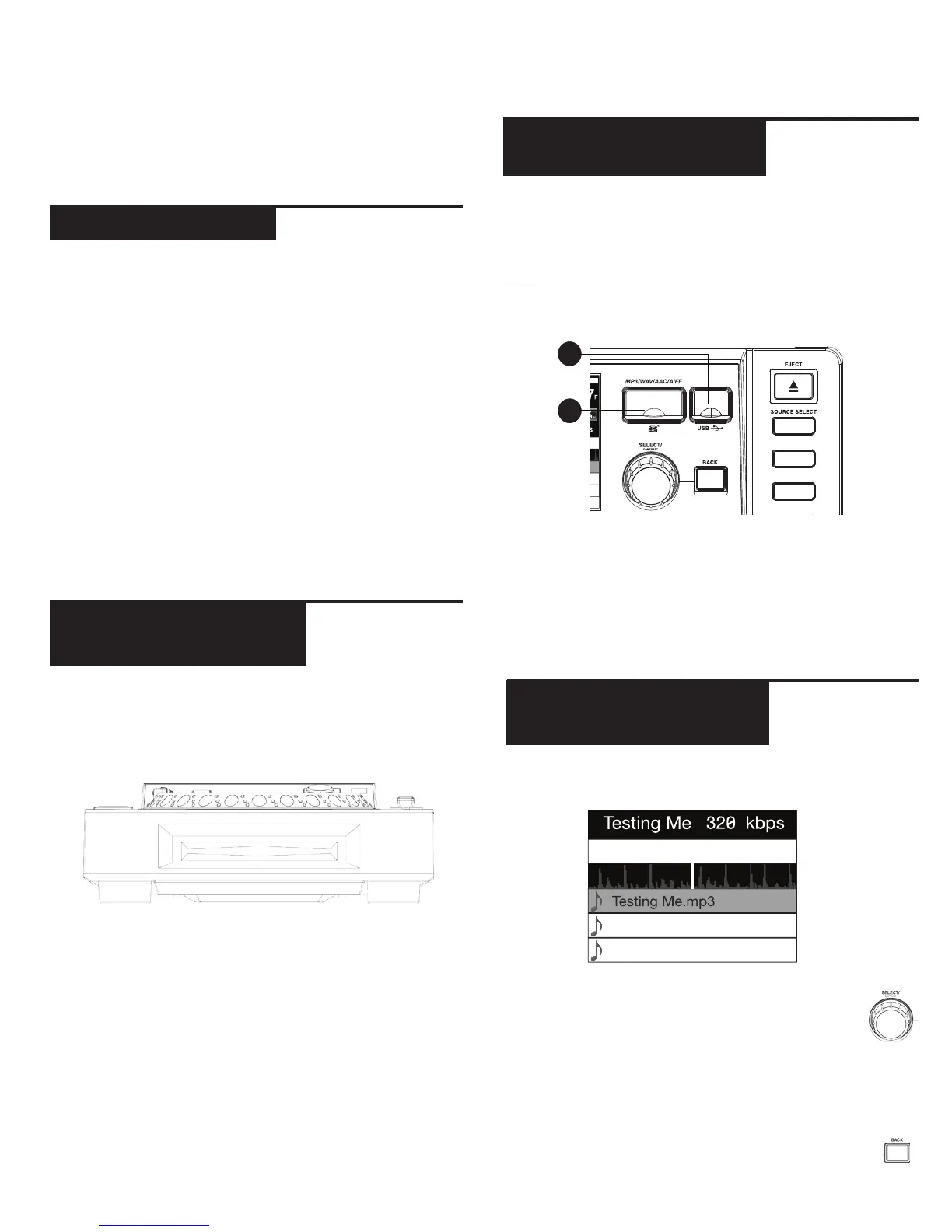
USB Insert the USB memory device into the USB input (E)
on the top of the CDJ-700. Upon loading the device, the
LCD Touch Display will show the folders and tracks on the
USB memory device.
SD Insert the SD card into the SD card slot (F) on the top
of the CDJ-700. Upon loading the device, the LCD Touch
Display will show the folders and tracks on the SD memory
device.
To eject the USB and SD card, change the SOURCE SE-
LECT (20) to another selection and remove the USB mem-
ory device or SD card. To eject the SD card, press the SD
card in. When it pops up, pull the SD card out vertically.
*NOTE: Before powering off the CDJ-700, remove any USB
memory device or SD card to ensure that no corruption of
data occurs.
The browsing display shows the playable files and folders
on the CD, USB memory device, or SD card.
Rotating the rotary ENCODER(17) allows search-
ing through the browser. This can also be done
via touching the screen in the browsing display
area.
To open a folder, highlight a folder and press in the EN-
CODER (17) to select. To load a track, highlight a track to
load and press the ENCODER(17) again.
To return to the previous folder, press the BACK
(18) button.
l o a d i n g d i s c s a n d m e m o r y d e v i c e s
E
F
CD
USB
SD
s o u r c e s e l e c t
l o a d i n g / e j e c t i n g
d i s c s
b r o w s i n g t r a c k s /
f o l d e r s
l o a d i n g / e j e c t i n g
u s b
/ s d d e v i c e s


 To Next Page