2.Press OK/MENU
3.Press or to move to “Video output” option.
4.Press OK/MENU
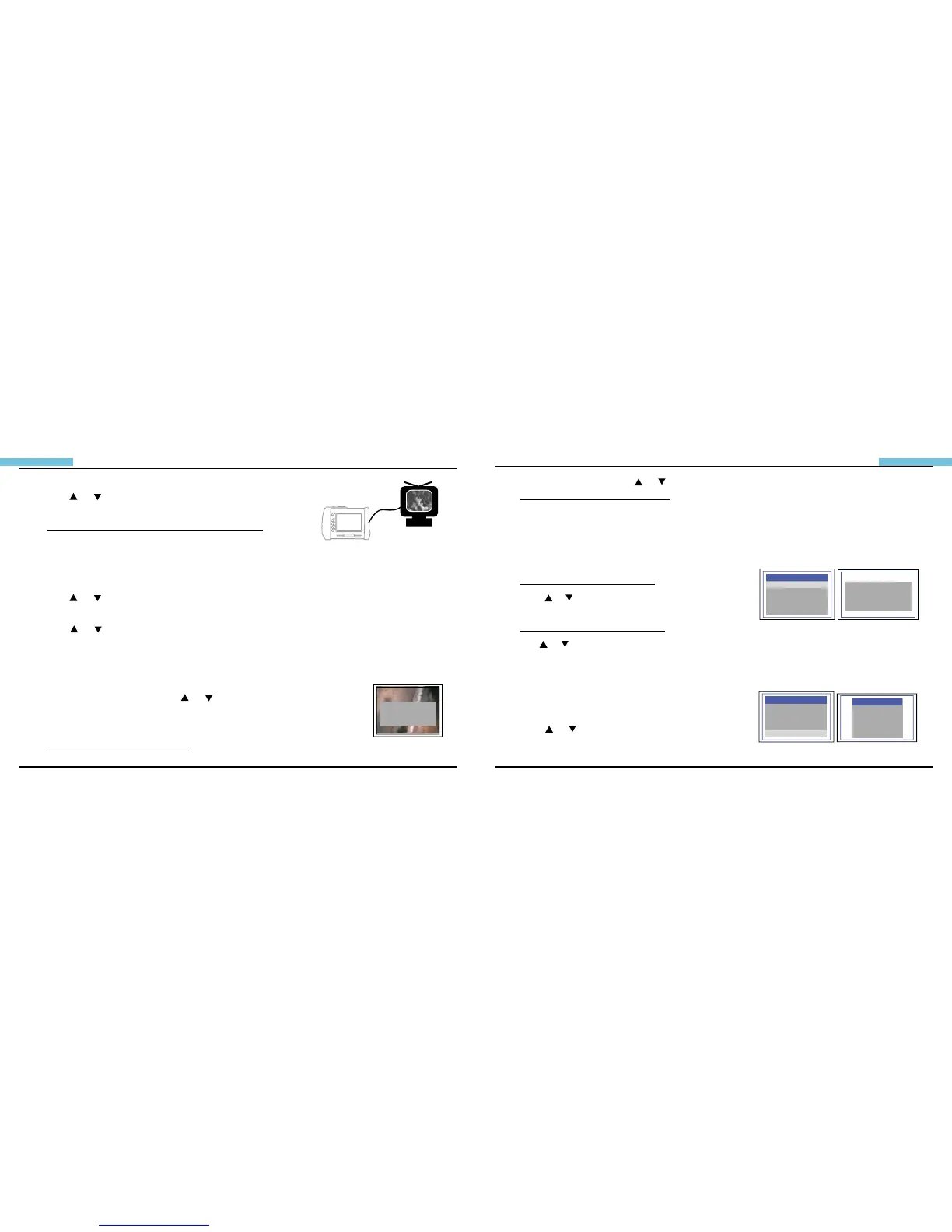
Image Status: image will be transmitted to the external monitor.
Setting video format
1.Press OK/MENU
2.Press or to move to “Video Format” option.
3.Press OK/MENU
4.Press or to select NTSC/PAL.
5.Press OK/MENU
Deleting a specic photo
(Browse mode only)
1. Enter Browse mode, then press or to locate the photo or video
you wish to delete.
2. Press OK/MENU
Image Status: “Delete yes or no” options
(P.11)
(Figure.18)
DELETE
yes no
(P.12)
(Figure.19)
3. To select your option, press or
Image Status: .The selected option ashes.
4. Press OK/MENU to execute your selected option or press ESC to cancel.
Deleting all photos
1. Press OK/MENU during Preview mode.
Image Status: Showing the Main Menu
2. Press or for “Delete All” command.
3. Press OK/MENU
Image Status: “yes” or “no” option appears
4. Use or to select “yes”.
5. Press OK/MENU to execute.
Setting auto power off
1.Press OK/MENU (during Preview mode.)
2.Press or for “Auto power off” command.
3.Press OK/MENU
(Figure.20)
(Figure.21)
MANUAL
DELDTE ALL
VIDEO OUTPUT
DATE/TIME SETUP
LANGUAGE
VIDEO FORMAT
AUTO POWER OFF
MENU
ERASE ALL
yes no
TIME SET
DISABLE
5 MIN
10 MIN
15 MIN
30 MIN
POWER OFF
POWER OFF
MANUAL
VIDEO OUTPUT
DATE/TIME SETUP
VIDEO FORMAT
AUTO POWER OFF
MENU


 To Next Page