11
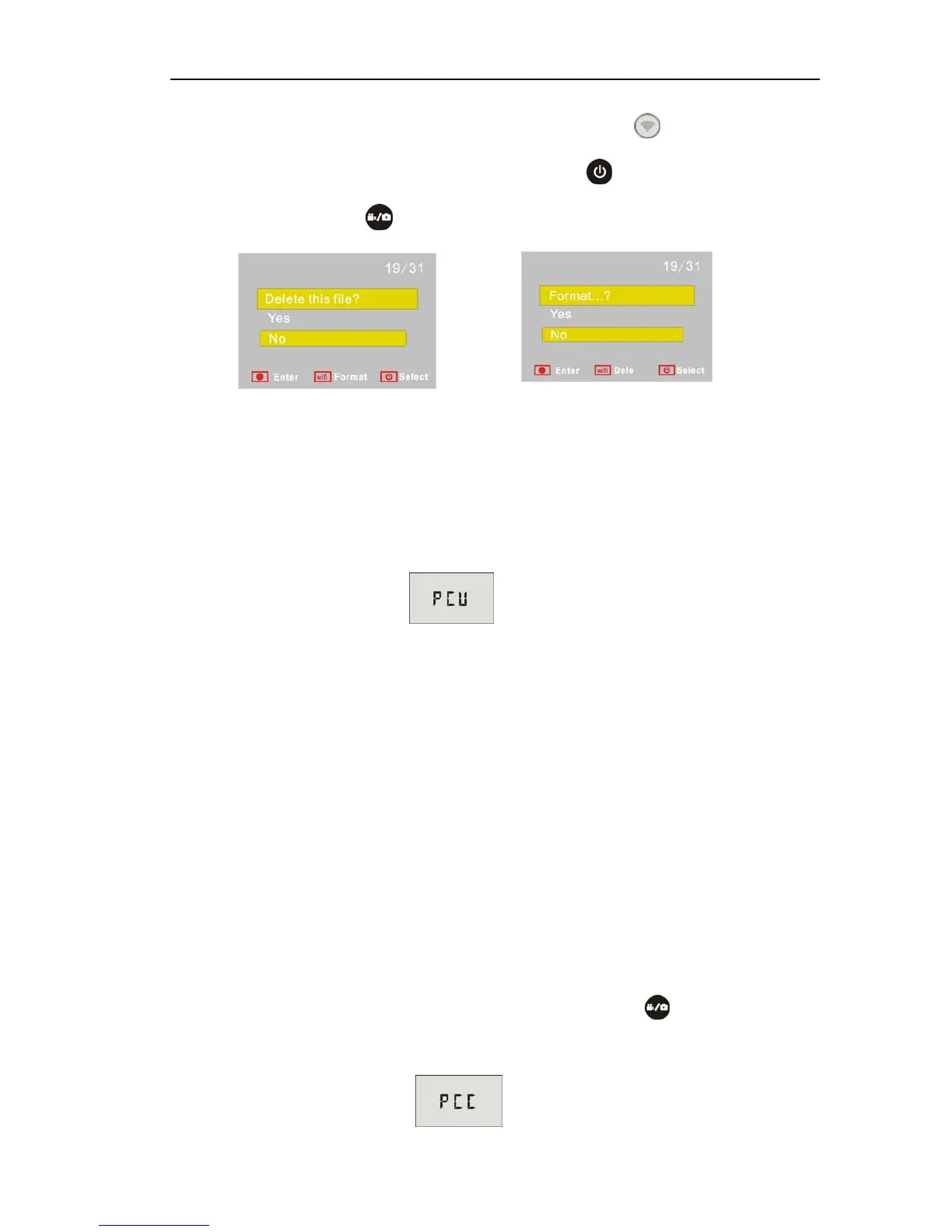
the file or formatting will appear. Press the Wi-Fi button to switch between
deleting or formatting,then Press the Power button
to select Yes or No, and
press the Shutter button
to confirm and exit.
6. Connecting to PC
6.1 Turn on the DV and connect it to the USB port of the PC via the attached
USB cable. The DV will enter U-disk mode and the LCD will display as
below after connection:
Now you can view the photos or videos taken by DV on PC.
Note: After the DV connecting to PC to enter U-disk mode, you will see
two removable disks displayed in My computer of Windows, one is the TF
card, storing all the photos taken and video recorded by users; the other
one stores the system file information, including a file named
SSID_PW.CFG, containing the AP ID of the DV and the password for AP
login. Users can view these information but cannot modify, delete or
format them.
6.2 In U-disk mode (PCU mode), press the Shutter button
to switch to web
cam mode (PCC mode), and the LCD will display as below:


 To Next Page