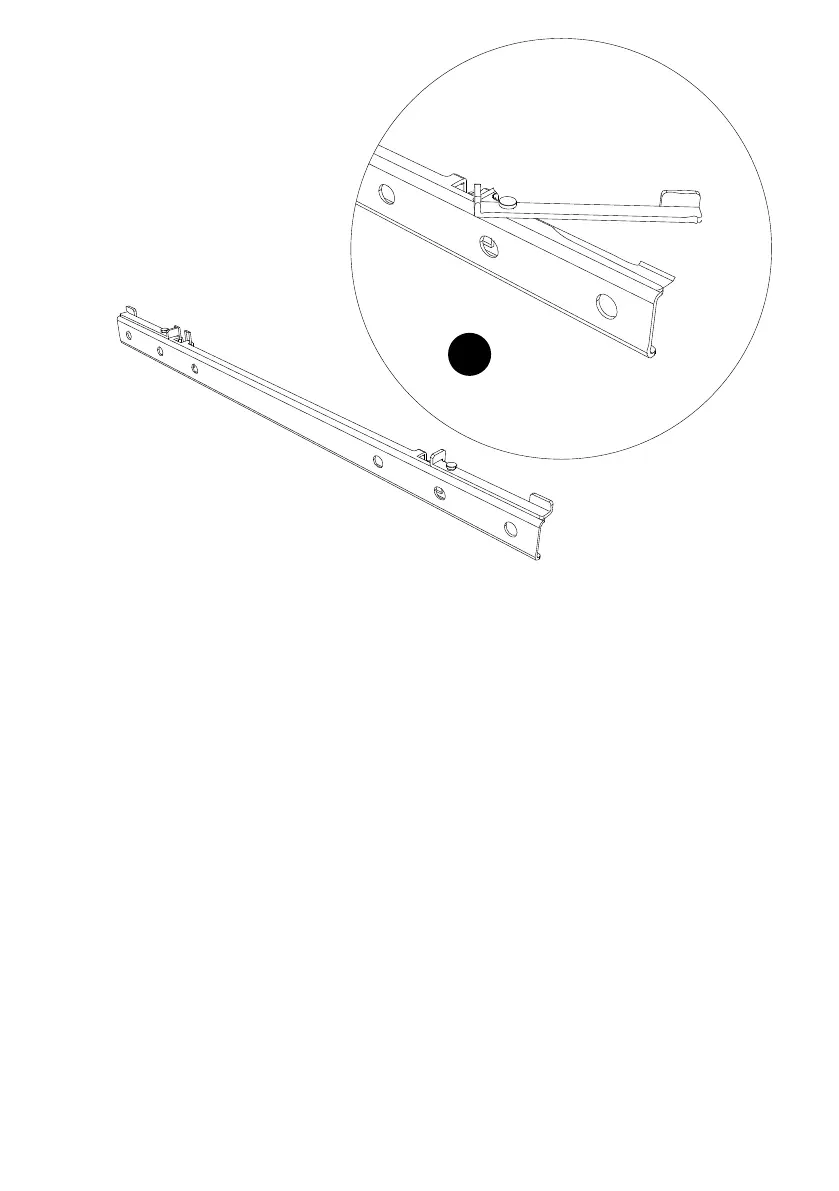
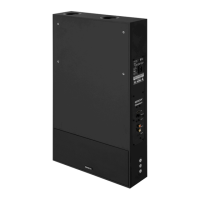
Horizontal Vesa Rails
Speaker area - do not cover with TV
TV
Vertical Rails
4
5
TV connection
Cinema + can connect to your TV in the following ways:
• Optical (TV2): use this for the best audio quality
• ARC: if your TV has a socket labelled “ARC”, use this connection
• RCA: use this to connect both Left and Right channel to your TV
• Line-IN: if your TV has a line out/headphones out, you can use this connection. This socket can be
used also for other sources like CD players, Tuners, pre-amplied Vinyl players, etc.
Note: 3.5mm line-in socket takes priority over RCA socket
Important Note: Cinema+ is only able to decode LPCM (PCM) 2.0 audio format signal. Please ensure
your TV audio format is set to LPCM (PCM).
For more information, please refer to your TV user manual.
Bluetooth setup
Cinema+ allows wireless playback from any Bluetooth equipped device.
• Select BT on the remote: Cinema+ will reconnect to the last available paired device
• Press and hold BT on the remote to connect a new Bluetooth device (blue LED starts ashing). Repeat
this procedure for every new device. Cinema+ can store up to 8 devices
Note: refer to your Bluetooth device manual to connect to Cinema+
Remote learning
Cinema+ can learn volume down/up from other remotes (TV, set top box, etc.)
If you are using HDMI ARC, it is not necessaryto ‘learn’your TV remote control with Cinema+.
HDMI ARC enables CEC (Consumer Electronics Control) commands to be sent between your TV and Cine-
ma+. This means you will only need one remote to power on both devices and control the volume.
• Press LEARN on the right side of cinema+ 3 seconds (Red LED starts ashing)
• Press + button on the right side of cinema+
NOTE: secure the TV on the stand by pushing
the lock lever into the vertical rail holes


 To Next Page