ENGLISH
2
2. The vibration effect occurs according to game software. For details, refer to the game
software manual.
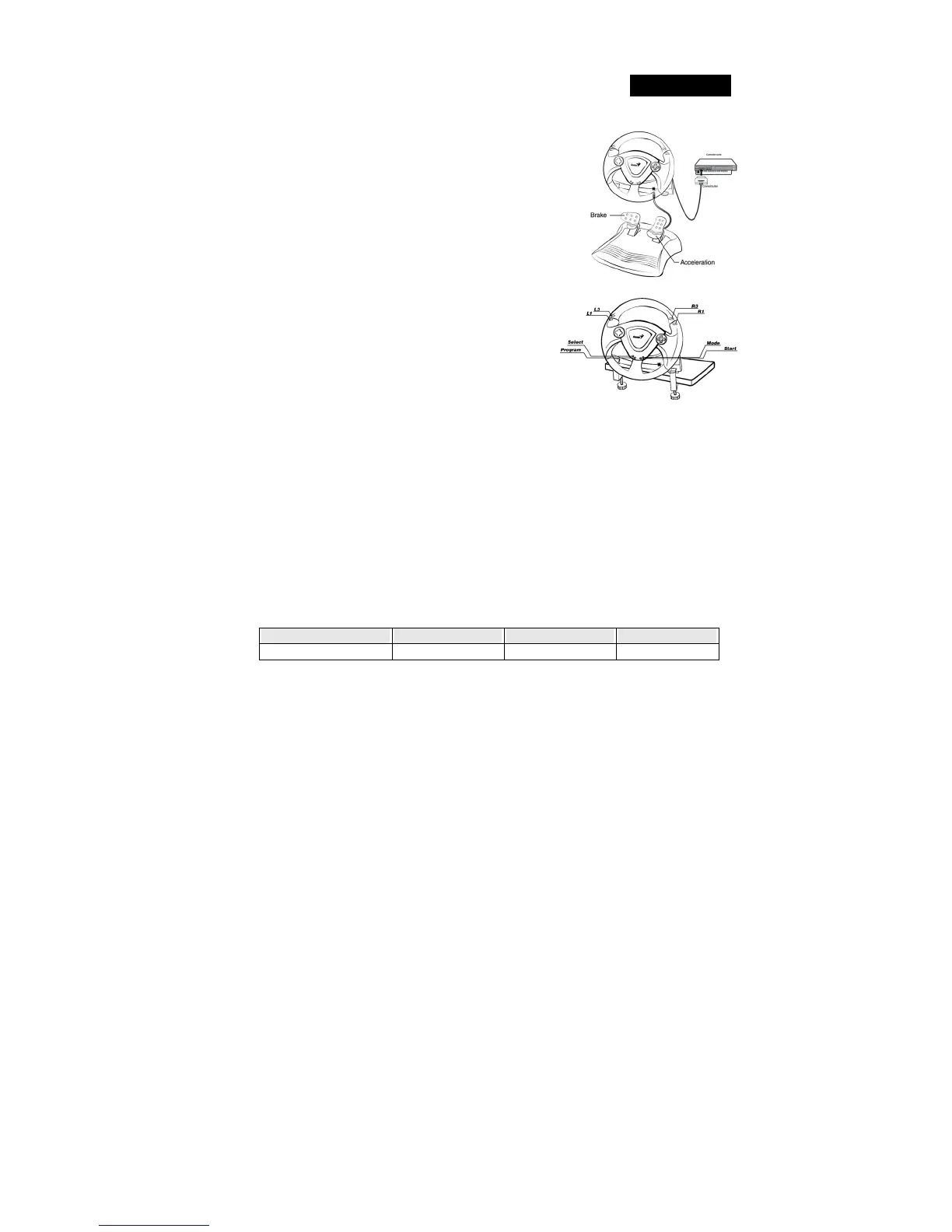
B. Installation for PlayStation®2 and PlayStation®
1. Make sure you turn your game controller on.
2. Plug the PlayStation’s standard interface cable to the Play
Station.
3. When you finish the connection, you can now play any
game.
4. The game controller’s function is according to the game
software you are using. For details, refer to the game
software manual.
PlayStation®2 and PlayStation® Function
1. Analog Mode: When the controller is in analog mode,
the following buttons and sticks may be operated in
analog fashion depending on the features supported by
the software title. Refer to the game software manual
for details. PlayStation®2 format software
Directional buttons / ╳, ○, □, △ buttons/ L1, R1,
L2, R2, L3, R3 buttons.
2. Digital Mode: When the controller is in digital mode, all function buttons are operated
digitally.
3. Vibration function:The vibration function can be set to ON or OFF on the software option
screen when the software supports.
4. You can switch to the appropriate mode for use. But some software makes this
adjustment automatically. In such cases, the software overrides the A/D mode
button. For details, refer to the game software manual.
LED Indicator:
LED signal is compatible with PC, PlayStation®2 and PlayStation® system.
1. Analog, Digital and Car Mode:
The game device has Analog/Digital/Car. You can switch to the appropriate mode for use.
Condition Analog Mode Digital Mode Car Mode
LED Indicator Red Light Green Light Orange Light









 To Next Page