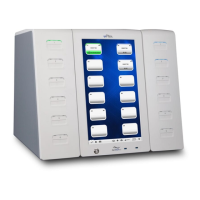
The status of each Bay should indicate OQ Required after bays reset
Note: Wait a couple minutes for bays to reset and connect.
Note: If none of the Bays have the OQ Required status after a few minutes, shutdown ISW, power off
main switch, wait 30 secs the power on system and repeat steps 9.1.
Note: If all Bays in a Tower or individual bay(s) do not have the “OQ Required” status, go back to step
5.17 to check dip-switch settings on the Bay(s). Make corrections as needed.
Go to the Run screen and test the timeout by covering one of the barcodes (accession ID or QR code)
and scanning an ePlex cartridge. The red crosshairs should turn off after 2 secs instead of 9.9 sec.
Test a customer accession ID barcode on an ePlex cartridge to ensure customer barcode scans
properly.
Instrument Software (ISW) Update
The ePlex Instrument Software must be checked and updated to the most current version.
Go to Settings > General tab
Check the current installed version of the ISW and compare against the current released version of
the ISW.
To update the ISW, insert the USB drive that has the latest version of released ISW.
Click the Install Software button in the software section of the screen and navigate to the software
upgrade package on the flash drive.
Click the Select button to perform the ISW upgrade.
After software installation, the ISW will automatically restart.
Bay Firmware Update
Login using the Internal username and POD.
Go to Settings > Bay Configuration.
Verify that the firmware (FW) running on all Bays is up to date.
If Bays are not running the most current FW, update to the current released version.
Load the latest FW onto a USB drive and insert into the ePlex instrument.
Select the Bays that are not running the latest FW in the Bay Configuration screen.
Select the Install Firmware button.
Navigate to the FW upgrade package on the USB drive and press Select to update the FW.
Upon completion, remove the USB drive from the system.
eHelp Operator Manual Installation
Go to Settings > General tab


 To Next Page
 Loading...