August 19, 2013
2
4. Setting up GV-PCR310 with GV-ASManager
1. Plug GV-PCR310’s USB connector to the computer installed with GV-ASManager. The
power LED turns on.
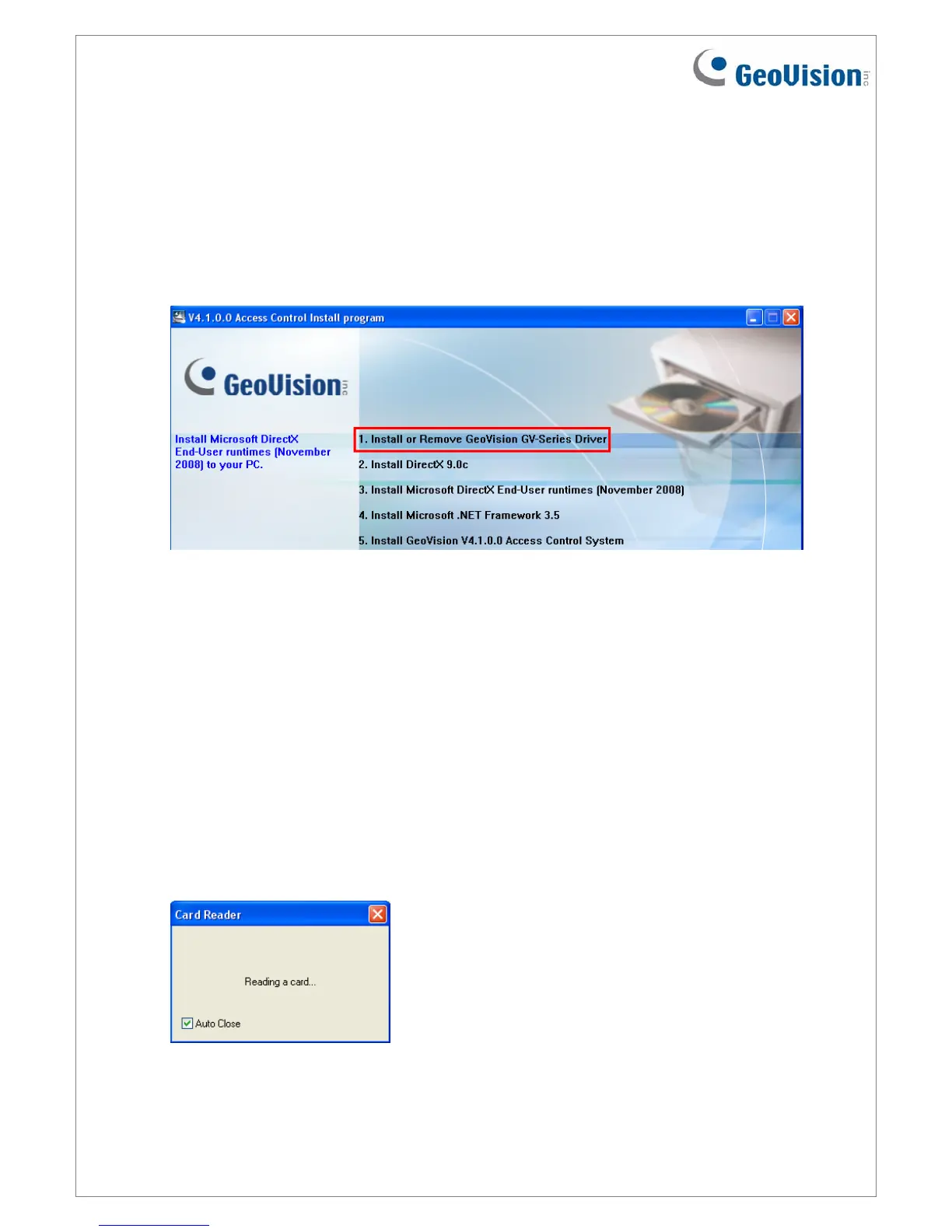
2. Insert the GV-ASManager Software DVD to the computer. The DVD runs automatically
and this window appears.
3. Select Install or Remove GeoVision GV-Series Driver, select Install GeoVision USB
Devices Driver and follow the on-screen instructions.
5. Adding a Card Using GV-PCR310 Enrollment Reader
Follow the steps below to add a card to GV-ASManager.
1. On the GV-ASManager’s main window, select Personnel and then select Cards. The
Card List window appears.
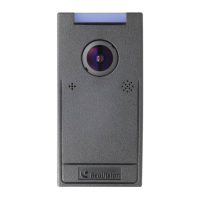
2. Click the Card Reader button for GV-ASManager to detect the reader. When the reader
is detected, this dialog box appears and the status LED flashes.



 To Next Page