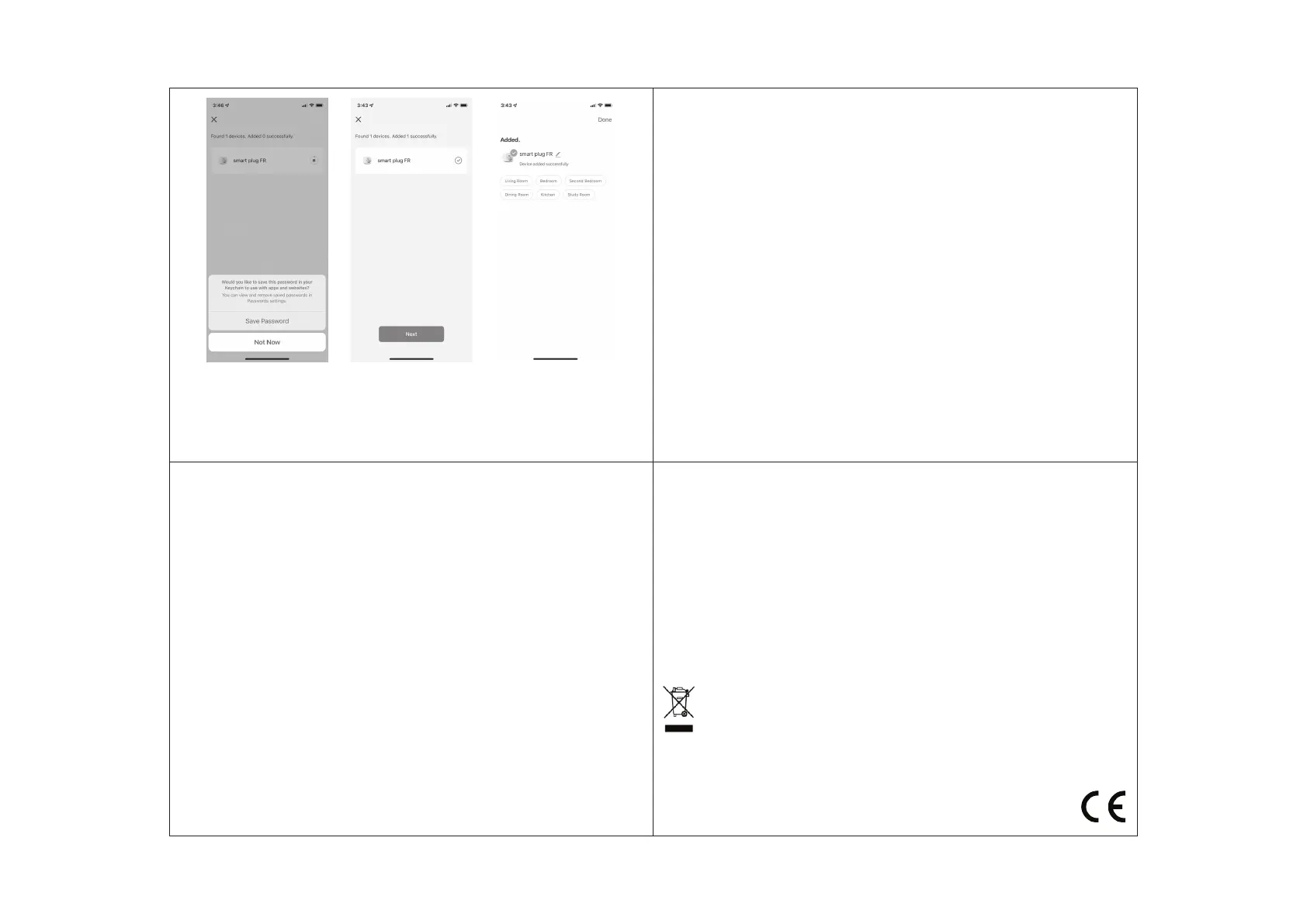
Step 3: Control your smart socket via smart life APP anytime and anywhere
• (make sure your mobile phone and smart socket are all connected to the network). To enjoy more functions refer to the
APP interface.
Step 4: Share your devices with your friend or family aer you add your devices successfully.
Quick Guide of Using Amazon Echo
Before using Amazon Echo to control your devices, make sure you meet the following conditions.
√. Amazon Alexa APP and account
√. An Echo device, including Echo, Echo Dot and Echo Tap
√. Smart socket
Sign in with Smart Life account, add the device, then change the name to an easily recognized word or phrase, like „Bed-
room socket” „Socket1” etc.
Set up Echo with Amazon Alexa App
• Sign in with Amazon account.
• Tap the Homepage on the top le, tap „Settings” and „Set up a new device”.
• Select an Echo device, long press the dot button until the orange light shows up and tap „Continue”.
• Select your WiFi network and connect it to your device according to the instructions. This may take several minutes.
Enable the skills in Alexa APP (Note: If a Smart Life account has been linked before, you can use it directly, or you can also
tap „Disable skills” to remove it)
• Tap the Homepage on the top le, Select „Skills”.
• Search „Smart Life” and select „Smart Life”.
• Tap „Enable Skills” to enable the Smart Life Skill, you will be redirected to the account link page.
• Type your Smart Life account and password, do not forget to select the country/region where your account belongs
to.
• Tap „Link Now” to link your Smart Life account.
• Leave the page when „Alexa has been successfully linked with Smart Life” shows up.
Control your smart device through Echo (Echo need to discover your smart devices before the control)
• You can say „Alexa, discover devices” to Echo, or you can also Tap „Discover devices” on APP to discover the smart
devices.
• Discovered devices will be shown in the list.(Note: Every time you change the name of devices on Smart Life App, Echo
must re-discover devices before the control).
Now you can control your smart devices through Echo. You can use following commands to control them. (e.g., Socket1):
√. Alexa, turn on/o the socket1
√. Alexa, turn on the socket in 5mins ...
Quick Guide of using Google Home
Sign in with Smart Life account, add the device, then change the name to an easily recognized word or phrase, like „Bed-
room socket” „Socket1” etc.
Set up Google Home with Google Home APP
1. Make sure your Google Home is set up.
2. Open the Google Home app by tapping the app icon on your mobile device.
3. Tap „ACCEPT“ to agree to the Terms of Service and Privacy Policy. Allow Google Home app to access the device location
to discover and set up nearby devices.
4. Tap „SIGN IN“, choose one Google account that you already logged in on your mobile device. Or follow the instructions
to sign in with a new Google account.
5. The Google Home app scans nearby devices that are ON and are ready to set up. Tap „SET UP“ to set up your Google
Home.
6. When Google Home app is successfully connected to the Google Home device, tap „PLAY TEST SOUND“, it will play
a test sound to confirm you are connected to the right device. If you hear the test sound, tap „I HEARD IT“.
7. Select the Room (ex Living Room) where your Google Home is located. This helps you identify the device when you
want to cast to it. Choose the WiFi network you want to connect to your Google Home. To automatically fetch the pass-
word for this network on this device, tap „OK“, then the password will appear in the password field. You can also
manually enter your password. Then tap „CONTINUE“.
8. Google Home will now attempt to connect to the provided WiFi network. When Google Home is successfully connected
to your Wi-Fi network, tap „CONTINUE“.
9. In order for the Google assistant to answer your questions and to enjoy a personalized experience, you must sign
into your Google account, then tap „SIGN UP“. Choose the Google account you want to link your Google Home device
to, then tap „CONTINUE AS XXX“. Enter the address where this Google Home is installed, and select your default music
service.
10. Tap „SKIP TUTORIAL“ to finish the setup. You can also tap „CONTINUE“ to watch the Google Home tutorial.
Link Smart Life account in Home Control
ATTENTION: Due to the Google Home app’s known bug, you could only use one Google account to control „Home Control
Action“. If you sign in Google Home app with several Google accounts, Control your smart devices through Google Home.
Now you can control your smart devices through Google Home. Take smart socket as the example, the supported voice
commands are as below:
√. Ok Google, turn on/o the smart socket.
√. Ok Google, turn on the smart socket in 5mins
Product disposal
At the end of the service life, do not throw the appliance away as unsorted communal waste. Use sorted waste
collection points. By proper disposal of the product you help to prevent negative influences on human health
and natural environment. Recycling of materials helps to protect our natural resources. You can obtain more
information about recycling of this product from your municipality, household waste disposal organisation or
the sales point, where you purchased the product.



 To Previous Page