7
EN
2. REGISTER PROGRAMMER
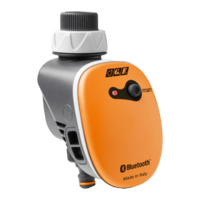
Connect the Programmer to the tap and to the irrigation system.
IMPORTANT: wait before tting the batteries.
Launch the GFPRO app and wait for it to load (g. 1).
Now t the batteries in accordance with the instructions in gs. 2 and 3. Use
exclusively a single 9V alkaline battery. Check that the LED is ashing (g. 4)
then perform the scanning procedure (to register the programmer) by clicking
the icon
at the top right of the screen
The registration conrmation page will appear. Assign the Name to the
programmer identied by the scanning procedure (g. 5).
Once the programmer has been registered, the overview page will show
the programmer with the Bluetooth®
icon, which identies connected
programmers ready for programming; now click on the programmer you wish
to set up (g. 6).
Click the icon
at the top left of the screen for contacts, to change language,
and to visit the G.F. website (www.gfgarden.it)
YOU CAN REGISTER MULTIPLE GFPRO PROGRAMMERS. If the Bluetooth®
icon does not appear next to the registered programmer, repeat the scanning
procedure by clicking on the icon
3. CONTROL PANEL
Programmer name
Go back to start page
Programmer internal
temperature
Free manual
programming. To set
personalized programs
with up to 4starts
per day
Button to delete and/or rename
programmer, display information,
app version and previously set
Password
Battery level
Programs designed to provide
irrigation at the optimal times
of day and dierentiated in
accordance with irrigation type:
Above-ground Irrigation or Drip
Irrigation
Smart ECO. Automatically adapts
the duration of previously set
programs based on the season,
thus avoiding wastage to allow
more eco-friendly irrigation
Button to force water ow on / o
condition. Click the icon to turn
ow on (light blue icon), and click
again to turn ow o (grey icon).
If the ow is turned on, if it is not
subsequently turned o manually
it will be turned o automatically
after one hour
Very hot weather /
rainy weather function.
Based on the next 5
days, you can increase or
decrease the duration of
previously set programs
manually in accordance
with the weather
forecast (warmer or
wetter).
GF33491015_GF80006017_GF80286017_libr.istruz.7,5x13_APP GFPRO 6lingue_19.2.indd 729/01/19 13:38


 To Next Page
