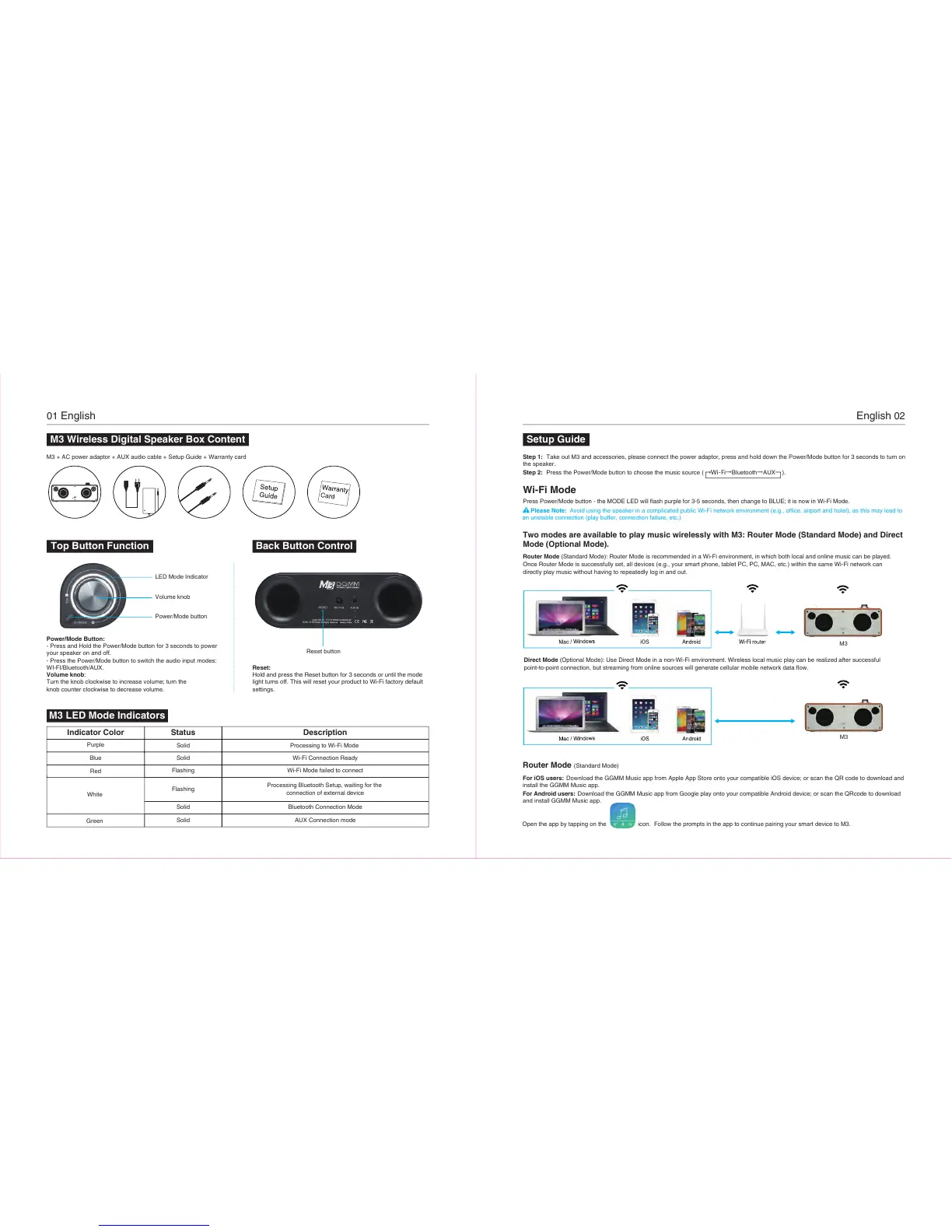
M3 LED Mode Indicators
M3 + AC power adaptor + AUX audio cable + Setup Guide + Warranty card
LED Mode Indicator
Volume knob
Reset button
Power/Mode button
Power/Mode Button:
- Press and Hold the Power/Mode button for 3 seconds to power
your speaker on and off.
- Press the Power/Mode button to switch the audio input modes:
WI-FI/Bluetooth/AUX.
Volume knob:
Turn the knob clockwise to increase volume; turn the
knob counter clockwise to decrease volume.
Reset:
Hold and press the Reset button for 3 seconds or until the mode
light turns off. This will reset your product to Wi-Fi factory default
settings.
Indicator Color Status Description
Solid
Solid Processing to Wi-Fi Mode
Wi-Fi Connection Ready
Purple
Blue
Solid
Solid
Flashing
Flashing Wi-Fi Mode failed to connect
Processing Bluetooth Setup, waiting for the
connection of external device
Bluetooth Connection Mode
AUX Connection mode
Red
Green
White
WIRELESS DIGITAL SPEAKER
M3 Wireless Digital Speaker Box Content
Top Button Function
01
English English
02
Step 1: Take out M3 and accessories, please connect the power adaptor, press and hold down the Power/Mode button for 3 seconds to turn on
Step 2:
Press Power/Mode button - the MODE LED will flash purple for 3-5 seconds, then change to BLUE; it is now in Wi-Fi Mode.
Setup Guide
Wi-Fi Mode
Press the Power/Mode button to choose the music source ( Wi-Fi→Bluetooth→AUX ).
Please Note: Avoid using the speaker in a complicated public Wi-Fi network environment (e.g., office, airport and hotel), as this may lead to
an unstable connection (play buffer, connection failure, etc.)
M3
M3
Two modes are available to play music wirelessly with M3: Router Mode (Standard Mode) and Direct
Mode (Optional Mode).
Router Mode (Standard Mode): Router Mode is recommended in a Wi-Fi environment, in which both local and online music can be played.
Once Router Mode is successfully set, all devices (e.g., your smart phone, tablet PC, PC, MAC, etc.) within the same Wi-Fi network can
directly play music without having to repeatedly log in and out.
Direct Mode (Optional Mode): Use Direct Mode in a non-Wi-Fi environment. Wireless local music play can be realized after successful
point-to-point connection, but streaming from online sources will generate cellular mobile network data flow.
Router Mode (Standard Mode)
For iOS users: Download the GGMM Music app from Apple App Store onto your compatible iOS device; or scan the QR code to download and
install the GGMM Music app.
For Android users: Download the GGMM Music app from Google play onto your compatible Android device; or scan the QRcode to download
and install GGMM Music app.
the speaker.
Open the app by tapping on the icon. Follow the prompts in the app to continue pairing your smart device to M3.
Back Button Control


 To Next Page