03 English English
04
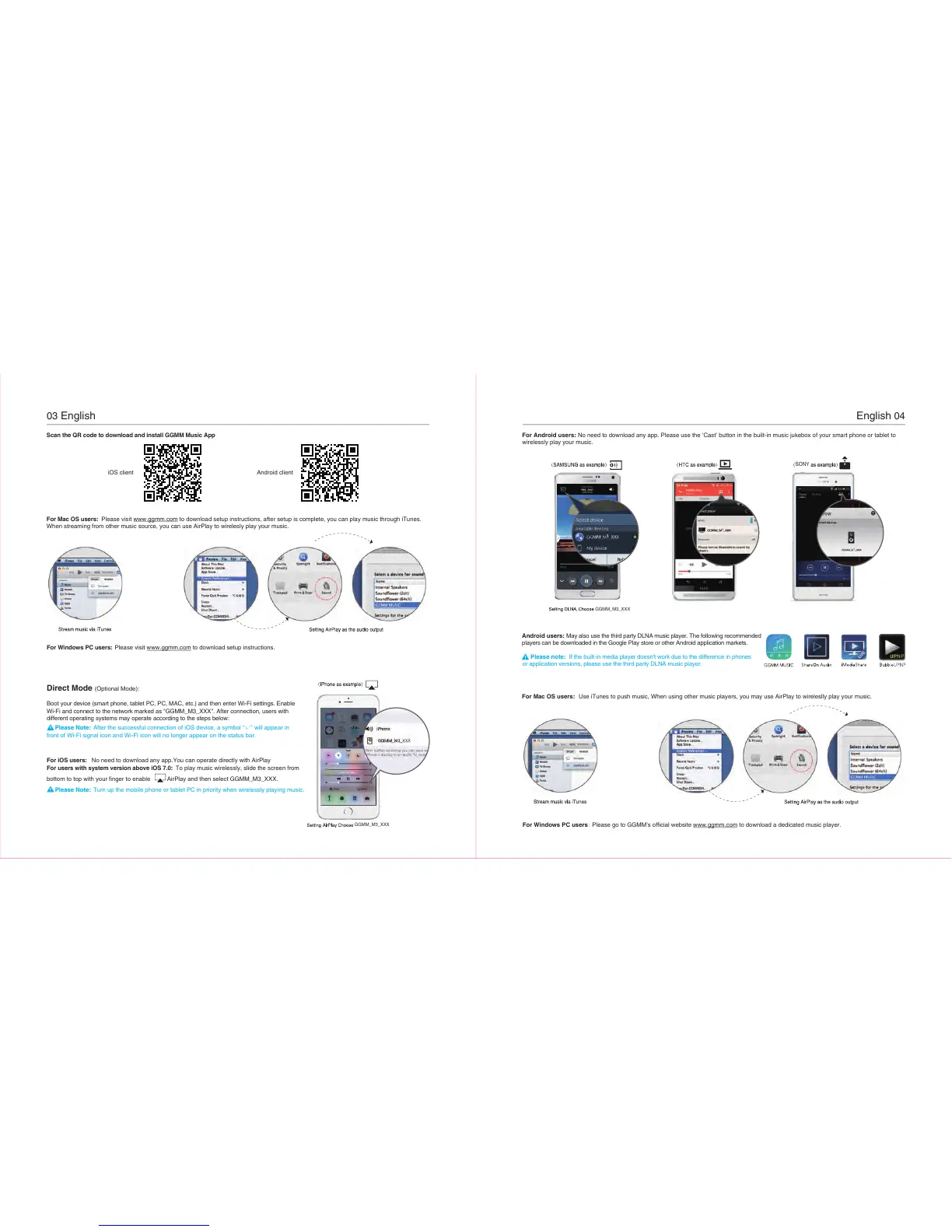
Scan the QR code to download and install GGMM Music App
After the successful connection of iOS device, a symbol “√” will appear in
front of Wi-Fi signal icon and Wi-Fi icon will no longer appear on the status bar.
Please Note:
Turn up the mobile phone or tablet PC in priority when wirelessly playing music. Please Note:
iOS client Android client
For Mac OS users: Please visit www.ggmm.com to download setup instructions, after setup is complete, you can play music through iTunes.
When streaming from other music source, you can use AirPlay to wirelesly play your music.
For Windows PC users: Please visit www.ggmm.com to download setup instructions.
For iOS users: No need to download any app.You can operate directly with AirPlay
To play music wirelessly, slide the screen from For users with system version above iOS 7.0:
bottom to top with your finger to enable AirPlay and then select GGMM_M3_XXX.
Direct Mode (Optional Mode):
Boot your device (smart phone, tablet PC, PC, MAC, etc.) and then enter Wi-Fi settings. Enable
Wi-Fi and connect to the network marked as "GGMM_M3_XXX". After connection, users with
different operating systems may operate according to the steps below:
GGMM_M3_XXX
SONY
For Android users: No need to download any app. Please use the ‘Cast’ button in the built-in music jukebox of your smart phone or tablet to
For Mac OS users:
Use iTunes to push music, When using other music players, you may use AirPlay to wireleslly play your music.
For Windows PC users:
Please go to GGMM’s official website www.ggmm.com to download a dedicated music player.
wirelessly play your music.
Android users: May also use the third party DLNA music player. The following recommended
players can be downloaded in the Google Play store or other Android application markets.
Please note: If the built-in media player doesn't work due to the difference in phones
or application versions, please use the third party DLNA music player.
3


 To Next Page