
 Need help?
Do you have a question about the Gigabyte AORUS 7 9KF and is the answer not in the manual?
Guide to connecting the power adapter and initial power-on sequence.
Locate and identify all major components, ports, and connectors on the notebook.
Learn about key combinations for accessing system functions like brightness and volume.
Instructions on how to launch the system recovery tool and restore the OS to factory defaults.
Explore advanced recovery tools like System Restore, Image Recovery, and Startup Repair.
Information regarding product warranty, service, and contact details.
Access common questions and answers related to the notebook.
This document is a user manual for an AORUS 7 X7EF notebook, providing essential information for its initial setup, operation, and maintenance. The manual is structured to guide users through the fundamental aspects of using their new AORUS notebook, from powering it on for the first time to troubleshooting and system recovery.
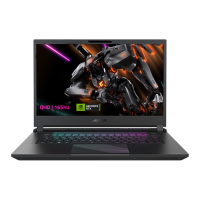
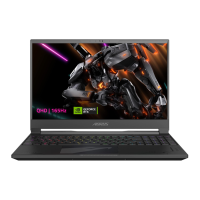
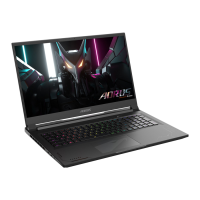
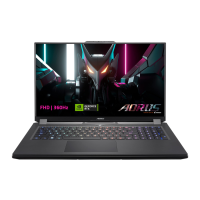
The AORUS 7 X7EF is a high-performance notebook designed for various computing tasks, including gaming, productivity, and multimedia consumption. It features a display panel, a full-sized keyboard, and a touchpad for user interaction. Connectivity options include multiple USB ports (Type-A and Type-C), HDMI, Mini DisplayPort, and an Ethernet port for wired network access. Audio input and output are handled by a combo jack, and the notebook includes integrated speakers for sound playback. A webcam and microphone are also built-in for video conferencing and communication. The notebook is powered by an AC adapter, which connects to a DC-in jack.
The manual begins by detailing the process of powering on the AORUS notebook for the first time. Users are instructed to connect the AC adapter to the notebook's DC-in jack and then plug the power cord into a power outlet. It emphasizes the importance of not turning off the notebook until the operating system configuration is complete, noting that audio functionality will be unavailable until Windows Setup is finished.
A comprehensive "AORUS Notebook Tour" section provides a visual guide to the notebook's various components and their functions. This includes identifying the microphone, webcam, display panel, power button, keyboard, touchpad, Ethernet port, HDMI port, Mini DisplayPort, USB 3.2 ports (Type-A and Type-C), audio combo jack, power input port, and speakers. This visual aid helps users quickly locate and understand the purpose of each port and component.
The manual also highlights the use of hotkeys, which are key combinations (Fn key + another key) designed to quickly access various system controls. These hotkeys enable users to perform actions such as maximizing fan speed, putting the computer to sleep, enabling/disabling wireless LAN, adjusting screen brightness, toggling display output, locking the screen, controlling speaker volume, enabling/disabling the touchpad, activating/deactivating airplane mode, switching AI modes, and turning the keyboard backlight on or off. This feature enhances user convenience and efficiency by providing quick access to frequently used functions without navigating through software menus.
The manual includes important safety and maintenance advisories. Users are cautioned against removing the built-in lithium battery and are advised to contact an authorized service center for any service needs. It also provides guidelines for proper placement and usage of the notebook, warning against installing it on slanted or vibrating surfaces, or using it in locations with direct sunlight or high temperatures (above 112°F/45°C) to prevent battery expansion and aging. Poor ventilation, such as using the notebook on bedding or pillows, is also discouraged as it can lead to overheating. Users are specifically reminded to ensure that the notebook's vents are not blocked.
A significant portion of the manual is dedicated to the "Recovery Guide," which outlines the process for restoring the laptop's operating system to factory default settings. This feature is crucial for troubleshooting and resolving software issues. The notebook contains a hidden partition with a full backup image of the operating system. The recovery process involves turning off and restarting the laptop, then pressing and holding the F9 key during startup to launch the recovery tool.
Users are presented with options to "Troubleshoot" and enter recovery settings. Within the recovery settings, two main options are available: "Reset this PC" and "Smart Recovery." "Reset this PC" allows users to choose whether to keep or remove their files while reinstalling Windows. "Smart Recovery," on the other hand, restores the PC settings to factory defaults, resulting in the loss of all personal data and files. The manual provides a clear warning about data loss when using "Smart Recovery." It also advises users to ensure the AC adapter is plugged in during the recovery process and to avoid turning off the laptop until the process is complete. After the recovery is finished, users are instructed to click "Shutdown."
The manual concludes with an "Appendix" section, providing links to the GIGABYTE service website for warranty and service information, as well as a link to the FAQ page for frequently asked questions. These resources offer additional support and information for users regarding their AORUS notebook.
 General
| Display Resolution | 1920x1080 |
|---|---|
| Weight | 2.7 kg |
| Display Refresh Rate | 144 Hz |
| Memory Type | DDR4 |
| Display Size | 17.3 inches |
| RAM | 16GB |
| Operating System | Windows 10 Home |


 To Next Page