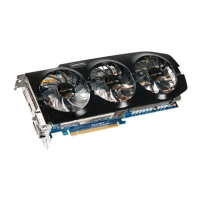
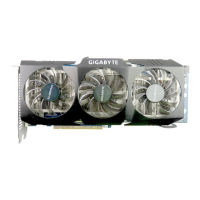
This document is a user manual for the GIGABYTE GV-N470SO-13I graphics accelerator, which is powered by the NVIDIA GeForce GTX 470 Graphics Processing Unit (GPU). It provides comprehensive information on the device's features, hardware and software installation, troubleshooting, and regulatory statements.
Function Description
The GIGABYTE GV-N470SO-13I is a graphics accelerator designed to enhance the visual performance of a computer system. It supports advanced graphics technologies and is suitable for demanding applications, including 3D gaming. The card can be used in a single-card configuration or as part of an NVIDIA SLI™ (Scalable Link Interface) system for even greater graphics performance.
Important Technical Specifications
- GPU: NVIDIA® GeForce™ GTX 470 Graphics Processing Unit.
- Bus Interface: Supports PCI Express 2.0.
- Memory: Integrated with 1280 MB GDDR5 memory.
- API Support: Supports DirectX® 11.
- Multi-GPU Technology: Supports NVIDIA® SLI™ technology (Scalable Link Interface).
- Requires a PCI Express motherboard with two/three x16 physical connectors.
- Graphics cards in an SLI configuration must be of the same model name (e.g., GV-N470SO-13I) and from the same vendor (e.g., GIGABYTE TECHNOLOGY).
- For SLI configuration, two GV-N470SO-13I cards are needed.
- For 3-way SLI configuration, three GV-N470SO-13I cards are needed.
- Connectors:
- 2 Dual-Link DVI-I connectors.
- 1 mini HDMI connector.
- Content Protection: Supports HDCP (High-Bandwidth Digital Content Protection) technology.
- Minimum System Requirements:
- Power Supply: 550-watt system power supply specification or above is recommended for single card. For SLI configuration, a 900-watt or above power supply is recommended.
- Processor: Intel® Pentium® 4 or AMD Athlon™ XP class.
- System Memory: 2GB system memory (4GB recommended).
- Optical Drive: CD-ROM or DVD-ROM drive for software installation.
- Operating System: Windows® 7, Windows® Vista, Windows® XP.
Usage Features
Hardware Installation:
The manual provides a step-by-step guide for installing the graphics card into a PCI Express x16 slot. It emphasizes ensuring the card is fully seated and securely fastened. Connection options for monitors include DVI-I and mini HDMI, with an optional mini HDMI to HDMI cable for HDMI monitors.
SLI Configuration:
Detailed instructions and diagrams illustrate how to set up two or three GV-N470SO-13I cards in an SLI configuration using SLI bridge connectors, provided by the motherboard manufacturer. This allows for scaled graphics performance.
Software Installation:
The installation process for drivers and utilities is clearly outlined. Users are instructed to install DirectX 9 or later and appropriate motherboard drivers before installing the display driver. The driver disk's Autorun program simplifies the installation process.
GIGABYTE OC Guru:
This utility provides advanced control over the graphics card's performance. It offers three default profiles:
- Gaming Mode: For extreme 3D gaming performance.
- Default Mode: Original factory settings.
- Power Saving Mode: Optimizes for 2D and 3D power saving.
Users can also create two custom profiles to manually adjust core clock, memory clock, shader clock, GPU voltage, memory voltage, and fan speed. The utility includes an information panel to monitor GPU temperature, GPU usage, power phase, current, and power savings. It also features hotkey settings for quick adjustments and screen capture.
Display Settings (Resolutions and Color Quality for Windows):
The manual guides users on how to access and adjust display settings through the Windows Personalization and Display Settings. This includes changing screen resolution, color quality, and accessing advanced settings.
NVIDIA Control Panel:
After driver installation, the NVIDIA Control Panel can be accessed by right-clicking on the desktop. It's the central hub for configuring all graphics card settings. Users can choose between "Standard Settings" for casual use or "Advanced Settings" for enthusiasts.
- 3D Settings: Allows users to change image and rendering settings for Direct3D and OpenGL applications, override GPU and GPU memory clock frequencies for performance enhancement, and assign specific 3D settings to individual games. The "Adjust Image Settings with Preview" page helps visualize changes to image quality, while "Manage 3D Settings" allows establishing global or application-specific 3D settings. "Set PhysX configuration" enables GPU acceleration for real-time physics effects.
- Display Settings: Offers features to optimize display use, including moving CRT screen position, changing resolution, adjusting desktop color settings, rotating the display (portrait, landscape, inverted), managing custom resolutions (Windows XP only), and setting up multiple displays.
- Multi-Display Modes: NVIDIA nView technology supports various multi-display modes:
- Only use one display (Single)
- The same on both display (Clone): Both displays show the same desktop image.
- Configured independently from each other (Dualview): Displays function as one virtual desktop, with separate taskbars and less efficient 3D acceleration compared to span modes.
- As one large horizontal desktop (Horizontal span) (Windows XP only): Displays function as one wide virtual desktop.
- As one large vertical desktop (Vertical span) (Windows XP only): Displays function as one tall virtual desktop.
- A table of supported resolutions and color depths for single display in Windows XP is provided, noting that actual supported resolutions depend on the monitor.
- Video & Television Settings: Similar to analog settings for optimal viewing. Users can adjust television picture quality, video color settings, and the position/size of the desktop video to fit the television screen. "Adjust Video Color Settings" allows fine-tuning color for video content, while "Adjust Video Image Settings" offers options like inverse telecine, edge sharpness, and noise filtering.
Maintenance Features
Troubleshooting Tips:
The manual includes a dedicated section for troubleshooting common problems, such as:
- Ensuring the card is properly seated and cables are secure.
- Verifying monitor and computer power.
- Disabling built-in graphics capabilities on the motherboard if necessary.
- Confirming the correct display device and graphics card are selected during driver installation.
- Restarting the computer and checking the driver in Safe Mode via Device Manager.
- Referring to the Windows Help Troubleshooting Guide or contacting the computer manufacturer for further assistance.
- Advice on adjusting monitor settings for focused, crisp, and sharp screen display if desired color/resolution settings are not found.
BIOS Reflashing:
Instructions are provided for reflashing the BIOS in MS-DOS mode, including steps to extract the BIOS file, restart in MS-DOS, back up the current BIOS, and flash the new BIOS.
Regulatory Statements:
The manual includes important regulatory notices and GIGABYTE's commitment to preserving the environment.
- RoHS Directive Statement: GIGABYTE products are designed to be free from hazardous substances (Cd, Pb, Hg, Cr+6, PBDE, PBB) and comply with RoHS requirements.
- WEEE Directive Statement: GIGABYTE products comply with the 2002/96/EC WEEE Directive, encouraging proper collection, recycling, and disposal of electronic devices to conserve natural resources and protect human health and the environment. The WEEE symbol on the product or packaging indicates it should not be disposed of with other waste.
- China Restriction of Hazardous Substances Table: A table is provided in compliance with China's RoHS requirements, detailing the presence of hazardous substances (Lead, Mercury, Cadmium, Hexavalent Chromium, Polybrominated Biphenyls, Polybrominated Diphenyl Ethers) in various components of the product (PCB, mechanical parts, chips, connectors, passive components, cables, soldering metal, flux, solder paste, label, and other consumable materials). It indicates whether the concentration of these substances is below or above the specified limits.

 Need help?
 General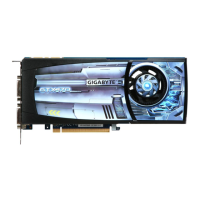



 To Next Page