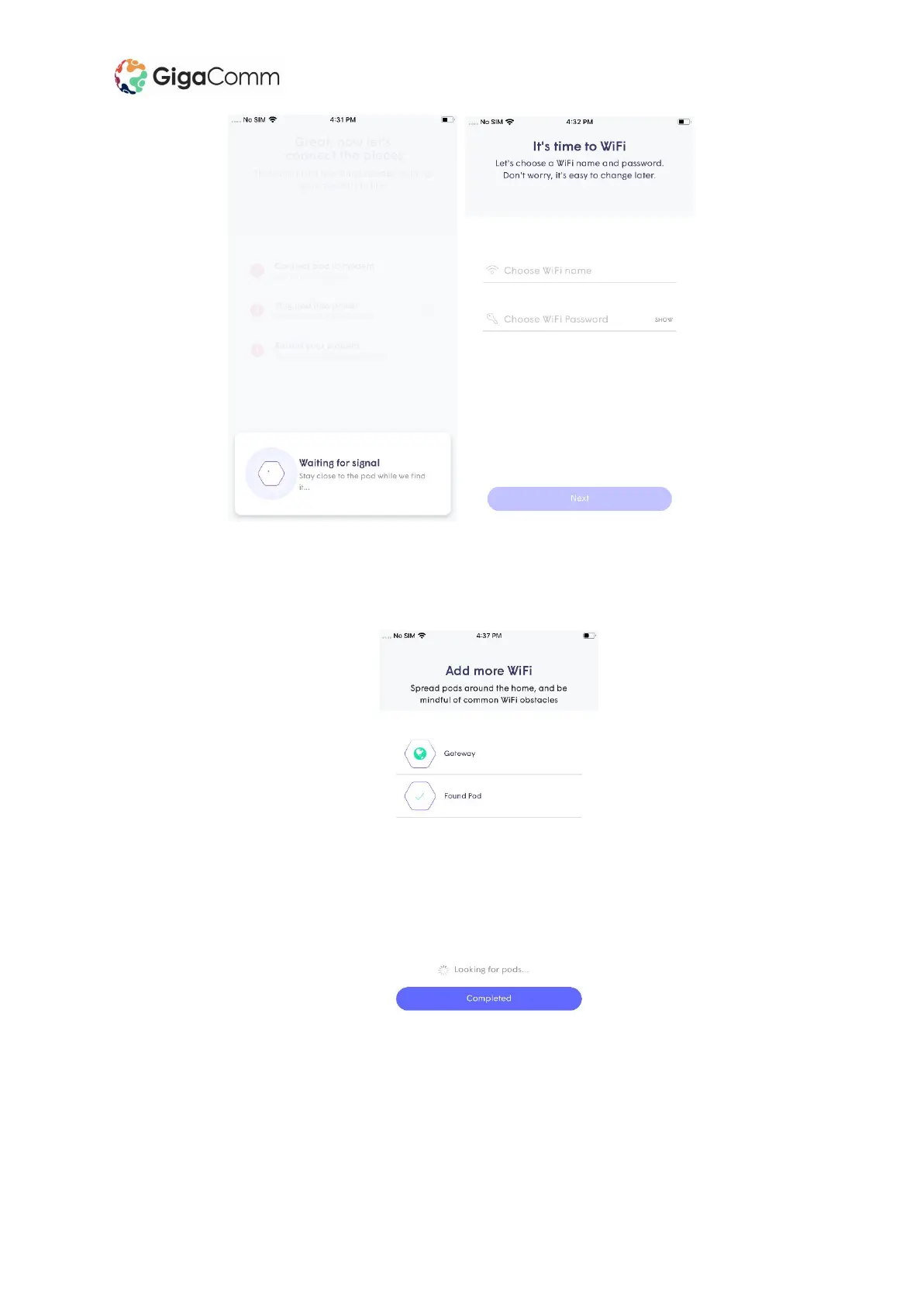
7. If you have more than one Plume pod, start plugging them in now. Stay close to each pod
until it is found. As each one connects to the network and cloud, a green check mark will
appear, and the LED will turn off. Tap on Completed once all pods have been added.
8. The Plume app will prompt you to join the new Wi-Fi network with your mobile.
● Tapping on Join will take you out of the Plume app and into the Wi-Fi settings so you
can join.
● Once back in the Plume app, a Welcome Aboard message indicates that the device
is now connected, and the new Wi-Fi network is operational.
NetComm CPE & Access Point Setup Guide



 To Next Page