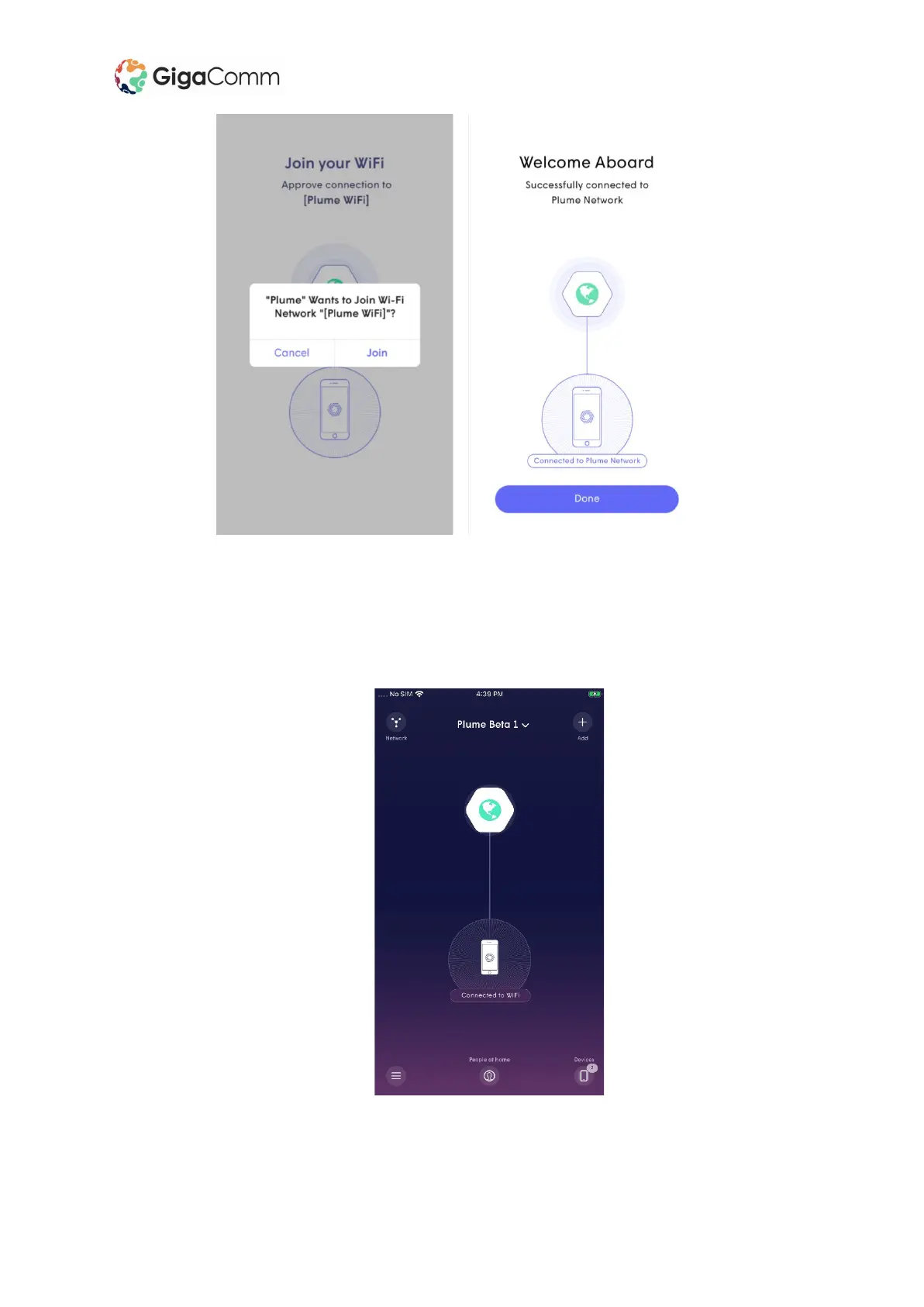
9. After you have joined the network, you'll be taken to the home screen. Click on the Network
button in the top left corner so you can see your connected Plume Pods. If you have
connected to more than one pod it will initially show up in red then once it connects back to
the main pod you will see it turn white and a line will connect it back to the main pod. This
can take about 5 minutes so allow it some time to setup.
NetComm CPE & Access Point Setup Guide



 To Next Page