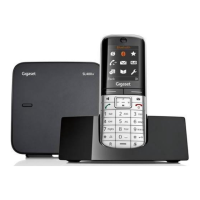
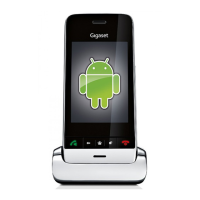
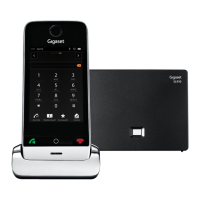
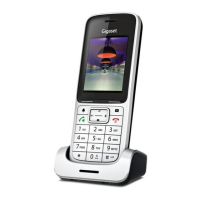
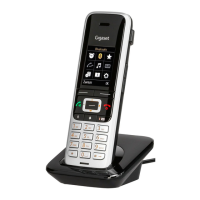
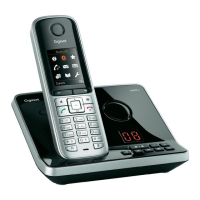
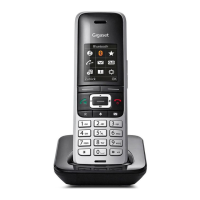
The Gigaset SL750H is a cordless telephone designed for business and home office environments, offering a range of features for efficient call management. Its user-friendly interface and robust functionality make it suitable for various communication needs, from making and receiving calls to managing multiple lines and participating in conference calls.
Function Description
The Gigaset SL750H primarily functions as a DECT (Digital Enhanced Cordless Telecommunications) handset, connecting wirelessly to a base station (not explicitly detailed in the provided manual but implied by its cordless nature). It supports both internal and external calls, allowing users to communicate within an office environment or with external contacts. The device is equipped with a color display that provides visual feedback for navigation, call status, and messaging.
Key functions include:
- Call Management: The device facilitates making, answering, transferring, and placing calls on hold. It supports both internal calls (between extensions) and external calls (to outside lines).
- Redial Functionality: Users can easily redial the last number called or access a list of previously dialed numbers, enhancing efficiency for frequent contacts.
- Volume Control: The handset offers adjustable volume settings for calls, ensuring clear audio quality in various environments.
- Muting: A mute function allows users to temporarily silence their microphone during a call without disconnecting, useful for private conversations or minimizing background noise.
- Conference Calling: The Gigaset SL750H supports conference calls, enabling multiple parties to participate in a single conversation, which is beneficial for team collaborations or multi-party discussions.
- Directory Access: The device provides access to a directory, allowing users to store and retrieve contact information easily. This feature streamlines the process of initiating calls to known contacts.
- Messaging: The handset includes messaging capabilities, indicated by a dedicated icon on the display, suggesting it can receive or send text-based messages or notifications.
- Sound Profiles: The presence of a "Sound Profiles Key" indicates that users can customize audio settings for different scenarios, such as ringtones, volume levels, or notification sounds.
- Handsfree Functionality: A "Talk/Handsfree Key" suggests the device supports handsfree operation, allowing users to speak and listen without holding the handset, which is convenient for multitasking.
Usage Features
The Gigaset SL750H is designed with intuitive controls for ease of use. The physical layout of the keys and the on-screen prompts guide users through various operations.
- Colour Display: The vibrant color display enhances visibility and provides a clear interface for navigating menus, viewing call information, and reading messages.
- Soft Keys: The "Soft Keys" located directly below the display are context-sensitive, meaning their function changes based on the current menu or call state. This dynamic functionality simplifies menu navigation and action selection. For example, "Back" and "OK" are common soft key functions.
- Control Key: A central "Control Key" (often a four-way navigation pad with a central "Select/OK" button) is crucial for moving through menus and confirming selections. This key typically includes directional functions:
- Navigate Up/Volume Key: Used to scroll upwards in menus or increase call volume.
- Navigate Down/Directory Key: Used to scroll downwards in menus or access the phone's directory.
- Navigate Left/Internal Call Key: Used to move left in menus or initiate an internal call.
- Navigate Right/Mute Key: Used to move right in menus or mute the microphone during a call.
- Dedicated Function Keys:
- Sound Profiles Key: Quickly switch between different sound settings.
- Messages Key: Access the messaging inbox or related features.
- Talk/Handsfree Key: Initiate a call, answer an incoming call, or activate/deactivate handsfree mode.
- End Call & On/Off Key: Terminate a call or power the device on/off.
- Recall Key: Used in call transfer scenarios, specifically to complete a transfer after informing the second party.
- Number Pad: A standard 0-9 number pad is used for dialing numbers, entering extension numbers, and inputting text (if supported for messaging or directory entries).
- Call Initiation:
- External Calls: To make an external call, users typically press '9' (a common prefix for external lines in business systems) followed by the desired number, then press the "Talk" button.
- Internal Calls (by extension): Enter the extension number directly using the number pad, then press the "Talk" button.
- Internal Calls (from directory): Press the "Directory" key, scroll to the desired contact using navigation keys, then press the "Talk" button.
- Answering Calls: Simply press the "Talk" key when the phone rings.
- Call Transfer:
- Internal Transfer: During an active call, press the "Ext Call" soft key to put the caller on hold. Dial the desired extension, inform the second party, then press the "Recall" key to complete the transfer.
- External Transfer: Similar to internal transfer, but after pressing "Ext Call," dial '9' followed by the external number, inform the second party, then press "Recall."
- Placing Calls on Hold: During an active call, press the "Ext Call" soft key. To return to the call, press the "End" soft key.
- Muting: Press the "Mute" key (often integrated with the "Navigate Right" key) to mute the microphone. Press it again to unmute.
- Adjusting Volume: Use the "Navigate Up/Volume Key" to access volume settings, then use the left/right arrow keys to adjust the level. The setting is automatically saved after a few seconds.
- Redialing:
- Last Number: Press the "Talk" key twice.
- Previous Numbers: Press the "Talk" key once, then use the navigation keys to scroll through the list of previously dialed numbers, and press "Talk" again to dial the selected number.
- Conference Calls: During an active call, press the "Ext Call" soft key to put the caller on hold. Dial the number of the party to be added, then press the "Conf" soft key to start the conference.
Maintenance Features
While the provided manual focuses primarily on operational usage, some aspects imply maintenance or support features:
- Software Updates/Versions: The "Date" and "Version" table on the last page indicates that the device's firmware or associated software undergoes updates. This suggests that the device can receive improvements, bug fixes, or new features over time, which is a form of ongoing maintenance. For example, version 1.2 added a QR Code Link to Training, and version 1.1 added page footers and a title image, indicating continuous refinement of documentation and potentially the device's user interface or features.
- Training Resources: The inclusion of "MyCalls Call Manager Training" and a QR code/website link for additional training highlights the availability of support resources. This is a crucial "maintenance" feature for users, ensuring they can effectively utilize and troubleshoot the device's advanced functionalities. Access to training helps users maintain proficiency and resolve common usage issues independently.
- System Integration: The mention of "MyCalls Call Manager Training" suggests that the Gigaset SL750H is part of a larger communication system, likely managed by a "MyCalls Dashboard." This implies that system administrators or engineers would handle the setup, configuration, and potentially remote diagnostics or updates for the device within that ecosystem. The "engineer" mentioned in the training section plays a role in the initial setup and booking of training, indicating professional support for system integration and maintenance.
Overall, the Gigaset SL750H is a comprehensive cordless phone designed for efficient and flexible communication, supported by clear operational guidelines and accessible training resources to ensure optimal user experience and system integration.

 Need help?
 General

 To Next Page