EasyManua.ls Logo

Gioteck RC5 - Page 6

Gioteck RC5
68 pages
Print Icon
To Next Page IconTo Next Page
To Previous Page IconTo Previous Page
Loading...
EN
Option 1 Option 2
Video
Input
Audio
Out
Headphone
Input
CHAIR 1 CHAIR 2
HDMI Input on
game console
HDMI Input
on TV
(NOT INCLUDED)
(NOT INCLUDED)
Connection
to console
Connection
to console
Connection
to console
(NOT INCLUDED)
(NOT INCLUDED)
Output
Output
Input
Output
OR
Output
Input
Vibration
Vibration
Vibration
Vibration
Vibration
Option 1 Option 2
Video
Input
Audio
Out
Headphone
Input
CHAIR 1 CHAIR 2
HDMI Input on
game console
HDMI Input
on TV
(NOT INCLUDED)
(NOT INCLUDED)
Connection
to console
Connection
to console
Connection
to console
(NOT INCLUDED)
(NOT INCLUDED)
Output
Output
Input
Output
OR
Output
Input
Vibration
Vibration
Vibration
Vibration
Vibration
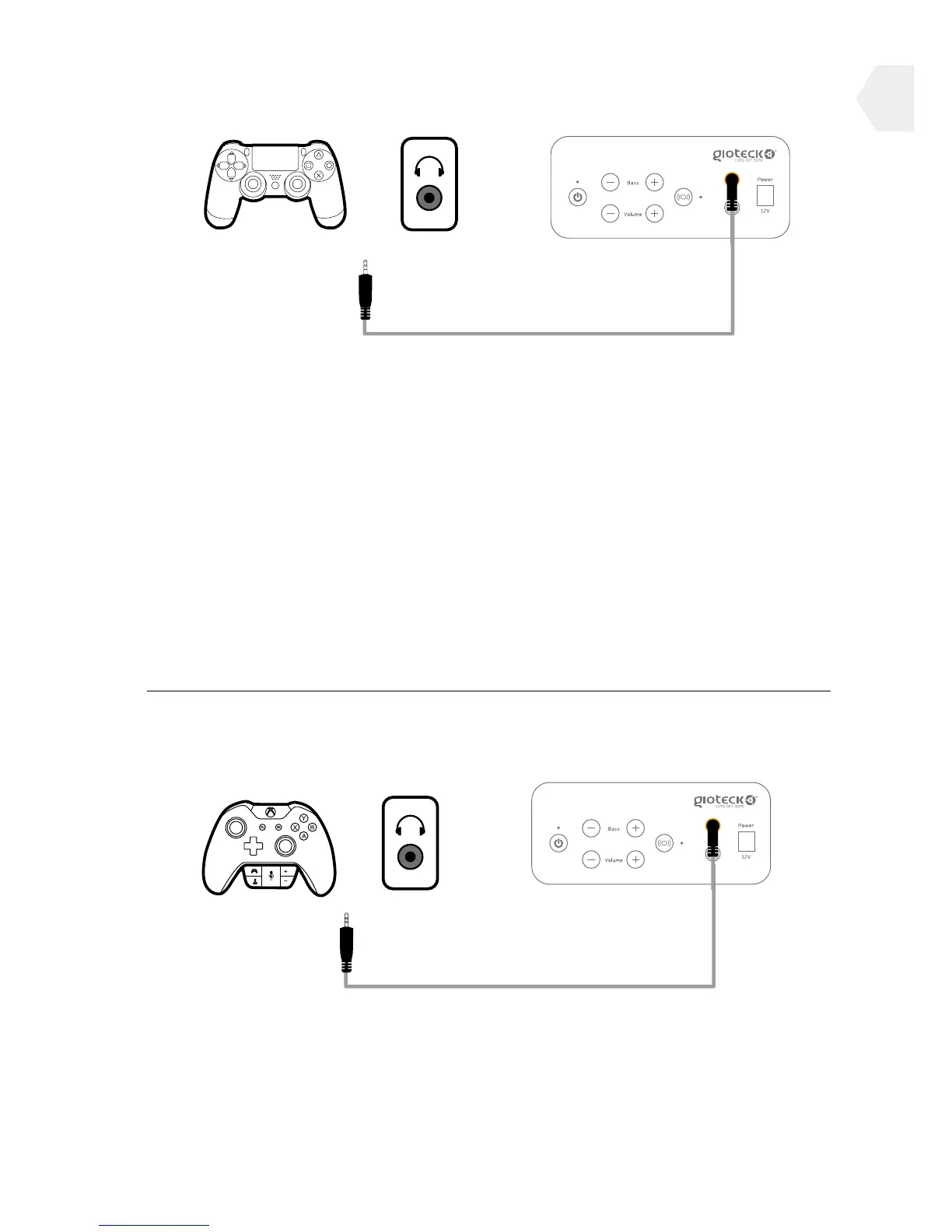
CONNECTION TO PS4
Option 1 :
1] Connect the audio cable supplied with the RC-5 to the PS4 controller.
2] Go to Settings > Device Settings > Audio Device Settings and set the
Output to ‘All Audio’.
3] Adjust the sound settings and click OK before leaving these settings.
Option 2 :
1] Connect the audio cable supplied with the RC-5 to the headphone
socket on your TV/Monitor.
2] Go to Settings > Devices > Audio Devices and set Output to ‘Chat Only
3] Adjust the sound settings and click OK before leaving these settings.
CONNECTION TO XBOX ONE
Option 1 : Connect the Audio cable supplied with the RC-5 directly to the
Microso’s Stereo Headset Adapter.
Option 2 : Connect the audio cable supplied with the RC-5 directly to the
headphone socket on your TV/Monitor.
6