7
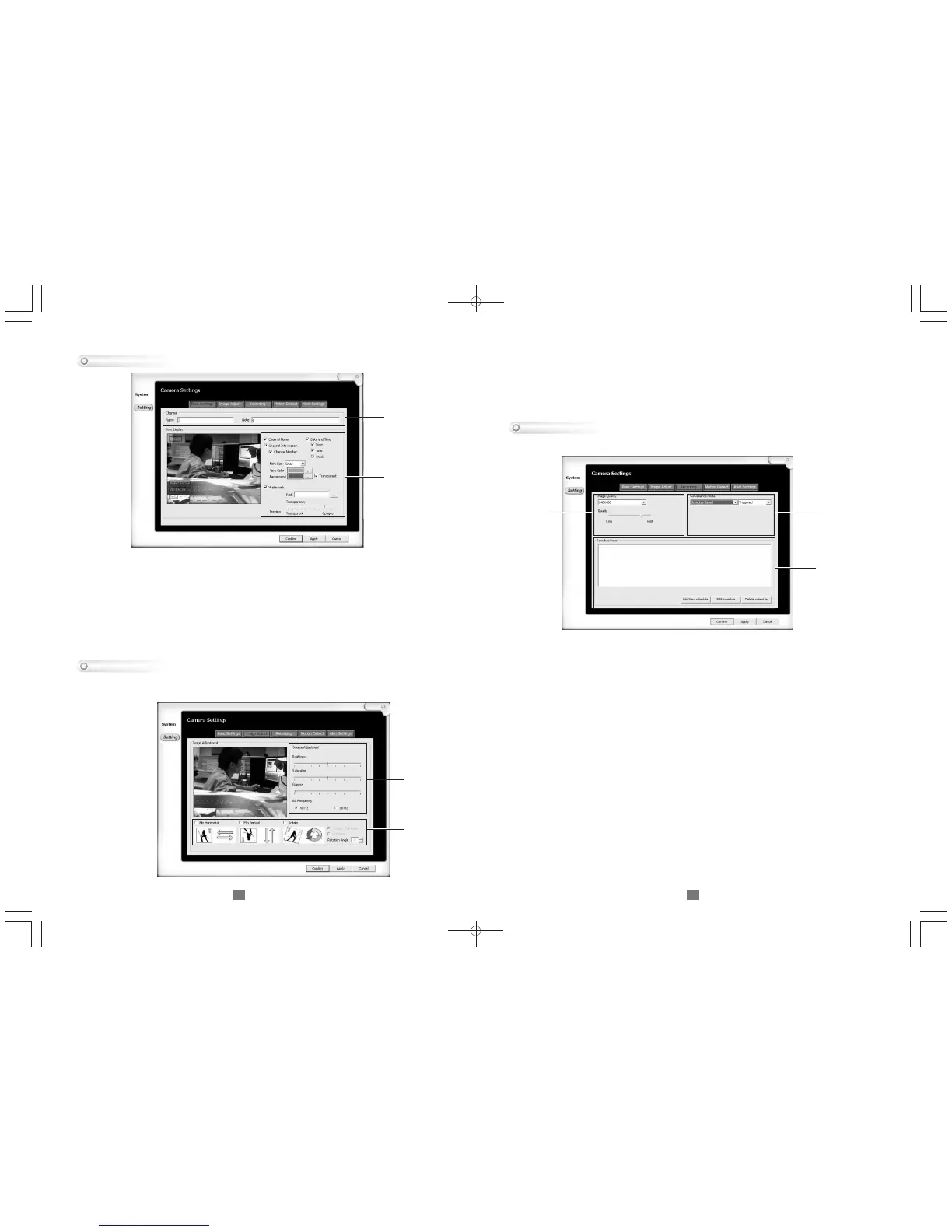
1. Choose from the following to adjust the image:
Flip Horizontal: Flips the image horizontally
Flip Vertical: Flips the image vertically
Rotate: Rotates the image accordingly with rotation angle and direction
2. Adjust video parameters to process brightness, saturation, and gamma.
6
Basic Settings
1. Name and note: Defines a personal name and description of the camera
2. Text Display: Allows customization of what information can be displayed on the
,
channel s screen
Channel Information: Check it to show channel number and channel name
Date Time: Check it to show date, time, and week
Font Size: Adjusts the size of the font being displayed
Text color: The text color on the screen
Background: The text background color on the screen
Watermark: Check for attaching a watermark image on the screen
Image Adjust
This section sets up how recording will be performed under recording mode.
Record Setting
1. Image Quality: Adjusts the quality of the recording format
Resolution: Adjust the recording image size
Quality: How detailed the recording of the image
2. Surveillance Mode: Adjusts the type of recording it would be trigged with
First Selection Details:
,
Schedule: Will go into detection mode and record on user s configured
schedule
Record-at-click: Once in detection mode, it will record in either full time
or on detection
Non-record: Will only monitor in detection mode, no recording will be done
Second Selection Details:
Full-time: Will always record
Triggered: Will record a time frame when viewer detects movement
3. Schedule Based: If Schedule is chosen from mode, user can preset a
time to record .
Add new Schedule: To add a schedule
Edit Schedule: To edit an existing schedule
Delete Schedule: Deletes a selected schedule
1 2
3
If the camera is mounted in a special way, the section can adjust the image
accordingly.
1
2
1
2


 To Next Page