- 10 -
Allowing remote control
To let another person (an online meeting host,
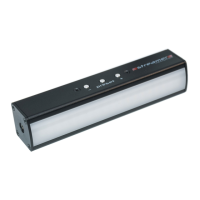
for example) control your Streamer remotely
using the GLP control cloud:
1. Connect your Streamer to your PC and start
the GLP Streamer application.
2. Click on STREAMER CONTROL.
3. See H. Give the 8-digit Streamer Device ID
number that you see in the STREAMER
CONTROL window to the meeting host.
It is possible to change the last 4 digits of your
Streamer ID number. See the online user
manual for details.
Controlling remotely
To take control of a meeting attendee’s
Streamer remotely using the GLP control cloud:
1. Go to the Streamer Remote
control cloud website at
https://remote.streamer.rocks
2. Ask the attendee to give you
their Streamer’s 8-digit ID
number as described above.
3. See I. Enter the ID number in the DEVICE
ID box and click on LICHT!
4. Use the sliders to adjust the attendee’s
Streamer and click on LICHT! to activate.


 To Next Page
 Loading...