4
Setting up the Blackbox PRO RAID
Start by connecting the device and verifying that your computer recognizes the Blackbox PRO
RAID, and it mounts. If you're using Windows see the Windows formatting instructions on page
5. If you intend to use the device in RAID 0 (i.e., the fastest mode with no redundancy) then the
device is set up. If you wish to change the RAID mode see below for changing the raid modes of
the device.
Using the Blackbox PRO RAID with 32bit
Operating Systems
Older versions of Windows, such as XP 32-bit, use Master Boot Record, which doesn’t support
volumes larger than 2.2TB. When the total capacity of the RAID is 2.2TB or higher, you must format
the array using GUID Partition Table (GPT). GPT format is only supported by Windows XP 64-bit
Edition and above, and Mac OS X 10.4 and above. GPT format will not work with XP 32-bit or older
Windows operating systems. If you want to use older 32-bit systems, your total capacity must be
less than 2.2TB in RAID 0 (currently not available smaller than 4TB) or less than 4TB in RAID 1
(mirrored to 2TB).
Blackbox PRO RAID Ports
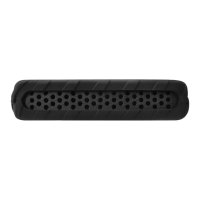
The original Blackbox PRO RAID contains a single USB-C 3.1 port in the back for connectivity
with the hub having an additional CFAST 2.0, SD card slot and a single USB Type-A port.
The Thunderbolt 3 version has two Thunderbolt 3 ports in the back for daisy chain capabilities
with the hub having an additional CFAST 2.0, SD card slot and a single USB Type-A port.
Front Panel LED
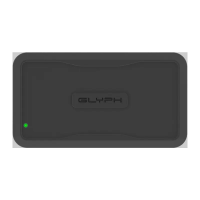
The Blackbox PRO RAID front panel has a single bi-color LED. The LED will display solid blue
when power is on. The LED will flash blue when there is disk activity. The LED will flash or display
a solid red color (or fuchsia) when error conditions exist with the drives inside the array.


 To Next Page