AM/FM/XM: Select the source (AM, FM, or XM,
if equipped) screen button or press the AUDIO key
repeatedly until the desired source is selected.
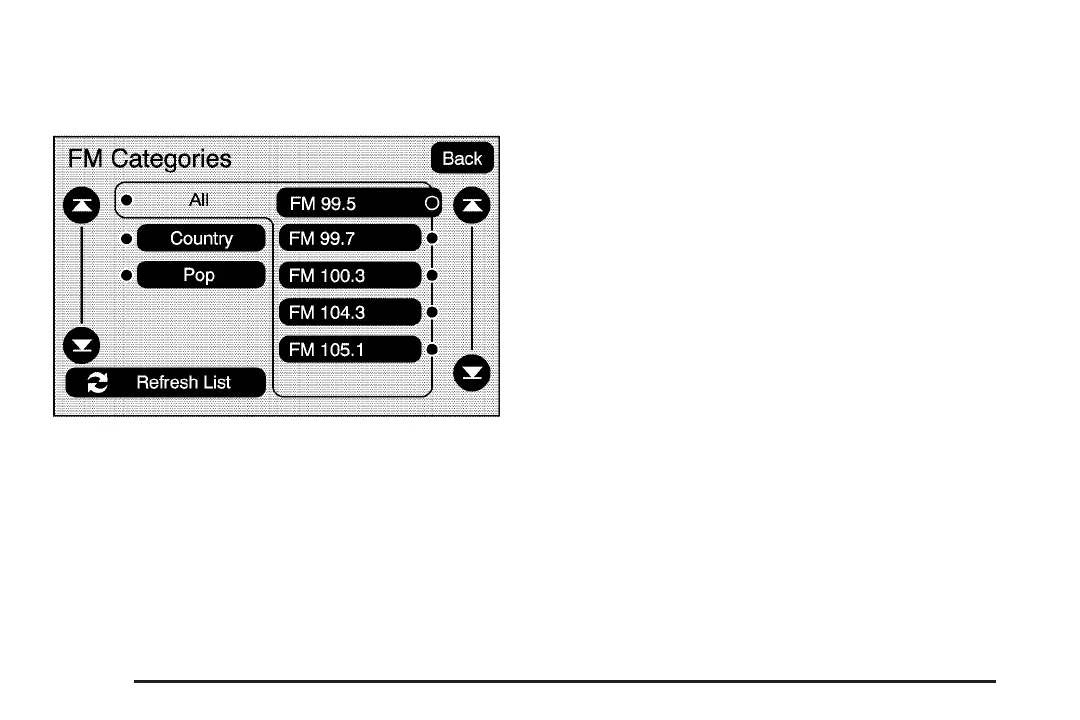
Category: Select the screen button, located in the
middle of the screen, to receive a list of all of the
selected band stations in the area. Use the up
and down arrow screen buttons to scroll the
frequencies. Select the desired frequency.
XM lists will also contain a category to select and
the stations or channels that pertain to the category.
For XM, select the left and right arrow screen
buttons to change categories. The station
information will appear on the display. See “Radio
Menu” later in this section to add and remove XM
categories from the category list. When listening to
XM stations, you will be able to select all of the
categories when using the right and left arrow
screen buttons on the main audio screen.
Categories cannot be selected from the category
list screen when they have been removed.
FM lists may also contain a category to select
if stations in your area support Radio Data
Systems (RDS).
2 Refresh List: Select this screen button to
refresh the list of stations.
When viewing a map screen the name of the
station or channel will appear on the display.
¨ SEEK / © SEEK: To seek stations, press the
right or left arrow keys to go to the next or previous
station.
To scan stations, press and hold either arrow for
more than two seconds. The radio will go to a
station, play for a few seconds, then go on to
the next station. To stop scanning, press either
arrow again.
FM source shown, other sources similar
60








 To Next Page