Search: Select this button to display the search
screen. Select Title or Chapter Search for DVD
video and Group or Track for DVD audio. The
keyboard allows you to type in the title/chapter/
group/track number that you would like to watch or
listen to. This button does not work when the DVD
is stopped.
Setup: Select this button to display the DVD
Setup screen. This button is only available when
the DVD is not playing. The DVD Setup screen
allows you to change the brightness, contrast,
and the viewing aspect on the monitor.
! (Brightness): Select the up or down screen
arrows to increase or decrease the brightness
of the navigation screen.
_ (Contrast): Select the up or down screen
arrows to increase or decrease the contrast of the
navigation screen.
Monitor: From the DVD Setup screen, select this
button to adjust the aspect ratio of the DVD on the
navigation screen. This is not available on all DVDs.
This button is not available for DVD audio.
Select the
e button to close the screen in from the
left and right sides.
Select the
J button to fill the screen on the left
and right sides.
Select the
d button to fill the screen on the top and
bottom.
SEEK
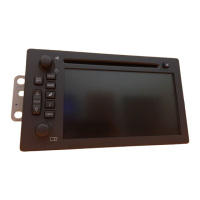
¨ (Next Track/Chapter): Press this hard
key to go to the next track or chapter. This button
may not work when the DVD is playing the
copyright information or the previews.
© SEEK (Previous Track/Chapter): Press
this hard key to return to the start of the current
track or chapter. Press this button again to
go to the previous track or chapter. This button
may not work when the DVD is playing the
copyright information or the previews.
f (Tuning Knob): Turn this knob
counterclockwise one notch to go to the start of
the current chapter/track, turn it again to go to the
previous chapter/track. Turn this knob clockwise
to go to the next chapter/track.
80











 To Next Page