Updating the MDI 2 Software
The MDI 2 is shipped from the factory without firmware. Before operating your MDI 2 we
recommend visiting the TIS2Web/GlobalTIS website to see if a newer version of the MDI 2
firmware is available for your MDI 2. Your first connection is to the PC where you have installed
MDI Manager software. You will need the USB cable to configure your MDI 2 using MDI
Manager.
Use the following procedure to update the firmware on your MDI 2
Select the MDI Manager icon from the PC Desktop. Before proceeding to the next step, make
sure your MDI 2 is powered on and the MDI 2 is connected to the PC using the USB cable. The
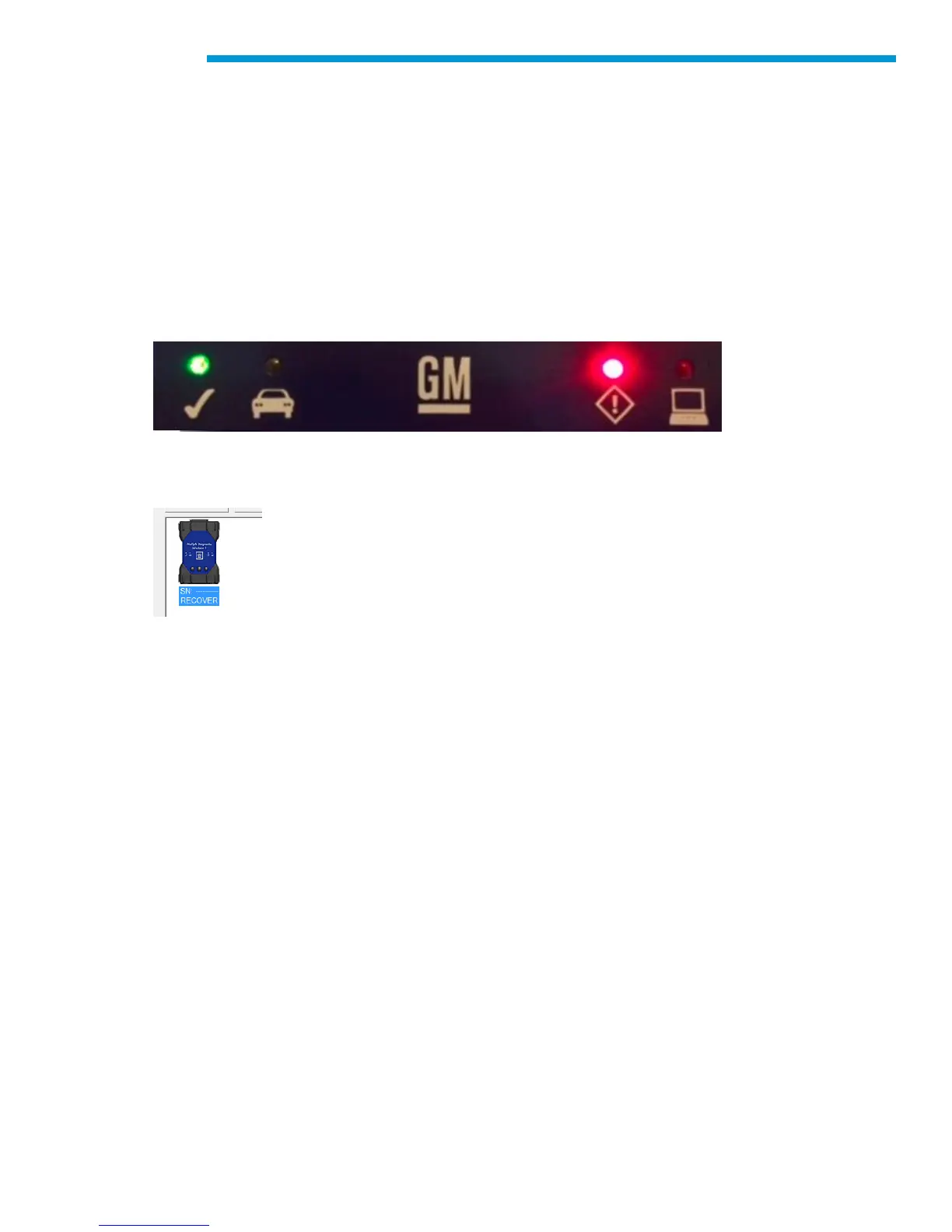
MDI 2 will boot in Recovery Mode.(only in factory setup)
When you click on the new MDI 2, the Connect button will change to the Recover button. Your
MDI 2 will be displayed without the serial number when initially connected to MDI Manager.
Select the Recover button to start the update process
Select the Start Update button to install firmware on the MDI 2.
Do not unplug the MDI 2 from the PC or remove power from the MDI 2 during the update
process. Select OK to continue.
The update process will take about 5 minutes to complete. Once the update process is
complete the MDI 2 will automatically reboot. Wait until you hear the beep from the MDI 2
before proceeding to use your MDI 2.
Configuring the MDI 2 Using MDI Manager
In order to configure a MDI 2 to communicate on your network you must connect the MDI 2, via
USB, to a PC running MDI Manager software. The MDI Manager icon displayed on the MDI 2
will inform you of the communication method to be used if the <Connect> button is selected.


 To Next Page