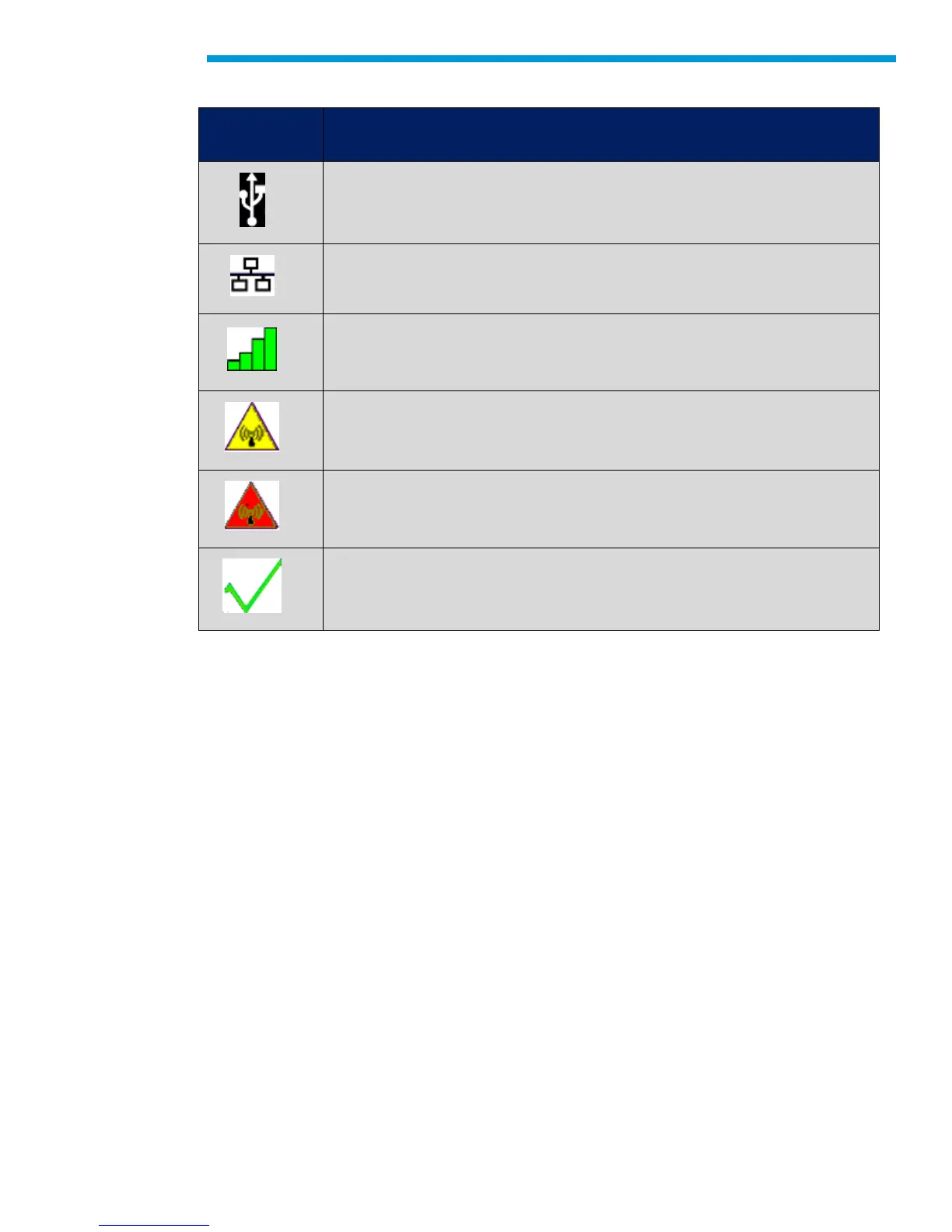
Use the following steps to configure your MDI 2
Double-click the MDI Manager icon on your desktop to launch the MDI Manager software.
In the MDI Manager software MDI 2 Explorer tab, select the MDI 2 in the window. Click the
Show Details button to see details about the selected MDI 2.
Click the Connect button to connect to the selected MDI 2 over USB. The MDI 2 is displayed
with a green check mark on your display indicating that your MDI Manager software is in control
of that MDI 2. Note: If your MDI 2 is connected to another networked PC, it will still be detected
by the MDI Manager but will not be available for selection. [If your MDI 2 is connected via USB
to your computer, the MDI Manager functions on all tabs are available; if your MDI 2 is not
connected via USB, the functions on the Network Setup and MDI 2 Update tabs are not
available.]
Check PC and MDI 2 Software Versions
Typically, the MDI Manager software installed on your PC and the software installed on the MDI
2 must have matching versions in order for the MDI 2 to operate properly. Use the following
steps to check your software versions.
1. Connect the MDI 2 to your computer via USB cable.
2. Double-click the MDI Manager icon on your desktop to launch the MDI Manager
software.


 To Next Page