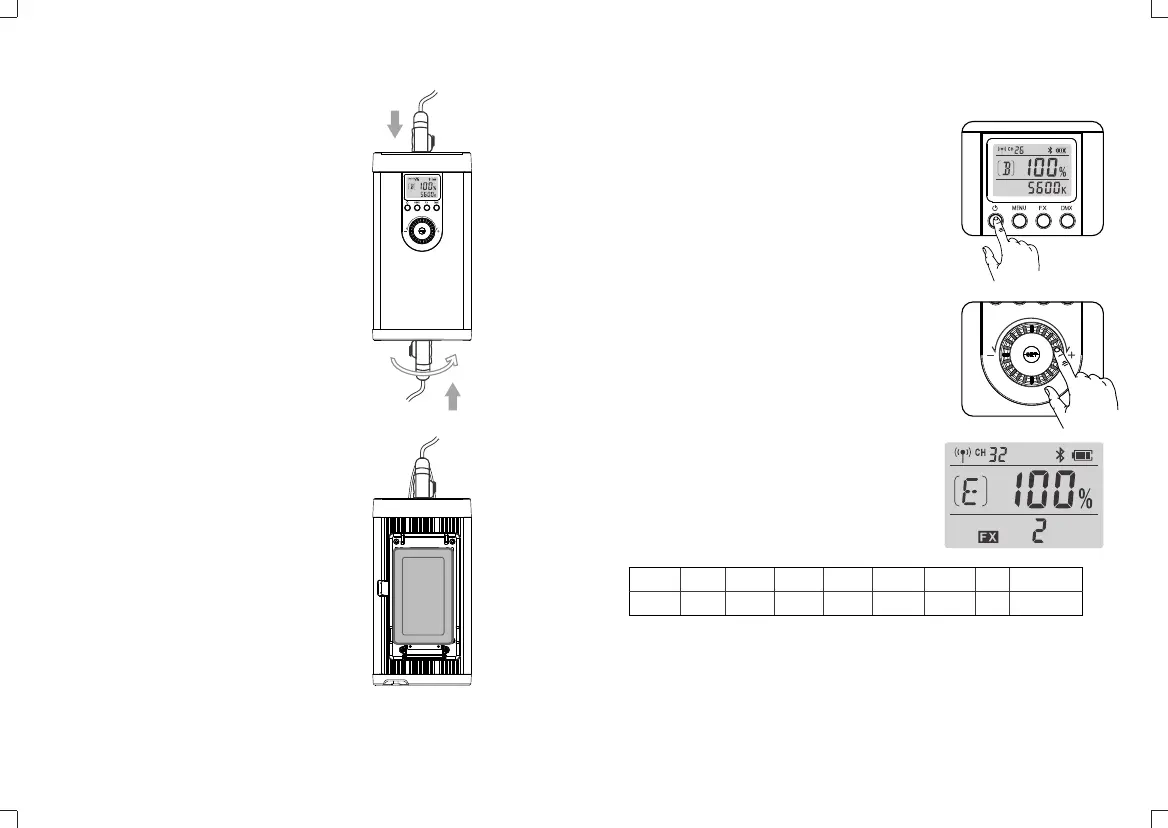
Power Supply
Display FX1 FX2 FX3 FX4 FX5 FX6 FX7 FX8
Scene Flash 1 Flash 2 Flash 3 Storm 1 Storm 2 Storm 3 TV Broken bulb
1. Insert the two ends of power source connect
cable into the controller’s power output port and
light’s power input port until a “click” can be
heard.
Pull out the connect cable: press down the
PUSH button and pull out the cable
simultaneously.
2. Insert the power cable’s output end into the
controller’s input port. Then, rotate it rightwards
to 15° until a “click” can be heard.
Pull out the power cable: press the PUSH button
on the output end of power cable and rotate it
leftwards to 15°to pull out.
3. Connect power cable into the power source.
DC Power Supply
Install the V-port battery onto the controller’s
battery compartment. Then, power the light on to
operate.
V-port Battery Power Supply (Optional)
Operation
• Power switch:
Short press the power switch, and the LED light
will be lighted on. Press the button again to turn
off the light.
• Brightness adjustment:
In the main interface, turn the select dial to
adjust brightness from 0% to 100%.
• Light effects setting:
In normal status, short press the FX button once
to enter the setting interface. Then, turn the
select dial to choose light effects from OFF and
1 to 8.
Short press the FX button or SET button to back to the main interface after
settings finished.
Note: If a light effect is selected from 1 to 8, the FX icon and light effects will be
displayed on the main interface. And the brightness can be adjusted. The color
temperature will not be displayed.
If choose OFF, the color temperature will be displayed instead of FX icon.
- 15 - - 16 -
Note: please use the standard V-port battery
with 14.8V standard voltage. Do not supply
power with the battery whose voltage is over
16.8V.


 To Next Page