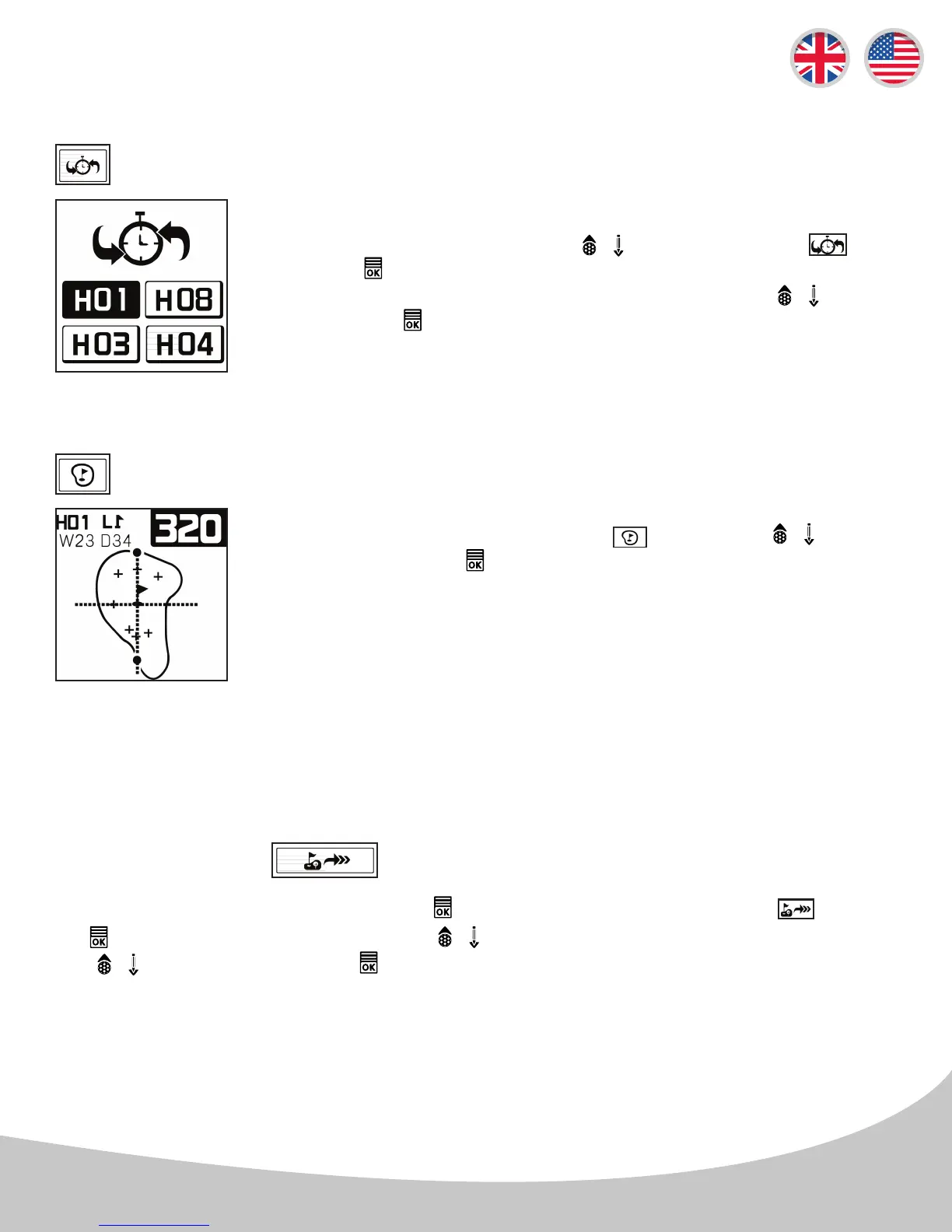
From the Play Golf Menu, scroll with the / buttons and select the icon,
press the button to enter the Quick Selection for Prior Hole screen.
Scroll through and select the prior hole by navigating with the / buttons,
then press the button to conrm the selection.
4.2 Settings & Selections (Continued)
Quick Selection for Prior Hole
You can also access the Dynamic Green View/ Pin Placement Mode from
the Play Golf Menu by navigating to the icon with the / buttons
and selecting with the button.
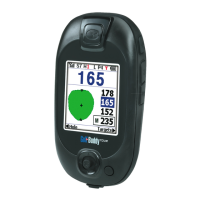
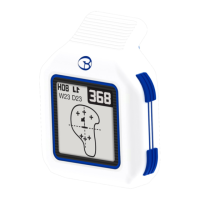
Dynamic Green View
*Note: Dynamic Green View will allow you to always get the Front/Center/Back
distances to the green from your angle of approach.
4.3 Exit Game
From the Play Golf Mode, press and hold the button for 2 seconds. Then Select the icon with
the button after scrolling to it with the / buttons. Select Yes or No by navigating with
the / buttons, then press the button if you would like to end the round.
*Note: You can also select the Left or Right Green if available from this menu
selection.
10


 To Next Page