Step #2 :
Firmware Update
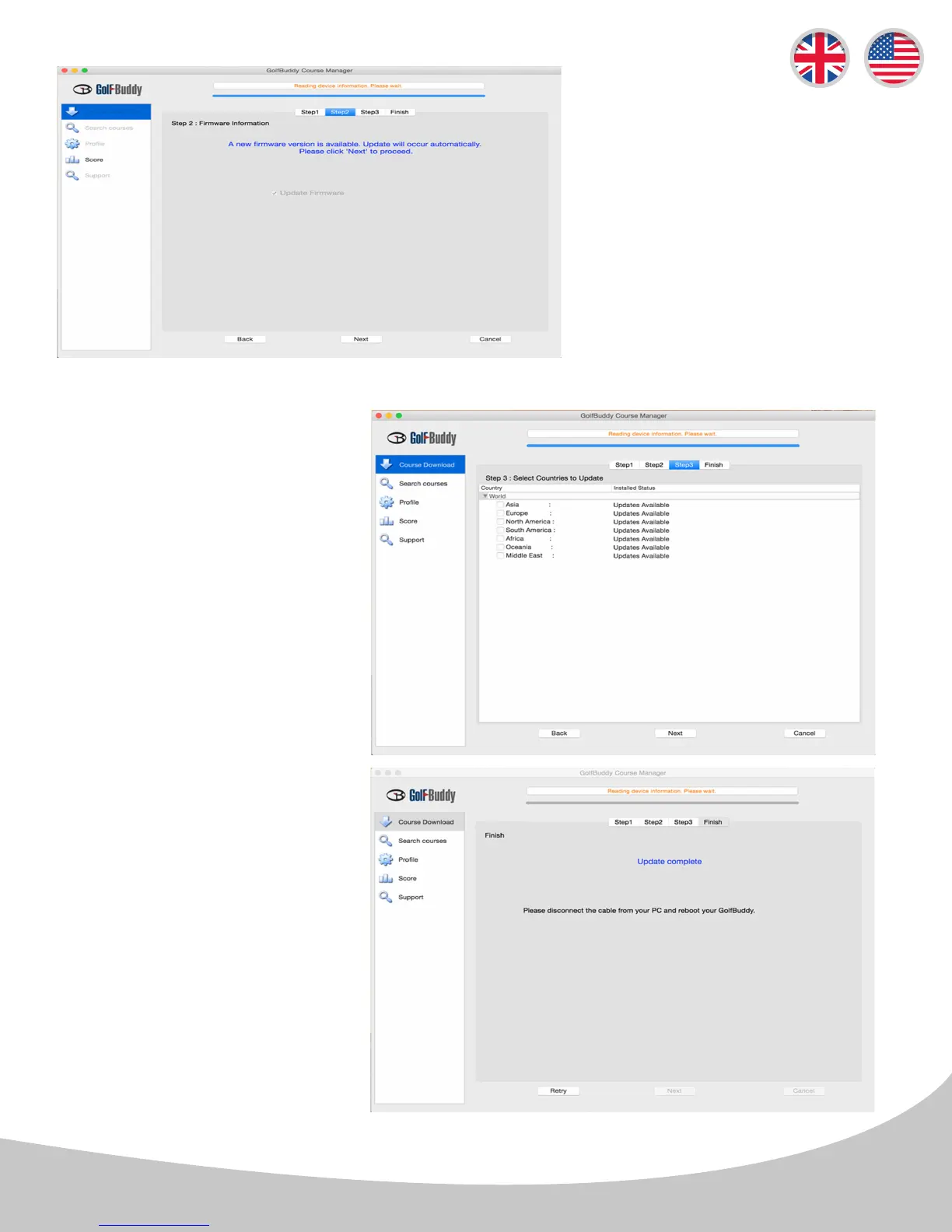
At step 2, click “Next” to install
the latest rmware. If the rmware
is already up to date, click “Next”
to proceed to step 3.
Step #3 : Course
Download
Select the countries that you
would like to update and click
“Next”. You will see a panel
that asks you to “Overwrite” or
“Newly Updated Only”(default
option - already selected). Click
“OK” to start the course update.
Once all the courses have been
downloaded you will receive a
message “Update Complete”.
You can now disconnect the
unit. Your GolfBuddy is now
ready to go with the latest
updates!
14


 To Next Page