LSt (blinking)
TO CHOOSE YES DELETE
If you press the shutter button while LSt is blinking, you will delete the last
saved file from the SD card.
DELETE ALL FILES AND FORMAT SD CARD
When “ALL” is on the LCD screen, you can delete all files and format the SD card:
Symbol on LCD Screen Function
ALL
To delete all files and FORMAT SD card, press SHUTTER button when ALL
is on screen. ALL will start blinking as a warning.
ALL (blinking)
TO CHOOSE NO FORMAT
"ALL" will blink as a warning that you are about to DELETE ALL / FORMAT
your SD card, erasing the entire SD card. To cancel DELETE ALL /
FORMAT function, press the POWER/MODE button to skip it and advance
to the next option in the SET menu.
ALL (blinking)
TO CHOOSE YES FORMAT
If you press the shutter button while ALL is blinking, you will format
the SD card, losing all files and data. IMPORTANT: this will format
your card and all data on the card will be deleted.
AUTO POWER OFF SETTING
You can program the camera to automatically turn off at 60, 120, 300 seconds, or you can set the camera to
OFF to keep the camera on until you manually turn it off.
Symbol on LCD Screen Function
OFF (default setting) camera will only turn off if manually turned off
60
camera will turn off 60 seconds after last button press (unless recording
video or shooting automatic photos)
120
camera will turn off 120 seconds (2 minutes) after last button press (unless
recording video or shooting automatic photos)
300
camera will turn off 300 seconds (5 minutes) after last button press (unless
recording video or shooting automatic photos)
Press the SHUTTER button to toggle between choices.
Press the POWER/MODE button to save whichever setting is showing on the screen and continue to the
next feature option.
EXITING THE SETTINGS MENU
When you see ESC on the screen, press the SHUTTER button to exit the SETTINGS MENU.
CONNECTING TO COMPUTER AND TV
SYSTEM REQUIREMENTS
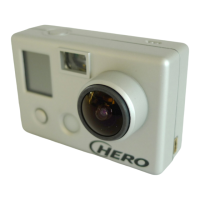
The HERO camera is compatible with Microsoft® Me/2000/XP/VISTA or later, or Mac OS X 10.2 or later.
The HERO camera can also be plugged into any standard definition or HDTV that has RCA composite ports,
allowing for high quality playback.
USING SD CARDS
The HERO camera is compatible with 2GB, 4GB, 8GB capacity SD and SDHC cards. GoPro recommends
using name brand SD cards for best performance and reliability. Class 2 cards and faster work well with the
HERO camera.
To insert the SD card, slide the SD card into the SD card slot on the side of the camera with the SD card
label facing the back of the camera. The SD card will click into place once it is inserted past flush with the
camera. Use your finger nail to do this.
To remove the SD card, push it further into the camera and it will spring out from the camera far enough so
that you can pull it out.
TRANSFERRING VIDEO AND PHOTOS TO COMPUTER
On a PC with WINDOWS operating system:
1) Connect the camera to a computer with the included USB cable.
2) Turn on the camera by pressing POWER/MODE button. LCD screen will display “USB”.
3) Double click on MY COMPUTER and you will see a “Removable Disk” icon. If you do not see this,
close the MY COMPUTER folder and then reopen it and the “Removable Disk” icon should
appear.
4) Double click the “Removable Disk” icon.
5) Then double click the “DCIM” folder icon.
6) Then double click the “100GOPRO” icon.
7) The photo and video files will be in the “100GOPRO” folder.
8) Drag your photo and video files to your hard drive or double click a file to view it.
On a MAC:
Simply plug the camera into your MAC with the included USB cable and the MAC OS will recognize the
camera as an external hard drive.
IMPORTANT TIP FOR MAC USERS: When deleting files from your SD card you must empty the trash
before removing the SD card or unplugging the camera. If you do not empty your trash the photo and video
files will not be completely erased from your SD card.
CONNECTING CAMERA TO TV OR HDTV
Make sure your camera is set to the correct NTSC or PAL video setting or your camera will not work
properly with your TV. This is explained in the SETTINGS MENU section of these instructions.
STEPS TO REVIEW PHOTOS AND VIDEO ON A TV OR HDTV
1) Plug your camera into the RCA COMPOSITE ports on your TV or HDTV with the included
combination USB / RCA cable.
2) Once plugged in, turn on your camera.
3) The most recent video saved to the SD card will begin playing on the screen.
4) Press POWER/MODE button to advance to the next video or photo. Press the SHUTTER button
to return to the previous video or photo.
5) Unplug camera from the TV and turn camera off when finished reviewing.


 To Previous Page
 Loading...