Need help?
Do you have a question about the GPRINTER GP-1324D and is the answer not in the manual?
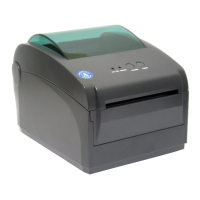
An overview of the GP-1324D series direct thermal label printer.
Details the standard equipment and capabilities of the printer.
Lists the technical specifications of the GP-1324D printer.
Outlines the printing resolution, speed, and dimensions.
Details the paper roll diameter, type, width, and thickness compatibility.
Instructions for unboxing and inspecting the printer for transport damage.
Identifies the printer's external parts, indicators, and connectors.
Step-by-step guide for physically installing the printer and connecting it.
Explains the status and meaning of the printer's LED indicators.
Describes the function of the printer's buttons, such as Feed and Pause.
Details five special functions accessible via button combinations during power-on.
Addresses frequent issues with the printer, offering troubleshooting steps and resolutions.
Provides instructions and recommended frequency for cleaning the printer's parts.
The GP-1324D is a direct thermal label printer designed for efficient and reliable label printing in various environments. It serves a broad range of applications, from manufacturing and warehousing logistics to healthcare, parcel post, and retail.
The primary function of the GP-1324D is to print labels using direct thermal technology. This means it creates images directly on heat-sensitive paper without the need for ink, toner, or ribbons, simplifying operation and reducing consumables. It is capable of both real-time and batch label printing, making it versatile for different operational demands. The printer comes standard with a USB port for connectivity, allowing it to interface with various systems.
Internally, the printer is equipped to handle 1D and 2D barcode fonts, offering flexibility in label design. It supports printing in four directions (0, 90, 180, 270 degrees) and allows characters to be enlarged from 1 to 10 times, providing extensive customization options for label content. Additionally, it includes five different-sized bitmap fonts, as well as OCR-A and OCR-B fonts, enhancing its capability to produce clear and readable labels. The printer's higher print resolution ensures that printed text, barcodes, and images are sharp and precise.
The GP-1324D is designed for ease of use, starting with its installation. Users are instructed to place the printer on a stable surface, ensure the power is off before connecting cables, and then connect the appropriate interface cable (USB, serial, parallel, or Ethernet) to both the printer and a PC. Finally, the power plug is connected to a power supply socket. Safety precautions emphasize turning off the power switch before inserting the power line.
Operating the printer involves a combination of LED indicators and a button. The LED indicators provide visual feedback on the printer's status:
The printer features a "Feed" button and a "Pause" button, which enable several functions:
Beyond basic operation, the GP-1324D offers five power-up functions for setting up or testing the printer hardware:
The printer's design includes internal components such as a media guide, gab/black mark sensor, platen roller, top cover, paper roll, and a fixing stand for the paper roll, all contributing to its functionality and ease of media loading. It can accommodate a 5" OD paper roll internally, and with an external paper holder, it can support an 8.4" OD industrial-grade label roll.
Regular maintenance is essential to ensure optimal printing quality and extend the printer's lifespan. The manual outlines a simple cleaning process using specific materials: cotton swabs, lint-free cloths, vacuum/blower brushes, and 100% ethanol.
Key cleaning procedures include:
Important notes for maintenance emphasize always turning off the printer power before cleaning, avoiding touching the print head with bare hands, and strictly using 100% ethanol (not medical alcohol) to prevent damage to the print head.
Troubleshooting guidance is also provided for common issues, such as the power indicator not being "ON," or the printer not printing. Solutions range from checking power connections and paper installation to adjusting settings and replacing cables, ensuring users can address minor problems independently.
 General
| Print Method | Direct Thermal |
|---|---|
| Resolution | 203 dpi |
| Max Print Width | 108 mm |
| Interface | USB, Serial |
| Media Type | Die-cut |
| Media Thickness | 0.06 mm |
| Media Core Diameter | 25.4 mm (1 inch), 76 mm (3 inch) |
| Label Length | 10 mm |
| Processor | 32-bit |
| Memory | 8 MB Flash, 8 MB SDRAM |
| Power Supply | AC 100-240V, 50/60Hz |
| Power Consumption | 5W (Standby) |

 To Next Page