EasyManua.ls Logo

Gravis GamePad - Page 5

Gravis GamePad
17 pages
Print Icon
To Next Page IconTo Next Page
To Previous Page IconTo Previous Page
Loading...
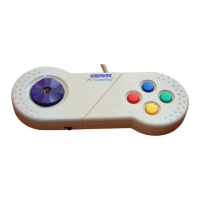
Customized
Control
Some
players
prefer
their
Direction
Control-
ler
on
the
right,
others
prefer
it
on
the
left.
The
GamePad's
unique
design
allows
you
to
flip
the
unit
for
left
or
right-handed
play.
The
button
switch
allows
you
to
choose
which
buttons
will
respond,
and
how
they
will
work.
See
the
following
diagrams
for
possible
button
configurations.
Button
Definitions
Some
games’
manuals
may
refer
to
buttons
1
&
2,
or
buttons
A
and
B.
These
corre-
spond
to
the
red
and
blue
or
red
and
yellow
buttons
on
your
GamePad,
depending
on
your
switch
configuration.
The
set-up
diagrams
on
the
next
two
pages
refer
to
button
A
and
button
B.
Special
Button
Functions
If
you
set
the
button
switch
towards
the
controller,
the
red
button
will
be
button
A,
the
yellow
button
will
be
button
B,
the
blue
button
will
be
button
A-turbo
and
the
green
button
will
be
B-turbo.
You
can
use
special
up
and
down
button
functions
by
setting
the
button
switch
towards
the
buttons.
With
this
function
on,
the
yellow
button
will
work
as
though
you
were
pressing
forward
on
the
Direction
Controller,
and
the
green
button
will
work
like
you
were
pressing
backward.