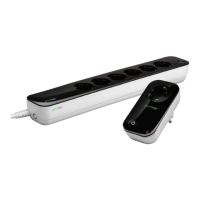
PowerNodes
2. Locate the network button on the PowerNode. It is a small round button on the side of the device,
marked with the sync symbol.
3. Press and hold the network button for one second until the PowerNode activity indicator begins to
display a clockwise-rotating pattern, which shows that the PowerNode is attempting inclusion.
4. After a few seconds, the rotating pattern should stop, and a rapidly ashing pattern should appear to
indicate successful inclusion. The PowerNode is now part of your GreenWave Reality home network,
and you can connect an appliance and electronic device (refer to the instructions that came with your
PowerNode to plug in your appliance or electronic device).
If the rotating pattern has stopped, but the rapidly ashing pattern did not appear, then the PowerNode inclusion
process has failed, and you must start over.
Network Exclusion Process
Note: If your PowerNode is new and has never been used before, then you should not need to perform the exclu-
sion process.
A PowerNode that has been previously used with a different Z-Wave network must have its association (homeID)
with the other network removed before you can connect it to your GreenWave Reality home network. This process
is called “exclusion” and requires two steps: one that must be performed with the Gateway and then one that is
performed with the PowerNode.


 To Next Page