Need help?
Do you have a question about the GridConnect Orion DC58HA and is the answer not in the manual?
Learn how to monitor your doorbell remotely using the Grid Connect mobile app.
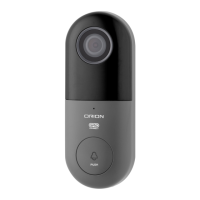
Overview of doorbell components, including sensors, buttons, ports, and storage.
Download and install the Grid Connect App from Google Play or the App Store.
Create a new account or log in to an existing account to use the app.
Follow prompts to complete account setup if you are a new user.
Enter login details to access an existing account.
Edit home name and set up home location for device management.
Assign devices to rooms for better organization and scheduling.
Quick start-up by powering with USB cable and 5V DC power adaptor.
Important warning against connecting both power supplies simultaneously.
Power up the doorbell and confirm status light is red and rapidly blinking.
Use the GRID CONNECT App to select security and add the device.
Hold phone 15-20cm from doorbell camera to scan the QR code.
Press 'heard the beep' and wait for the status light to turn solid blue.
Confirm successful pairing and assign device to a room.
Check Wi-Fi network, password, and pairing mode if connection fails.
View live feed, adjust quality, access settings, and use full-screen mode.
Review recorded footage, save media, and access SD card settings.
Power the chime unit and ensure blue status light is on for pairing.
Use app settings to navigate to ring setting and add the chime unit.
Choose between angled and flat wall mounts for installation.
Connect 12V DC adaptor and route wires through brackets.
Consider Wi-Fi strength and network requirements for optimal performance.
Solutions for pairing failures and 2.4GHz network checks.
Troubleshoot app login, QR code scanning, and connectivity problems.
 General
| Brand | GridConnect |
|---|---|
| Model | Orion DC58HA |
| Category | Accessories |
| Language | English |

 To Next Page